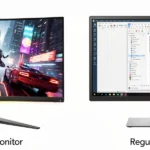
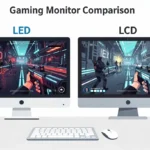
A gaming monitor differs from a regular monitor mainly in speed. It usually has a higher refresh rate, a lower response time, and adaptive sync, while a regular monitor is built for everyday tasks like email, documents, and video. That sounds simple, but the label is where most buyers get confused.
“Gaming” tells you what the manufacturer had in mind, not what’s actually inside the box. Some gaming monitors are basic 1080p panels with a few extras, and some regular monitors now run at 100Hz or 120Hz. Whether you search for gaming vs regular monitor or gaming monitor vs normal monitor, the decision comes down to specs, your graphics card, and how you really spend your hours at the desk.
This guide compares both types category by category, then covers the questions people ask most. Can a regular monitor handle games? Can a gaming monitor handle work? Is the extra money worth it? You’ll also find a quick buying guide at the end.
What Is the Difference Between a Gaming Monitor and a Regular Monitor
The gap between the two comes down to a handful of specs. A regular monitor aims for a fair price, readable text, and decent color.

A gaming monitor puts motion first: smoother frames, less blur, and tear-free images. Here is the short version before we go through each spec in detail.
| Spec | Regular monitor | Gaming monitor |
|---|---|---|
| Refresh rate | Usually 60Hz, sometimes 75Hz to 120Hz | Usually 120Hz to 360Hz |
| Response time | Often 5ms or higher | 1ms or lower (GtG) |
| Input lag | Varies, often not listed | Lower, with a Game Mode |
| Adaptive sync | Rare on budget models | FreeSync or G-Sync is common |
| Color and resolution | Depends on the model | Depends on the model |
| Ports | HDMI, VGA, sometimes USB-C | DisplayPort and HDMI 2.0 or 2.1 |
| Design | Plain, minimal | Adjustable stand, RGB, thin bezels |
| Price | Lower | Higher on average |
What Counts as a Regular Monitor
A regular monitor, also called a standard, office, or everyday monitor, is made for general use. Think spreadsheets, web pages, streaming, and video calls. Most run at 60Hz with a response time of 5ms or more, and they skip features like adaptive sync because office work doesn’t need them.
That line is getting blurry, though. Newer business and productivity models often come with 100Hz or 120Hz panels, since smoother scrolling and cursor movement help at a desk too. A regular monitor today isn’t automatically slow.
What Counts as a Gaming Monitor
This type of display is tuned for fast-moving images. The name describes the intended use and not a guaranteed spec list, so always read the numbers. One model might offer 144Hz and 1ms, while another carries the same “gaming” badge with a 75Hz panel and nothing else to show for it.
Most true gaming monitors share a few traits: a high refresh rate, a fast panel, FreeSync or G-Sync support, a stand that tilts and adjusts, and a lower input lag. The sections below break down each one.
Refresh Rate: 60Hz vs 144Hz and Higher
Refresh rate is the biggest everyday difference between a gaming monitor and a regular monitor. It’s measured in Hz and tells you how many times per second the screen redraws the image.
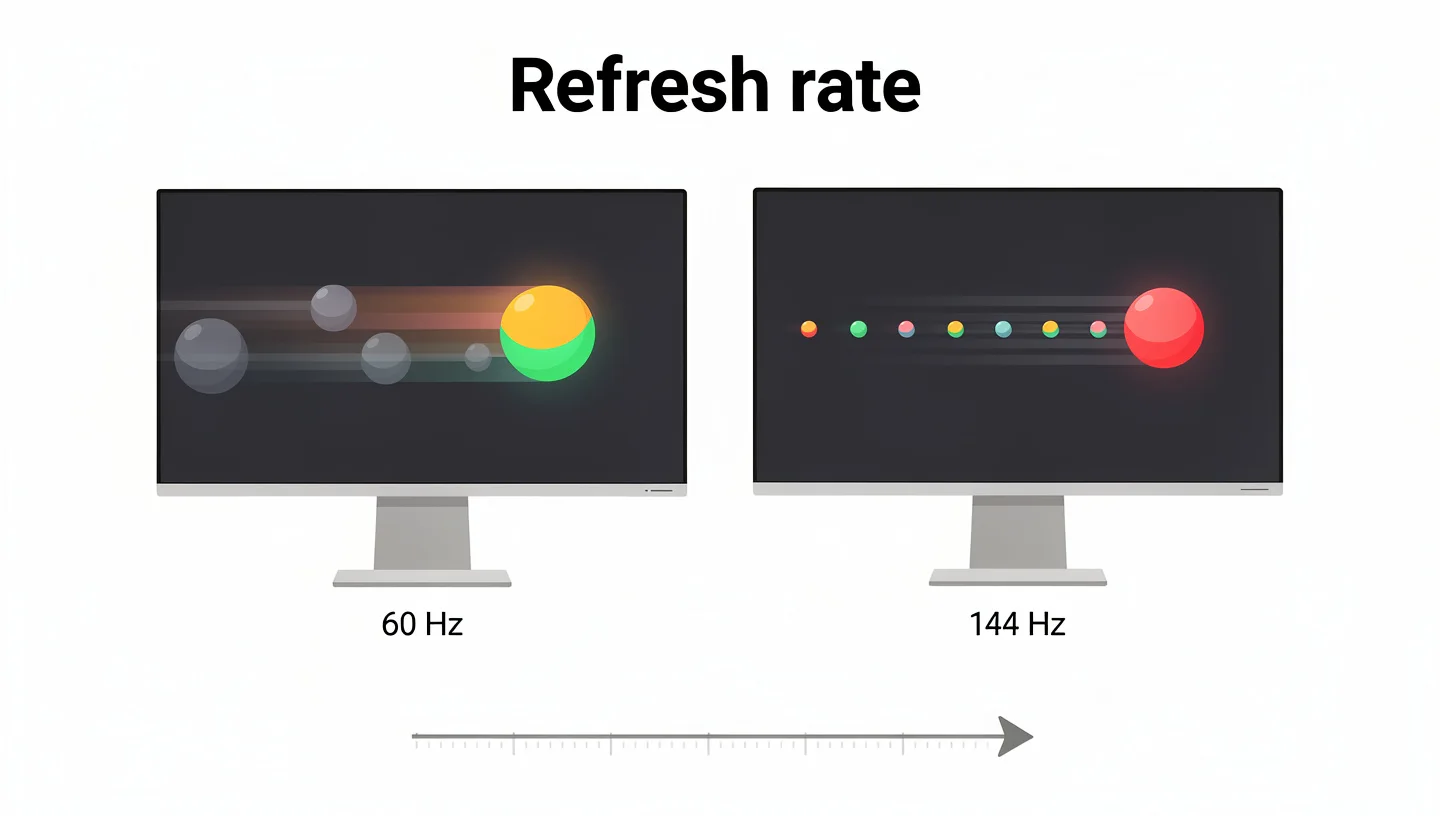
A 60Hz panel shows 60 frames a second, a 144Hz panel shows 144, and the jump is easy to see when you move your mouse or turn the camera in a shooter. If you want the full breakdown, our refresh rate guide explains how the number works.
Is 60Hz a Deal Breaker for Gaming
No, it isn’t. A 60Hz regular monitor runs most games without trouble, especially slower titles like strategy, puzzle, and story-driven games. You’ll just see less smooth motion than on a 144Hz screen, and fast camera turns can look choppier.
The difference between a 60Hz and a 144Hz monitor shows up most in competitive play. With more frames on screen, you spot enemies sooner and track moving targets more easily. Common tiers look like this:
- 60Hz: fine for casual games, office work, and video.
- 120Hz to 144Hz: the sweet spot for most PC players and a clear step up from 60Hz.
- 165Hz to 240Hz: useful for fast shooters and esports.
- 360Hz: mostly for pros chasing every last millisecond.
Your Graphics Card Has to Keep Up
A high refresh rate only helps if your PC can produce the frames. A 240Hz monitor paired with a game that runs at 60 FPS still shows 60 frames, so you pay for speed you never see. This matters even more on consoles, where many games are locked at 60 FPS or 120 FPS.
Before you shop, check what frame rate your GPU can hold in the games you play. If it tops out around 90 FPS, a 144Hz screen is plenty, and a 360Hz model would be wasted money. A fast screen rewards a strong graphics card, and a 60Hz one doesn’t ask for one.
Response Time and Input Lag: Two Specs People Mix Up
These two numbers get swapped all the time, even on product pages. Response time is how fast a pixel changes color. Input lag is how long the screen takes to show what you just did with your mouse, keyboard, or controller. They’re related, but they aren’t the same spec.

What 1ms vs 5ms Means on a Spec Sheet
Response time is usually quoted as GtG (gray to gray), which is a best-case pixel transition. A gaming monitor lists 1ms or lower, and a regular monitor lists 5ms, 8ms, or even 10ms. When pixels are slow, fast objects leave a faint trail behind them. That trail is called ghosting, and it causes motion blur in quick scenes.
Some brands also quote MPRT, which measures perceived blur and depends on backlight strobing. A 1ms MPRT figure and a 1ms GtG figure aren’t equal, so check which one the maker means. Overdrive settings can speed pixels up, but pushing them too high adds a bright halo, so the lowest number isn’t always the best picture. Samsung’s gaming monitor buying guide recommends going under 1ms for gaming.
Input Lag Is a Different Problem
Input lag comes from how much processing the monitor does before it shows the image. Extra scaling and picture enhancement add delay, and a good gaming monitor trims that with a Game Mode. At 240Hz, a single frame lasts about 4.17ms, which is why higher refresh rates also help cut delay.
Regular monitors rarely list input lag at all. For slow games you won’t feel it. In a fast shooter or a rhythm game, though, a laggy screen makes you feel one step behind, and that’s where a gaming monitor earns its price.
Adaptive Sync: FreeSync, G-Sync, and Why Regular Monitors Often Skip It
Adaptive sync lets the monitor match its refresh rate to the frames your GPU sends. Without it, the two drift apart and you get screen tearing, where the picture splits into horizontal bands, or stuttering when frames arrive late. Gaming screens fix this with FreeSync (AMD) or G-Sync (NVIDIA), and many support both. The general standard is called VRR, short for variable refresh rate.

Regular monitors often leave adaptive sync out because office work doesn’t need it, and it adds cost. A few mid-range models include it, so check the box before you assume. For games with unsteady frame rates, it’s one of the most noticeable upgrades.
V-Sync vs FreeSync and G-Sync
V-Sync is the older fix for tearing, and it lives in the game or graphics driver instead of the monitor. It holds back frames until the screen is ready, which stops tearing but can add input lag and stutter when your frame rate drops below the refresh rate. That’s why it feels sluggish in fast games.
Adaptive sync flips the logic. The monitor follows the GPU, so you keep the tear-free picture without the same delay. A regular monitor without it leaves you with V-Sync or nothing, and a gaming monitor gives you a cleaner option.
Panel Type, Color, and HDR
Panel type, color quality, and HDR are where the gaming monitor vs regular monitor line gets fuzzy. Both use the same panel technologies, so the label alone tells you very little.

IPS, VA, and TN Show Up in Both Categories
You can find an IPS panel in a gaming monitor and in a regular one. The same goes for VA and TN. IPS gives better color and wide viewing angles, VA gives deeper contrast, and TN is the fastest and cheapest but looks washed out from the side. Don’t assume a regular monitor means TN, because many office screens use IPS.
What changes is the tuning. Gaming versions are tuned for faster pixel response, while office versions are tuned for steady, comfortable viewing. Two monitors with the same panel type can behave quite differently in motion.
Color Accuracy Is Not Guaranteed on a Gaming Monitor
Sources disagree here, and the honest answer is that it depends on the model. Some gaming monitors cover close to 100% of sRGB and a good share of DCI-P3, with vivid and punchy color. Others put speed first and let color slip. If you edit photos or video, a calibrated monitor sold for color work will usually beat a gaming model at the same price.
For games and movies, though, a good gaming monitor looks great. Most players care more about contrast and brightness than perfect accuracy, and a tweak or two in the menu gets most screens close enough.
HDR on Gaming and Regular Monitors
Many monitors from both categories carry an HDR badge, but the label means little on its own. HDR needs real brightness, local dimming, and a wide color range to look different from standard video. A DisplayHDR 400 screen reaches about 400 nits of peak brightness and shows a small improvement, while DisplayHDR 600 and up delivers a visible jump.
Entry-level HDR on a budget monitor often looks flat or washed out. If HDR matters to you, look for the DisplayHDR tier and not just the word “HDR” on the box.
Resolution and Screen Size
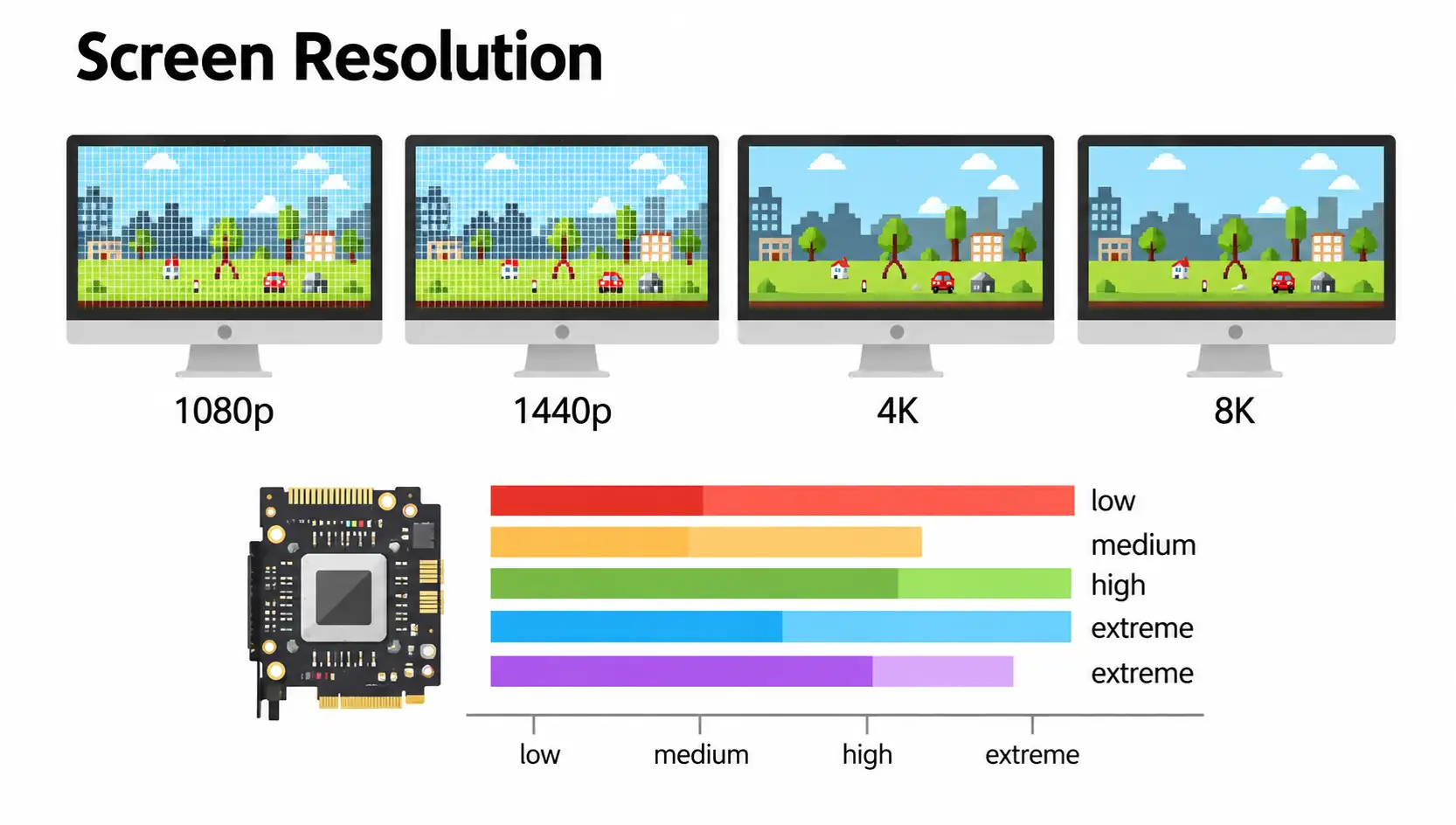
Resolution and size aren’t what separate the two categories, but they matter a lot when you’re choosing between them. A regular monitor and a gaming monitor can both be 1080p, 1440p, or 4K, so you’ll need to look at each spec sheet.
Do Gaming Monitors Have Lower Resolution
Not always. Many gaming monitors sit at 1080p or 1440p because higher resolutions need a much stronger GPU to hold high frame rates. A regular monitor, on the other hand, can be a sharp 4K display at 60Hz for work and video, and in that case it beats a budget gaming monitor on pixel count.
Makers tend to balance resolution against speed. A 1440p screen at 165Hz is a popular pick because most mid-range graphics cards can drive it. At 4K, you usually need a high-end GPU to keep frame rates up.
24 vs 27 vs 32 Inch: Which Size Fits Gaming
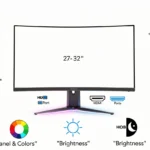
A 24-inch or 25-inch screen suits competitive play, since you can see the whole picture without moving your eyes. A 27-inch monitor is the middle ground and pairs well with 1440p. A 32-inch screen feels more immersive for single-player games, but it needs more desk space and a bigger step back.
Aspect Ratio, Ultrawide, and Curved Screens
Most regular monitors use the standard 16:9 shape, and so do most gaming monitors. Ultrawide models at 21:9 add more width, which feels great in racing and open-world games and gives you room for two windows side by side at work. Fast esports players usually stay on 16:9 because the whole picture fits in view.
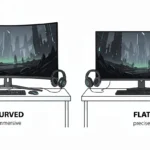
Both categories also sell curved screens, and the curve works best at larger sizes. A flat panel is the safer call on smaller screens.
Ports, Cables, and Console Use
Ports decide what you can plug in and at which settings. A cheap regular monitor may only have one HDMI input and a VGA port, while a gaming monitor adds more options for high refresh rates. If you’re unsure which cable goes where, our guide on connecting a gaming monitor to a PC walks through it step by step.
HDMI 2.1, DisplayPort, and USB-C
DisplayPort is the usual choice for PC gaming at high refresh rates. HDMI 2.1 offers 48Gbps of bandwidth, compared with 18Gbps for HDMI 2.0, which is what lets you run 4K at 120Hz on a console. Many regular monitors stop at HDMI 2.0 or older, and some also include USB-C with power delivery, handy for a laptop with a single cable.
A wrong cable is the classic reason a new 144Hz monitor sits at 60Hz. An old HDMI cable or the wrong port can cap the refresh rate without any warning.
Is a Regular Monitor Good for PS5 and Xbox
A regular monitor works fine for console gaming if it has HDMI and a decent picture. Plenty of players use a 60Hz screen with a PS5 or Xbox Series X and never complain. To get 120Hz or variable refresh rate on a console, though, you need a monitor with HDMI 2.1 or a compatible mode. According to BenQ, the PS5 needs HDMI 2.1 for VRR, while the Xbox can work over HDMI 2.0, so check your console’s requirements first.
Keep in mind that a 240Hz monitor does little for a console game locked at 60 FPS. For console gaming, a 120Hz screen with HDMI 2.1 is usually the better buy.
Gaming Monitor vs TV for Console Gaming
A TV gives you a bigger picture for the couch, and many modern sets handle 120Hz well. A gaming monitor sits closer, so you get sharper detail, lower input lag, and a better fit for a desk. If you play alone at a desk, the monitor usually wins. For shared play in the living room, a TV makes more sense.
Design, Stands, and Eye Comfort
Design is where gaming monitors often feel more complete. Regular monitors tend to come with a plain stand that only tilts, while gaming monitors offer more ways to fit your desk.
Stands, VESA Mounts, and Monitor Arms
Most gaming monitors adjust for height, tilt, swivel, and pivot, and nearly all support a VESA mount so you can fit a monitor arm. That matters for posture and desk space. Some also add RGB lighting and thin bezels, which look good in a multi-screen battle station but don’t change how the monitor performs.
Many regular monitors do offer VESA mounting too, so it’s worth checking. If you plan to use an arm, look at the back of the monitor or the spec sheet before you buy.
Flicker-Free, Low Blue Light, and Anti-Glare Coatings
Long sessions are hard on the eyes, and both types can include flicker-free backlights and low blue light modes. A matte anti-glare coating also helps in bright rooms. A certificate for flicker-free doesn’t guarantee comfort for everyone, so use these features as a bonus and not the main reason to buy.
Can a gaming monitor reduce eye strain? Sometimes. A higher refresh rate and smoother motion feel easier on some people, but breaks, room lighting, and screen distance matter more than the label.
Movies, Streaming, and Speakers
Gaming monitors aren’t only for games. Fast panels make movies and streaming look smooth, and a good HDR screen adds depth to films and shows. A regular monitor does fine for video too, especially an IPS model with solid color.
Speakers are the weak spot on both types. Many monitors include tiny built-in speakers, and gaming models often have slightly better ones, but they sound thin next to headphones or a desk speaker set. If audio matters to you, plan to buy separate speakers or a headset, and don’t pay extra for the built-in ones.
Price: How Much More Does a Gaming Monitor Cost
Price is the part most people want answered first. Higher refresh rates, faster panels, and extra features cost more to build, so a gaming monitor usually has a higher sticker price than a regular monitor of the same size.
Typical Price Ranges
Prices change often, but the general picture holds. Many sources put entry-level gaming monitors at around $150 to $200, while regular monitors can sit under $100 to $150. At the top end, premium gaming monitors run from $1,000 to $1,500 and even higher for large OLED models. Every extra spec, like 240Hz or 4K, adds to the bill.
| Type | Typical range |
|---|---|
| Regular monitor | Under $100 to $150 |
| Entry-level gaming monitor | About $150 to $200 |
| Premium gaming monitor | $1,000 to $1,500 and up |
When a Gaming Monitor Costs the Same as an Office Model
The gap isn’t always as wide as it looks. During sales, a 24-inch 144Hz IPS gaming monitor can drop to around $90, and used models go for even less. How-To Geek makes this point in its piece on why gaming monitors can be a smart buy for work, noting that a budget gaming screen is often as cheap as an office one. If you’re on a tight budget, compare prices before you rule one out.
Can You Use a Gaming Monitor for Work
Yes, you can, and plenty of people do. A gaming monitor handles office work, browsing, and video without trouble. Whether it’s the best choice for your job depends on what you do all day.
Where a Gaming Monitor Helps at a Desk
A higher refresh rate makes scrolling, dragging windows, and moving the cursor feel smoother, even in a spreadsheet. They also give you more ports, a better stand, and often a sharper picture than a bare-bones office screen. Business monitors are catching up, with many now sold at 100Hz or 120Hz, so the gap in smoothness is shrinking.
Where It Falls Short
There are a few downsides of using a gaming monitor for everyday tasks. Color can be less accurate, which matters for photo editing and video editing. Some panels show colored fringes around small text, a result of the BGR subpixel layout on certain models, so text clarity can suffer. Running ClearType tuning in Windows usually helps. Mini-LED screens may show blooming around bright text in dark mode, and a few gaming monitors don’t play nicely with a MacBook. Power draw can also run a little higher than on a basic office screen.
Price counts too. If all you do is spreadsheets and email, you’re paying for speed you don’t use. For a gaming monitor vs office monitor decision, ask yourself how much of your day is actual gaming.
Gaming Monitor for School and Everyday Use
Can a gaming monitor be used for school? Absolutely. It handles homework, video lessons, and streaming, and then switches to games in the evening. For a student with one desk and one screen, a mid-range gaming monitor is often the most flexible pick, as long as the price fits the budget.
Can a Regular Monitor Be Used for Gaming
It can, and for many people it’s perfectly fine. Using a regular monitor for gaming works when your games are relaxed and your needs are modest. The limits only show up in certain situations.
When a Regular Monitor Is Enough
If you play strategy, puzzle, role-playing, or other slower games, a regular monitor does the job. It’s also enough if your PC is older and can’t push high frame rates anyway, or if you’re on a tight budget. For casual gaming, a good screen with solid color matters more than raw speed.
When You Will Notice the Limits
Fast shooters, racing games, and fighting games expose the weak spots. Slow pixels cause ghosting, a low refresh rate makes motion look choppier, and without adaptive sync you may see screen tearing. If you play competitive games and want every edge, a regular monitor will hold you back. Esports players almost always choose a gaming monitor for this reason.
Pros and Cons: Gaming vs Regular Monitor
Here is a fast scorecard for the gaming vs regular monitor question, with a winner in each category. Where it depends on the model, the table says so.
| Category | Winner | Why |
|---|---|---|
| Refresh rate | Gaming monitor | 120Hz to 360Hz against mostly 60Hz |
| Response time | Gaming monitor | 1ms or lower against 5ms or higher |
| Color accuracy | Depends on the model | A calibrated regular monitor can beat a gaming one |
| Price | Regular monitor | Lower on average, though sales can close the gap |
| Ergonomics | Gaming monitor | More stand adjustments and VESA support |
| Power use | Regular monitor | Slightly lower draw on most models |
Gaming monitor pros: smoother motion, less ghosting, adaptive sync, better stands, more ports. Gaming monitor cons: higher price, color that varies, and extra power draw.
Regular monitor pros: lower price, simple design, comfortable for long office days. Regular monitor cons: slower pixels, a lower refresh rate, and few gaming features.
Which One Should You Buy: Quick Guide by Use Case
The right pick depends on what you do most. Use this table as a starting point for a regular vs gaming monitor decision, then check the specs of any model you’re considering.
Decision Table by Use Case
| Your situation | Better pick |
|---|---|
| Office work and browsing only | Regular monitor |
| Work plus casual gaming | Gaming monitor at 100Hz to 144Hz |
| PS5 or Xbox Series X | Monitor with HDMI 2.1 and 120Hz |
| Competitive shooters | Gaming monitor at 165Hz or higher |
| Photo or video work | Color-calibrated regular monitor |
| Student on a budget | Entry-level gaming monitor or sale model |
Check Your Hardware Before You Pay for Specs
Look at your GPU, your console, and the ports on your PC first, then measure your desk, because a 32-inch screen needs more depth than a 24-inch one. A fast monitor is wasted if your hardware can’t feed it, and a monitor without the right input won’t unlock the best settings. Our guide to choosing a gaming monitor goes deeper on matching specs to your setup.
Set the Monitor Up Right After You Buy
Many people buy a fast monitor and never use its speed. After you plug it in, follow these steps:
- Connect with the right cable, ideally DisplayPort or HDMI 2.1.
- Open Windows Settings, go to System, then Display, then Advanced display.
- Under Choose a refresh rate, pick the highest value listed.
- Turn on FreeSync or G-Sync in the monitor menu and in your graphics driver.
- Try Game Mode and adjust overdrive if you see trails.
If you want a full walkthrough, see our gaming monitor setup guide. You can also check your result with a motion test page like TestUFO.
Mistakes That Waste Money
- Buying a 240Hz monitor for a console game locked at 60 FPS.
- Choosing by the “1ms” label alone, without checking if it’s GtG or MPRT.
- Forgetting to change the refresh rate in Windows, so it stays at 60Hz.
- Expecting a gaming monitor to have perfect color out of the box.
- Paying for features you won’t use, like RGB or 4K on a weak GPU.
Verdict: Are Gaming Monitors Worth It
For most players who want smoother motion, a gaming monitor is worth it. It gives you a higher refresh rate, lower response time, adaptive sync, and a more flexible stand, and it still works for everyday tasks. If you game often, the difference in play is easy to feel.
If you mostly work, watch videos, or play slow games, a regular monitor does the job for less. In the gaming vs regular monitor debate, neither side wins for everyone. Match the screen to your habits and your hardware, and you won’t overspend.
Frequently Asked Questions About Gaming vs Regular Monitors
Are gaming monitors worth it if I don’t play competitive games?
Yes, often. Smoother motion, adaptive sync, and a better stand improve casual play too. If your budget is tight and you only play slow games, though, a regular monitor still works well.
Do gaming monitors have better picture quality than regular monitors?
Not always. Some gaming monitors have vivid color and strong contrast, but others put speed first. Picture quality depends on the panel and the model, so compare the color coverage and brightness figures.
Can regular monitors support FreeSync and G-Sync?
Some can. Mid-range regular monitors sometimes include FreeSync, and certain models work with G-Sync through a compatible mode. Budget office screens usually leave adaptive sync out, so check the spec sheet.
Can a gaming monitor improve my gaming performance?
It can help you see and react faster, since you get more frames and less blur. It won’t raise your frame rate by itself, though. Your GPU still decides how many frames you actually get.
Is 1ms 144Hz good for gaming?
Yes, it’s a strong combination for most players. A 144Hz refresh rate with a 1ms response time covers fast shooters, racing games, and everyday use without needing a top-end graphics card.
Do gaming monitors use more power than regular monitors?
Slightly more, in many cases. Higher refresh rates, brighter panels, and RGB lighting can raise power draw. The difference is small for most people and depends on the model and your brightness settings.
Are there any drawbacks to using a gaming monitor for regular tasks?
A few. Color may be less accurate for editing work, text can look slightly fuzzy on some panels, and the price is higher than an office screen. For general use, none of these are deal breakers.
What refresh rate is enough for a monitor I use for both work and gaming?
A 120Hz to 144Hz monitor is a good middle ground. It makes games and everyday scrolling feel smoother without a big jump in price, and most modern graphics cards can keep up.
Does refresh rate matter on a console?
Yes, but only up to what the game outputs. Many console games run at 60 FPS, so a 120Hz screen helps only in titles with a 120 FPS mode. A 240Hz monitor adds nothing for a console locked at 60 FPS.
Is there a happy medium for work and gaming?
Yes. A 27-inch 1440p IPS monitor at 120Hz to 144Hz with adaptive sync handles spreadsheets, video calls, and games well. It costs more than an office screen but less than a high-end gaming model.
Do gaming monitors have good speakers?
Usually not. Built-in speakers are small and thin, even on gaming models. A headset or a pair of desk speakers will sound far better than anything in the monitor.