The best gaming monitor with G-Sync for most Nvidia owners is the ASUS ROG Swift PG279QM. It is a 27 inch 1440p Fast IPS panel running at 240Hz with a dedicated G-Sync module, so variable refresh rate holds up across a wide range of frame rates with very little ghosting. If you want the best gaming monitor with Nvidia G-Sync in a different format, this list also covers an ultrawide QD-OLED, a 360Hz G-Sync Pulsar panel, a 540Hz esports monitor, and three cheaper G-Sync Compatible monitors for 1440p, 4K, and 1080p.
A gaming monitor with G-Sync comes in three main forms today. Some carry the native Nvidia module, some are G-Sync Ultimate models with HDR, and many are G-Sync Compatible monitors that Nvidia tested on top of the open Adaptive-Sync standard. In January 2026 a fourth type arrived, called G-Sync Pulsar. All of them match the refresh rate of the screen to the frame rate coming from a GeForce card, which stops screen tearing and stuttering. Below we rank the best picks, explain what each tier means, show how to turn G-Sync on, and cover the problems people run into most often.
Best Gaming Monitors with G-Sync at a Glance
Every monitor in this list either has a G-Sync module or is validated by Nvidia. The table shows the type of G-Sync on each one, since that matters more than the label on the box. Prices move often, so check the current price before you buy.
| Model | Best For | Size | Resolution | Refresh Rate | Panel | G-Sync Type |
|---|---|---|---|---|---|---|
| ASUS ROG Swift PG279QM | Best overall | 27 inch | 2560 x 1440 | 240Hz | Fast IPS | Native G-Sync |
| Alienware AW3423DW | Best ultrawide OLED | 34 inch | 3440 x 1440 | 175Hz | QD-OLED | G-Sync Ultimate |
| ASUS ROG Strix Pulsar XG27AQNGV | Best motion clarity | 27 inch | 2560 x 1440 | 360Hz | IPS | G-Sync Pulsar |
| ASUS ROG Swift Pro PG248QP | Best esports | 24.1 inch | 1920 x 1080 | 540Hz (OC) | E-TN | Native G-Sync |
| HP Omen 27qs | Best value 1440p | 27 inch | 2560 x 1440 | 240Hz | IPS | G-Sync Compatible |
| MSI MPG321UR-QD | Best 4K | 32 inch | 3840 x 2160 | 144Hz | IPS | G-Sync Compatible |
| ASUS XG249CM | Best budget | 23.8 inch | 1920 x 1080 | 270Hz (OC) | IPS | G-Sync Compatible |
How We Picked These Monitors
This list is built from measured results, not from the numbers printed on the box. Response times, VRR ranges, overshoot, and input lag come from independent labs such as DisplayNinja, TFTCentral, RTINGS, and Tom’s Hardware, and any rated spec is marked as rated. A monitor had to meet four rules. It carries a G-Sync module or is validated by Nvidia, it reaches a high refresh rate for its resolution, it shows no VRR problem that ruins play in independent tests, and it suits a clear type of buyer. Price was the last filter, because it changes every week.
Best Overall: ASUS ROG Swift PG279QM
The PG279QM is the gaming monitor most G-Sync guides put first, and it earns that spot as the best G-Sync monitor for most players. It uses a 27 inch Fast IPS panel at 2560 x 1440 with a 240Hz refresh rate and a rated 1ms GtG response time.

Inside sits a native G-Sync module, which gives it a wide VRR range, variable overdrive, and very low input lag. ASUS also built in the Nvidia Reflex Latency Analyzer, so you can measure system latency if you own a compatible mouse. Colors are wide and accurate for a gaming monitor, and the stand adjusts for height. HDR is only DisplayHDR 400, so highlights do not stand out much, and the price sits above most 1440p monitors.
| Spec | Detail |
|---|---|
| Screen size | 27 inch |
| Resolution | 2560 x 1440 |
| Panel type | Fast IPS |
| Refresh rate | 240Hz |
| Response time | 1ms GtG (rated) |
| G-Sync type | Native G-Sync module |
| VRR range | 30Hz to 240Hz |
| HDR | DisplayHDR 400 |
Pros
- Native G-Sync module with a wide VRR range
- 240Hz at 1440p
- Fast response and low input lag
- Wide color gamut
- Reflex Latency Analyzer built in
Cons
- High price
- Weak HDR
- No backlight strobing mode
Best Ultrawide and OLED: Alienware AW3423DW
If you play on a big screen and care about picture quality, the Alienware AW3423DW is the best G-Sync monitor in the ultrawide class and a premium gaming monitor for single player games. It is a 34 inch QD-OLED panel with a 3440 x 1440 resolution, a 175Hz refresh rate, and a 0.1ms response time, so fast motion stays sharp with no trailing. The screen has an 1800R curve, and our guide on whether curved monitors are good for gaming explains how that shape affects play at normal desk distance. Blacks are fully dark and HDR highlights look strong.

Dell covers burn-in with a three year warranty. The G-Sync Ultimate module has a downside, because DisplayPort 1.4 runs without DSC, which means 175Hz at 8-bit color or 144Hz at 10-bit, HDMI stops at 100Hz, and a small fan cools the module.
| Spec | Detail |
|---|---|
| Screen size | 34 inch, 1800R curve |
| Resolution | 3440 x 1440 |
| Panel type | QD-OLED |
| Refresh rate | 175Hz (DisplayPort), 100Hz (HDMI) |
| Response time | 0.1ms GtG |
| G-Sync type | G-Sync Ultimate, native module |
| HDR | DisplayHDR True Black 400 |
| Color gamut | 99.3% DCI-P3 |
Pros
- Instant OLED response time
- Infinite contrast and strong HDR
- Native G-Sync Ultimate module
- Three year burn-in warranty
Cons
- Cooling fan inside the monitor
- No USB-C, KVM, or HDMI 2.1
- Premium price
Best for Motion Clarity: ASUS ROG Strix Pulsar XG27AQNGV
G-Sync Pulsar is the newest version of G-Sync, and the ASUS ROG Strix Pulsar XG27AQNGV was the first monitor to ship with it. Older G-Sync monitors make you pick between variable refresh rate and backlight strobing, because the two clash and cause flicker. Pulsar runs them together, so you get play without screen tearing and far less motion blur at the same time.

Nvidia claims the clarity matches a screen above 1,000Hz, while the panel itself is a 27 inch 1440p IPS running at 360Hz. A firmware update to version 1.1.10 brought the motion blur time down to roughly 1ms. Launch pricing started around $599, and promotions near $500 appeared by October 2026. The Acer Predator XB273U F5, the AOC AGON Pro AG276QSG2, and the MSI MPG 272QRF X36 share the same core specs.
| Spec | Detail |
|---|---|
| Screen size | 27 inch |
| Resolution | 2560 x 1440 |
| Panel type | IPS |
| Refresh rate | 360Hz |
| Motion blur time | About 1ms with Pulsar |
| G-Sync type | G-Sync Pulsar |
| Connections | DisplayPort, 2x HDMI 2.1 |
| HDR | DisplayHDR 400 |
Pros
- VRR and strobing work together
- 360Hz at 1440p
- Two HDMI 2.1 ports
- Very low motion blur
Cons
- Pulsar only works with a GeForce card
- Costs more than similar monitors without Pulsar
- Strobing lowers screen brightness
Best Esports Monitor: ASUS ROG Swift Pro PG248QP
The PG248QP is a gaming monitor built for players who care about nothing except speed and low input lag. It is a 24.1 inch 1080p monitor with an E-TN panel, a faster type of TN made for esports, and it reaches 540Hz through the overclock setting. ASUS rates the response time at 0.2ms, although independent testing found closer to 2ms, which is still the fastest measured on an LCD.
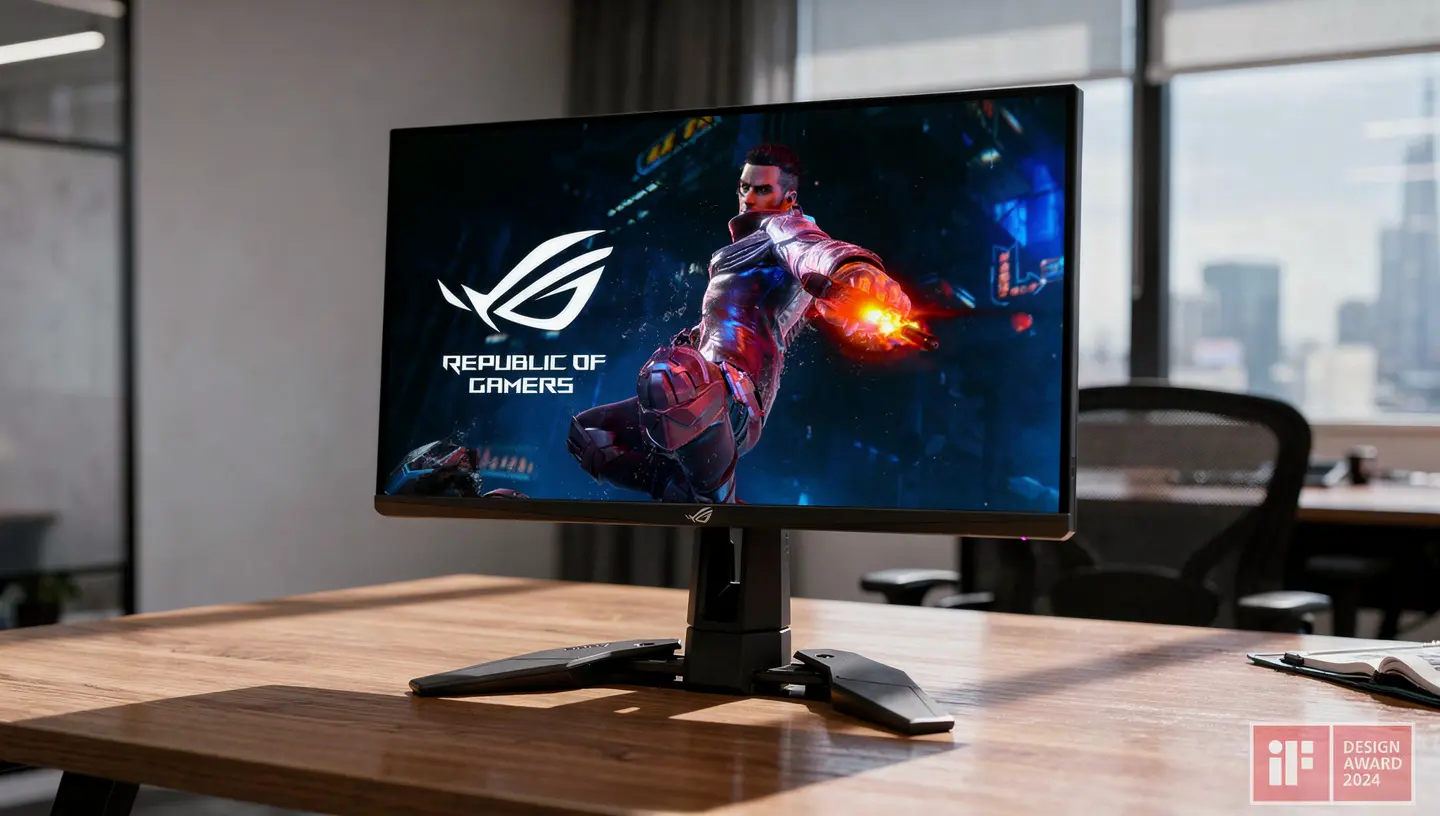
The G-Sync module gives it a wide VRR range and very low input lag, and it also supports ULMB 2 strobing, but ULMB 2 cannot run at the same time as G-Sync. You need DisplayPort to get 540Hz, since HDMI is limited to 240Hz. TN means weaker colors and narrower viewing angles than IPS, and 1080p is the only resolution on offer.
| Spec | Detail |
|---|---|
| Screen size | 24.1 inch |
| Resolution | 1920 x 1080 |
| Panel type | E-TN |
| Refresh rate | 540Hz (OC) over DisplayPort |
| Response time | 0.2ms GtG (rated) |
| G-Sync type | Native G-Sync module |
| VRR range | 30Hz to 540Hz |
| Connections | DisplayPort 1.4, 2x HDMI 2.0 |
Pros
- 540Hz refresh rate
- Fastest response time measured on an LCD
- Native G-Sync with Reflex Latency Analyzer
- ULMB 2 support
Cons
- TN colors and viewing angles
- 1080p resolution only
- High price for a 24 inch screen
Best Value 1440p: HP Omen 27qs
The HP Omen 27qs is the pick if you want 1440p and a high refresh rate without paying for a G-Sync module. It uses a 27 inch IPS panel at 2560 x 1440, runs up to 240Hz, and has a 1ms response time. VRR works from 48Hz to 240Hz and the monitor runs on GeForce cards without problems, so it counts as a G-Sync Compatible monitor. Pixel density sits around 108 PPI, colors cover 95% of DCI-P3, and the stand adjusts for height up to 100mm.

The two HDMI ports are limited to 144Hz, so use DisplayPort for the full 240Hz. IPS glow and average contrast are the usual trade-offs with this panel type.
| Spec | Detail |
|---|---|
| Screen size | 27 inch |
| Resolution | 2560 x 1440 |
| Panel type | IPS |
| Refresh rate | 240Hz |
| Response time | 1ms GtG |
| G-Sync type | G-Sync Compatible |
| VRR range | 48Hz to 240Hz |
| Brightness | 400 nits |
Pros
- Fast response time
- VRR and motion blur reduction up to 240Hz
- Sharp image with wide color gamut
- Height adjustable stand
Cons
- IPS glow
- Average contrast ratio
- HDMI limited to 144Hz
Alternatives: The MSI G274QPX uses the same panel and adds USB-C with 65W power delivery. The LG 27GR83Q is a close 1440p option, though it has no motion blur reduction.
Best 4K: MSI MPG321UR-QD
If you want 4K, the MSI MPG321UR-QD is one of the more affordable ways to get it with plenty of features. It is a 32 inch IPS panel at 3840 x 2160 with a 144Hz refresh rate, and the image stays sharp at around 140 PPI. VRR works from 60Hz to 144Hz on GeForce cards and can run together with the MSI motion blur reduction mode. DisplayHDR 600 with 16 dimming zones gives HDR some lift, though it is not true HDR contrast.

You get two HDMI 2.1 ports, DisplayPort 1.4, USB-C, and a built in KVM switch. A 4K screen is demanding, so check benchmarks for your graphics card first. Some overshoot can appear at low refresh rates when VRR runs with the Faster overdrive setting.
| Spec | Detail |
|---|---|
| Screen size | 32 inch |
| Resolution | 3840 x 2160 |
| Panel type | IPS |
| Refresh rate | 144Hz |
| G-Sync type | G-Sync Compatible |
| VRR range | 60Hz to 144Hz |
| HDR | DisplayHDR 600 |
| Connections | 2x HDMI 2.1, DisplayPort 1.4, USB-C |
Pros
- Sharp 4K image on a 32 inch screen
- VRR and motion blur reduction up to 144Hz
- Two HDMI 2.1 ports and built in KVM
- Height adjustable stand
Cons
- Lower contrast than VA panels
- Overshoot at low refresh rates with Faster overdrive
- Minor ghosting in some scenes
Alternatives: The LG 27GR93U is a smaller 27 inch 4K IPS monitor with a 160Hz mode, but it has no swivel. The Acer XB283K KV has a 28 inch 4K 144Hz panel, USB-C with 65W power delivery, and a built in KVM switch.
Best Budget: ASUS XG249CM
The ASUS XG249CM is the best budget G-Sync monitor in this list and a solid entry level gaming monitor for 1080p play. It is a 23.8 inch 1080p IPS panel that runs at 240Hz and can be overclocked to 270Hz in the menu, and the VRR range covers 48Hz to 270Hz.
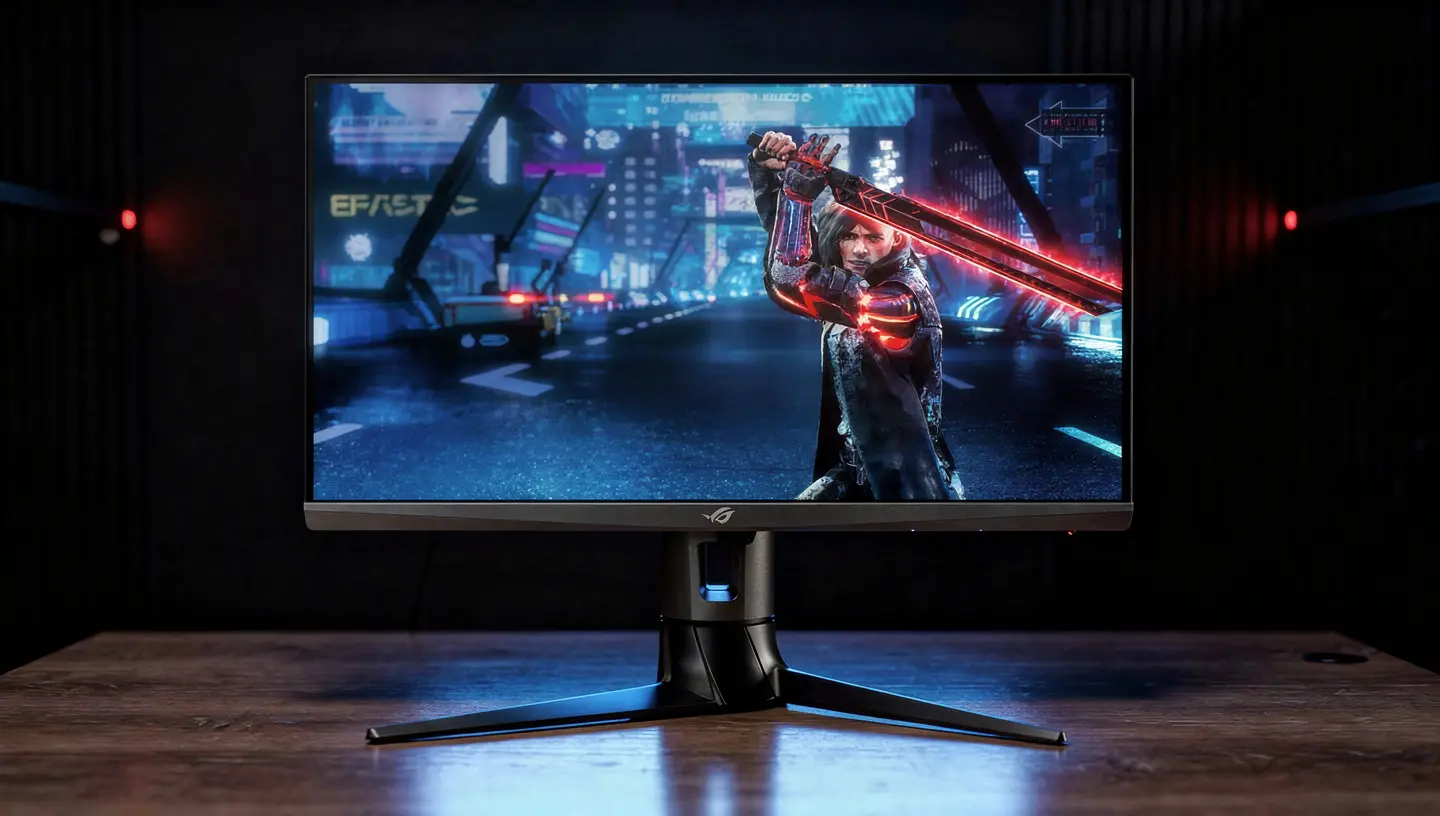
The monitor is a FreeSync model that Nvidia validated as G-Sync Compatible, so it works on GeForce GTX 10 series cards and newer over DisplayPort. ASUS adds ELMB-Sync, a motion blur reduction mode that can run together with VRR. A 1080p picture is easy on the graphics card, which makes high frame rates simple to reach. The stand adjusts for height, tilt, swivel, and pivot, and you also get a USB-C port with 15W power delivery, a USB hub, and KVM. IPS glow and average contrast are the weak points.
| Spec | Detail |
|---|---|
| Screen size | 23.8 inch |
| Resolution | 1920 x 1080 |
| Panel type | IPS |
| Refresh rate | 240Hz, 270Hz overclocked |
| G-Sync type | G-Sync Compatible |
| VRR range | 48Hz to 270Hz |
| Brightness | 350 nits |
| Connections | DisplayPort 1.2, HDMI 2.0, USB-C |
Pros
- High refresh rate at a lower price
- VRR and motion blur reduction up to 270Hz
- Fully adjustable stand with USB hub and KVM
- Vibrant colors and wide viewing angles
Cons
- IPS glow
- Average contrast ratio
- 1080p only
Other Good Gaming Monitors with G-Sync
These monitors did not make the main list, but each one is the best answer for a specific need, such as 4K OLED, a mini LED screen with HDR, a super ultrawide, or a TV on the desk.
| Model | Why Pick It | Size | Resolution | Refresh Rate | Panel | G-Sync Type |
|---|---|---|---|---|---|---|
| LG UltraGear 27GR95QE | 27 inch OLED with two HDMI 2.1 ports and a two year burn-in warranty in the US | 27 inch | 2560 x 1440 | 240Hz | OLED | G-Sync Compatible |
| Alienware AW2725Q | 4K OLED with a 0.03ms response time | 27 inch | 3840 x 2160 | 240Hz | QD-OLED | G-Sync Compatible |
| ASUS ROG Swift PG32UQX | Mini LED HDR with the native module | 32 inch | 3840 x 2160 | 144Hz | IPS mini LED | G-Sync Ultimate |
| Samsung Odyssey OLED G9 | Super ultrawide 32:9 screen | 49 inch | 5120 x 1440 | 240Hz | QD-OLED | G-Sync Compatible |
| LG OLED42C4 | 42 inch OLED TV used as a monitor | 42 inch | 3840 x 2160 | 144Hz | OLED | G-Sync Compatible |
OLED screens carry a risk of burn-in with static images, so read the warranty terms before you buy. The LG TV is glossy and reflective, and its stand does not adjust.
Best Gaming Monitors with G-Sync by Budget
A gaming monitor with G-Sync does not have to cost a lot. Under $300 you can get a fast 1440p IPS screen, and under $500 OLED has arrived. Prices were checked in October 2026 and move often.
| Budget | Model | Size and Resolution | Refresh Rate | Note |
|---|---|---|---|---|
| Under $300 | ASUS ROG Strix XG27ACG | 27 inch, 1440p Fast IPS | 180Hz | 1ms response, FreeSync Premium, around $200 at Newegg |
| Under $300 | LG UltraGear 27GP850-B | 27 inch, 1440p Nano IPS | 165Hz | FreeSync Premium and G-Sync Compatible |
| Under $300 | ASUS TUF Gaming VG259QM | 24.5 inch, 1080p Fast IPS | 280Hz | Made for competitive shooters |
| Under $500 | Gigabyte MO27Q28G | 27 inch, 1440p OLED | 280Hz | FreeSync Premium Pro, G-Sync Compatible, KVM, around $450 |
| Under $500 | AOC Q27G4ZD | 27 inch, 1440p OLED | 240Hz | Not on the Nvidia list, but rated G-Sync Stable by DisplayNinja |
DisplayNinja tags monitors that lack Nvidia validation as G-Sync Stable or G-Sync Unstable after testing them with a GeForce card. That label is useful for OLED monitors like the AOC, which skipped the official program but still run VRR cleanly.
What Is G-Sync and How Does It Work
G-Sync is the variable refresh rate technology made by Nvidia. A normal monitor redraws the screen at a fixed rate, so when the graphics card sends frames at a different pace, the picture tears or stutters. A G-Sync monitor changes its refresh rate to follow the frame rate that the GeForce card produces. That removes screen tearing and cuts stuttering and input lag compared with V-Sync. Our G-Sync guide covers the basics in more detail.
Nvidia first built G-Sync around a hardware module that replaces the normal scaler inside the monitor. At CES 2019 it opened the feature to FreeSync monitors that passed its tests, which created the G-Sync Compatible label. Today a gaming monitor with G-Sync can mean any of four things, and the next section explains the difference. The right pick also decides how much screen tearing and input lag you still notice in fast games.
G-Sync, G-Sync Compatible, G-Sync Ultimate and G-Sync Pulsar Explained
The four tiers all fix screen tearing, but they differ in hardware, VRR range, and price.
| Tier | How It Works | Typical VRR Range | Example in This List |
|---|---|---|---|
| G-Sync Compatible | Adaptive-Sync monitor tested by Nvidia | 48Hz and up | HP Omen 27qs |
| G-Sync | Native Nvidia module | 30Hz and up | PG279QM, PG248QP |
| G-Sync Ultimate | Native module plus HDR certification | 30Hz and up | Alienware AW3423DW |
| G-Sync Pulsar | G-Sync plus backlight strobing | Up to 360Hz | ASUS Pulsar XG27AQNGV |
G-Sync Compatible
A G-Sync Compatible monitor is an Adaptive-Sync or FreeSync display that Nvidia tested for problems like flicker and visual artifacts. It uses the open VESA standard, so it has the same limits as FreeSync, including a VRR range that usually starts at 40Hz or 48Hz. These monitors cost less and cover most budgets, which is why they make up the bulk of what you see in stores.
Native G-Sync Module
A native G-Sync monitor has a chip made by Nvidia that takes the place of the normal scaler. This gives a wider VRR range, lower latency, and variable overdrive, which keeps ghosting under control across different frame rates. The module also limits some features, since monitors that use it often skip USB-C, KVM, and HDMI 2.1, and some need a cooling fan.
G-Sync Ultimate
G-Sync Ultimate is a native module monitor that also passes Nvidia HDR requirements. The Alienware AW3423DW is a good example, since it pairs the module with a QD-OLED panel and strong HDR. Fewer monitors carry this label than any other tier.
G-Sync Pulsar
G-Sync Pulsar adds backlight strobing that works together with variable refresh rate. Regular G-Sync cannot do this, so before Pulsar you had to choose between tear-free play and a strobe mode like ULMB. The first four Pulsar monitors are all 27 inch 1440p IPS screens at 360Hz, and the feature only works with a GeForce card.
G-Sync vs FreeSync: Which One Should You Buy
FreeSync is the open standard from AMD, built on the same Adaptive-Sync base that G-Sync Compatible uses. Because many FreeSync monitors have passed Nvidia testing, the choice is no longer tied to the brand of your graphics card. For most buyers, a FreeSync Premium monitor with G-Sync Compatible validation is enough. It costs less than a module monitor and works with both GeForce and Radeon cards.
Is G-Sync worth it over FreeSync? A native module still wins at very low frame rates and in overdrive tuning, and Ultimate wins when HDR matters. That is why the PG279QM and AW3423DW cost more than the compatible monitors in this list. If you own an AMD card, you do not need G-Sync at all, and many G-Sync Compatible monitors run as FreeSync monitors with Radeon cards. G-Sync itself still needs a GeForce card.
What You Need for a Gaming Monitor with Nvidia G-Sync
A gaming monitor with Nvidia G-Sync only works when the rest of the setup matches. Check these points before you buy.
- A GeForce GTX 650 Ti Boost or newer for monitors with the native module
- A GeForce GTX 10 series card or newer for G-Sync Compatible over DisplayPort
- A standard DisplayPort cable with no adapters, since most monitors do not run G-Sync over HDMI
- An HDMI 2.1 display and a GTX 16 series or RTX card if you want VRR over HDMI on a TV
- The latest Nvidia driver
Picking a cable and port correctly matters here, and our guide to connecting a gaming monitor to a PC covers it step by step. You can also check any model against the Nvidia list of validated G-Sync monitors. Consoles do not use G-Sync. Xbox consoles support FreeSync, and the PS5 supports HDMI VRR.
How to Enable G-Sync
On most monitors G-Sync is not on by default, so it takes a minute to switch it on.
- Connect the monitor to the graphics card with a DisplayPort cable.
- Open the monitor menu and turn on Adaptive-Sync or G-Sync.
- Right click the desktop and open the Nvidia Control Panel, or use the Nvidia App.
- Go to Display, then Set up G-SYNC, and tick Enable G-SYNC, G-SYNC Compatible.
- Choose whether G-Sync runs in fullscreen only or in windowed and fullscreen mode.
- If the monitor is not on the validated list, tick the box for the selected display model to force it on.
You can also turn on the G-Sync Indicator under the Display menu, which shows an overlay whenever G-Sync is active.
G-Sync and V-Sync Settings
Most guides, including the G-Sync 101 tests by Blur Busters, recommend the same setup. Keep G-Sync on, turn V-Sync on in the Nvidia Control Panel, turn V-Sync off inside the game, and cap the frame rate about 3 fps below the maximum refresh rate. That means 237 fps on a 240Hz monitor and 141 fps on a 144Hz monitor. The cap matters because G-Sync stops working once the frame rate passes the refresh rate, and then you get either screen tearing or V-Sync input lag. When the cap keeps the frame rate inside the G-Sync range, the V-Sync setting adds little to no extra lag.
How to Choose the Best Gaming Monitor with G-Sync
Picking a monitor comes down to four specs. Get these right and the G-Sync tier matters less.
Refresh Rate and VRR Range
A higher refresh rate makes motion smoother, but only if your graphics card can reach it. For most players 144Hz to 240Hz is plenty, and 360Hz and above is for esports. The VRR range matters just as much. A monitor that syncs from 48Hz to 240Hz covers most games, while a native module that starts at 30Hz handles heavy games with low frame rates better.
- 60Hz: office work and slower games
- 144Hz to 165Hz: a good fit for most players and fast shooters
- 240Hz: competitive play with a graphics card that holds high frame rates
- 360Hz and above: esports players who need the lowest delay
Resolution
1440p is the sweet spot for most GeForce owners, since it looks sharp and still reaches high frame rates. 1080p suits esports and budget builds, and 4K needs a strong graphics card. Ultrawide 3440 x 1440 adds screen width but asks for about 30% more power than standard 1440p.
Panel Type
IPS panels offer wide viewing angles and good color, which is why most monitors in this list use one. TN is the fastest but has weak colors, and VA has strong contrast but can show VRR brightness flickering even on monitors that passed Nvidia testing. OLED gives instant response and perfect blacks, with a risk of burn-in on static images, so look for a burn-in warranty.
| Panel | Strength | Weakness | In This List |
|---|---|---|---|
| TN and E-TN | Fastest response | Weak colors and narrow viewing angles | PG248QP |
| IPS | Good color and wide viewing angles | IPS glow and average contrast | PG279QM, Omen 27qs, XG249CM, MPG321UR-QD, Pulsar |
| VA | Strong contrast | VRR brightness flicker on some models | None |
| OLED and QD-OLED | Instant response and perfect blacks | Burn-in risk | AW3423DW |
Response Time and Motion Blur
Pixel speed decides how much ghosting you see behind moving objects. A native G-Sync module tunes overdrive for every frame rate, which keeps the picture clean when the frame rate changes. Backlight strobing modes such as ULMB 2 and ELMB-Sync cut blur further, and Pulsar finally lets strobing run together with VRR. Check the measured response time in independent reviews, since the rated numbers are often far better than real results.
Common G-Sync Problems and Fixes
G-Sync is simple to run, but a few problems come up often, and most of them can bring back screen tearing or stutter.
- The G-Sync option is missing or greyed out in the Nvidia Control Panel
- The monitor flickers in menus, loading screens, or dark scenes
- G-Sync works in fullscreen games but not in windowed ones
- Stuttering or tearing returns after a driver update
The missing option is almost always caused by an HDMI cable, an adapter, an old driver, or Adaptive-Sync turned off in the monitor menu. Switch to a plain DisplayPort cable, update the Nvidia driver, and check the menu. For flicker, forcing G-Sync on a monitor that Nvidia has not validated can cause blanking, pulsing, and ghosting, so go back to a validated model if the problem stays. VA panels are the usual source of brightness flicker. For windowed games, set G-Sync to run in both windowed and fullscreen mode in the control panel.
Is a G-Sync Monitor Worth It: Final Verdict
For most people with a GeForce card, a gaming monitor with G-Sync is worth it, because play without screen tearing and stable motion make a clear difference in fast games. The ASUS ROG Swift PG279QM is the best gaming monitor with G-Sync overall. Pick the Alienware AW3423DW if you want an ultrawide OLED, the ASUS Pulsar XG27AQNGV if motion clarity is your top priority, and the PG248QP if you play competitive shooters at very high frame rates.
If budget matters more, the HP Omen 27qs, MSI MPG321UR-QD, and ASUS XG249CM give you a G-Sync Compatible monitor at 1440p, 4K, and 1080p for much less. Whichever model you choose, the best gaming monitor with Nvidia G-Sync is the one that matches your graphics card, your resolution, and the games you play. A good gaming monitor with G-Sync should also keep screen tearing and input lag low in the titles you play most.
Frequently Asked Questions
Do I need an Nvidia graphics card for G-Sync?
Yes. G-Sync is made by Nvidia and needs a GeForce card. For native module monitors you need a GTX 650 Ti Boost or newer, and for G-Sync Compatible monitors you need a GTX 10 series card or newer over DisplayPort.
Does G-Sync work with AMD graphics cards?
G-Sync itself does not. Many G-Sync Compatible monitors run as FreeSync monitors with Radeon cards, though, so you still get variable refresh rate. Some native module monitors also accept Adaptive-Sync from AMD, but features like Pulsar stay limited to GeForce.
Does G-Sync work over HDMI?
On most monitors it does not, and DisplayPort is required. HDMI variable refresh rate works on HDMI 2.1 TVs and displays with a GTX 16 series or RTX card, but support depends on the model.
Is G-Sync Compatible as good as native G-Sync?
For most players it is close. G-Sync Compatible monitors cost less and cover the same use, but a native module gives a wider VRR range, variable overdrive, and cleaner motion at low frame rates. The gap is smaller on a good FreeSync Premium monitor.
What is the best budget gaming monitor with G-Sync?
The ASUS XG249CM is the best budget pick in this list. It is a 23.8 inch 1080p IPS monitor that runs at 240Hz, can be overclocked to 270Hz, and carries G-Sync Compatible validation.
Do consoles support G-Sync?
No. Consoles do not use G-Sync. Xbox consoles support FreeSync, and the PS5 supports HDMI VRR, so a G-Sync Compatible monitor can still work with them as a regular VRR display.
Is G-Sync better than FreeSync?
Native G-Sync can be better at low frame rates because of the wider VRR range and variable overdrive, and G-Sync Ultimate leads in HDR. For most players the difference is small, and a FreeSync Premium monitor with G-Sync Compatible validation costs less.
Should I turn on V-Sync with G-Sync?
Yes, in the Nvidia Control Panel only. Turn V-Sync off inside the game and cap the frame rate about 3 fps below the maximum refresh rate. This keeps the frame rate inside the G-Sync range, so you avoid both tearing and extra input lag.
What is G-Sync Pulsar?
G-Sync Pulsar is G-Sync with backlight strobing that works together with variable refresh rate. Nvidia claims motion clarity above 1,000Hz on a 360Hz panel. It needs a GeForce card, and the first four monitors, all 27 inch 1440p IPS screens, launched in January 2026.