HDR shows up on nearly every monitor box now, from budget office screens to flagship gaming panels, and the badge alone tells you almost nothing about how good the picture actually looks. An HDR gaming monitor is built to show a wider range of brightness, contrast, and color than a standard display, which means brighter highlights, deeper shadows, and richer color in games that support it. The catch is that not every monitor wearing an HDR label can actually deliver that experience. This guide breaks down what HDR really does, how the certification tiers work, which panel types handle it best, and whether it is worth chasing for the games you actually play.
What Does HDR Mean on a Gaming Monitor?
HDR stands for High Dynamic Range. On a gaming monitor, it describes the panel’s ability to show a much wider span between the darkest and brightest parts of an image than a standard dynamic range, or SDR, screen can manage. Instead of compressing everything into a narrow brightness window, HDR content carries more information at both ends, so a sunlit sky can stay bright without blowing out and a shadowed doorway can hold detail instead of turning into a flat black block.
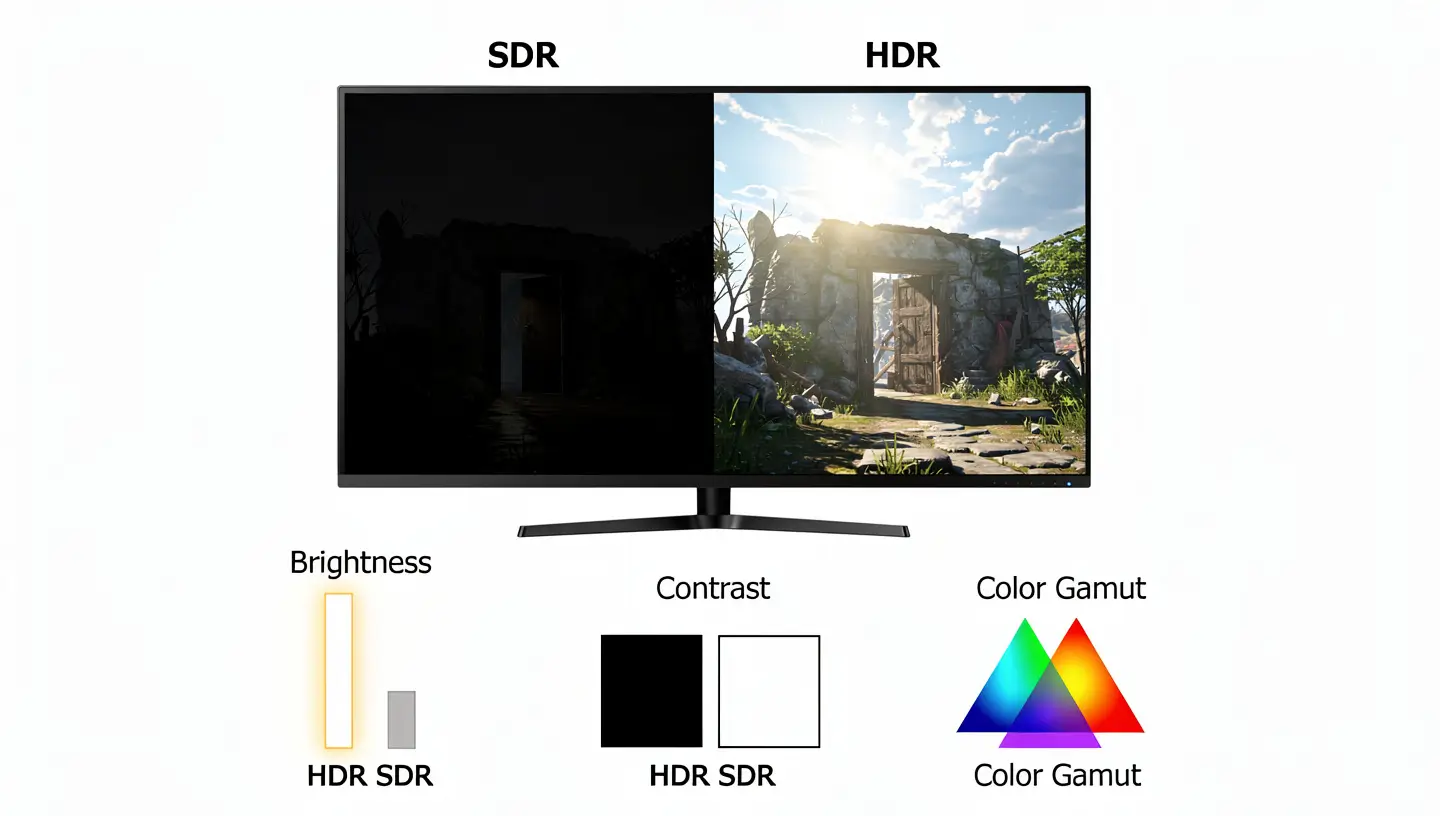
Three things work together to make this happen: peak brightness, measured in nits or cd/m², contrast ratio, which is the gap between the darkest black and the brightest white the screen can produce, and color gamut, which is how wide a range of colors the panel can reproduce. A monitor needs real strength in all three areas to make HDR content look meaningfully different from SDR, not just brighter.
HDR vs SDR: What Actually Changes on a Gaming Monitor
Standard dynamic range has been the default for decades, and it still handles most everyday content just fine, including web browsing, office work, and older games. SDR has a fixed, narrower brightness and color range, so scenes with strong contrast between light and dark areas often lose detail somewhere, either the bright parts get clipped or the shadows turn muddy.

An HDR display gets a bigger window to work with. In a game with a dark cave lit by a single torch, an SDR panel usually has to choose between showing the flame properly or keeping shadow detail visible. A capable HDR gaming monitor can hold onto both at once, so the flame stays bright and the surrounding rock still shows texture instead of collapsing into black. The gap between HDR and SDR is most obvious in games with strong lighting contrast, such as open world titles with dynamic weather, racing games with sun glare, or horror games built around darkness and sudden light.
HDR Formats Explained: HDR10, HDR10+, Dolby Vision, and HLG
HDR content is not one single format. HDR10 is the baseline and by far the most common standard on PC, since it is open and free for manufacturers and developers to support, which is why almost every HDR monitor and HDR game on Steam targets it. HDR10+ builds on the same base but adds dynamic metadata, meaning brightness and contrast can be adjusted scene by scene rather than using one fixed setting for the whole game, though support on PC monitors remains limited. Some monitor spec sheets list HDR10 support without mentioning any certification tier at all, which is worth noting since format support and picture quality are not the same claim.
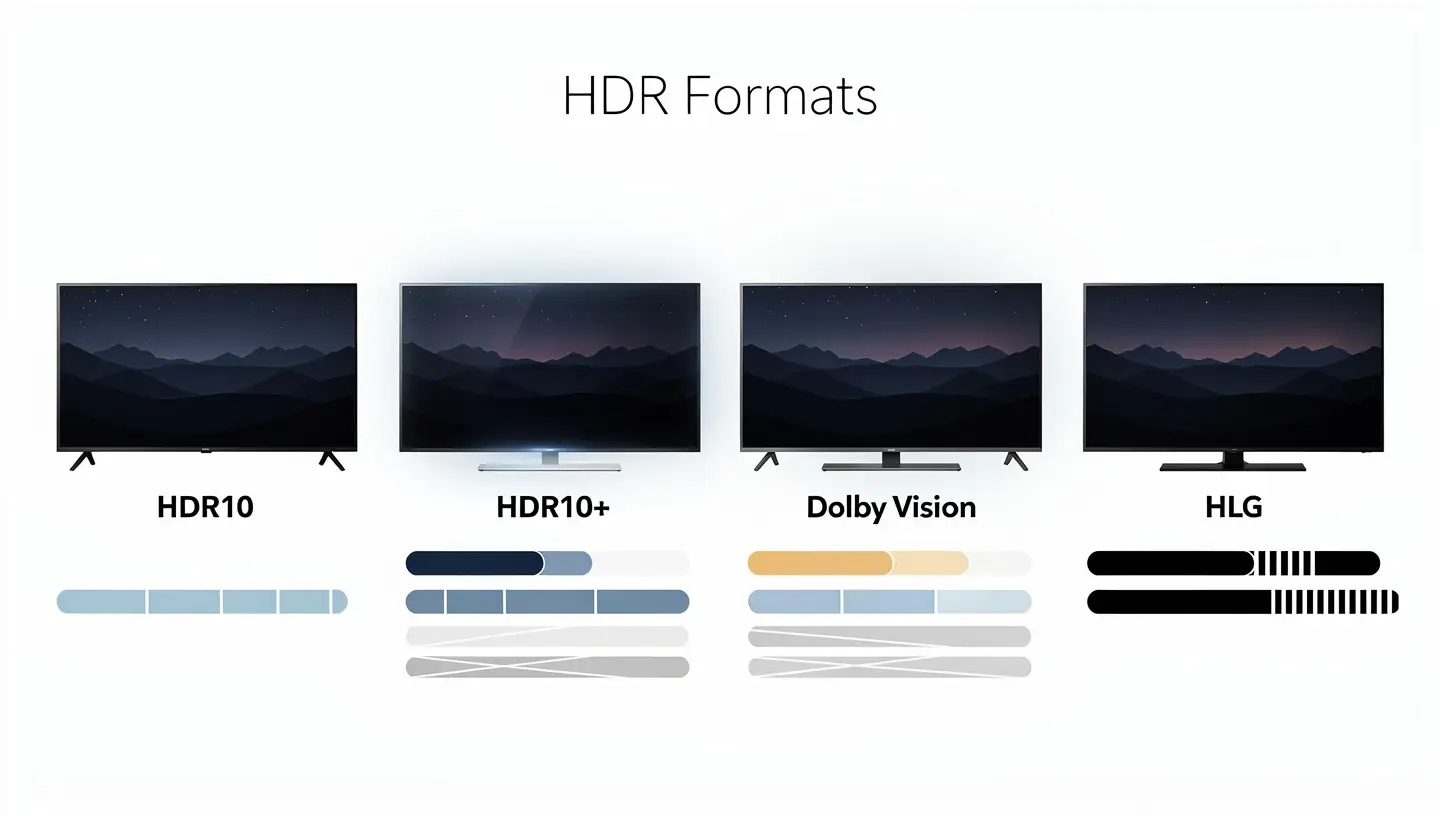
Dolby Vision also uses dynamic metadata and is more common on TVs and streaming platforms than on PC gaming monitors. HLG, short for Hybrid Log-Gamma, was built mainly for live broadcast and rarely appears in a gaming context. For a gaming monitor, HDR10 support is the one to check first, since it covers the overwhelming majority of PC games with HDR implementation.
VESA DisplayHDR Certification Tiers for Gaming Monitors
Because HDR support alone says so little about actual picture quality, VESA created the DisplayHDR certification program to give buyers a clearer reference point. A monitor with only entry-level certification can still technically accept and display HDR content while looking barely different from SDR, so it helps to know what each tier actually requires.
| Certification | What It Generally Means |
|---|---|
| DisplayHDR 400 | Entry-level, minimum peak brightness with no local dimming requirement |
| DisplayHDR 500 / 600 | Higher peak brightness with some local dimming on most panels |
| DisplayHDR 1000 / 1400 | High peak brightness aimed at strong highlight detail |
| DisplayHDR True Black | Built for OLED and similar self-emissive panels with near perfect blacks |
DisplayHDR 400 is often called out as the weakest tier because it does not require local dimming zones, which is the feature that actually lets a screen brighten one area while keeping another area dark. Without it, the whole backlight tends to brighten together, which can wash out shadows instead of improving them. The full VESA DisplayHDR certification chart lists the exact brightness, contrast, and color requirements behind each tier if you want the precise numbers before buying.
What You Need for HDR Gaming: Game, System, and Monitor
Getting an HDR gaming monitor is only one part of the equation. Three separate things have to line up before HDR actually shows up on screen, and missing any one of them means the picture stays in SDR no matter how good the panel is.
The game itself needs native HDR support built in. Not every title has it, and many older games released before HDR became common simply do not offer the option, no matter how capable the monitor is. Checking a game’s store page or settings menu before assuming HDR will work is worth the minute it takes.
The system behind the monitor also needs to output an HDR signal, which means a graphics card and driver combination capable of sending 10-bit color over HDMI or DisplayPort. Most graphics cards released in the last several years handle this without issue, but very old hardware or outdated drivers can quietly block HDR output even when the game and monitor both support it. If HDR options are missing from a game or from Windows display settings, updating graphics drivers is one of the first things worth trying.
Finally, the monitor needs to be both physically capable and switched into HDR mode, which is where cabling matters more than people expect. An older HDMI cable rated for a lower bandwidth can cap out before HDR data even gets through, so a cable that worked fine for SDR gaming is not automatically good enough once HDR and a high refresh rate are both in play at the same time.
Peak Brightness and Color Depth: The Specs That Actually Matter
Once format and system requirements are covered, the two specifications that predict real HDR quality better than the DisplayHDR badge alone are peak brightness and color depth.
Peak brightness, measured in nits or cd/m², is what lets a small highlight in a scene, a lamp, a muzzle flash, a shaft of sunlight, punch through without brightening the whole image around it. Most SDR monitors sit around 250 to 350 nits. An HDR gaming monitor worth the label should be reaching at least 600 nits, and premium panels with strong local dimming often push past 1000 nits for those small bright highlights specifically, even if the sustained full-screen brightness is lower.
Color depth controls how smoothly the screen can transition between shades of the same color, which matters a lot in HDR since the wider brightness range makes banding, visible steps between colors that should blend smoothly, much easier to spot. True 10-bit panels are still rare and expensive, so most HDR gaming monitors use an 8-bit panel with dithering, often labeled 8+2-bit or 8-bit plus FRC, to approximate 10-bit output. This is not a dealbreaker, and the difference from true 10-bit is subtle for most gaming content, but it explains why an 8-bit panel advertised as HDR capable is not automatically inferior to one claiming native 10-bit.
OLED vs Mini LED vs IPS: Which Panel Is Best for HDR Gaming?
Panel technology decides how well a monitor can actually use its HDR certification, and this is where the real difference between a convincing HDR display and a disappointing one shows up.
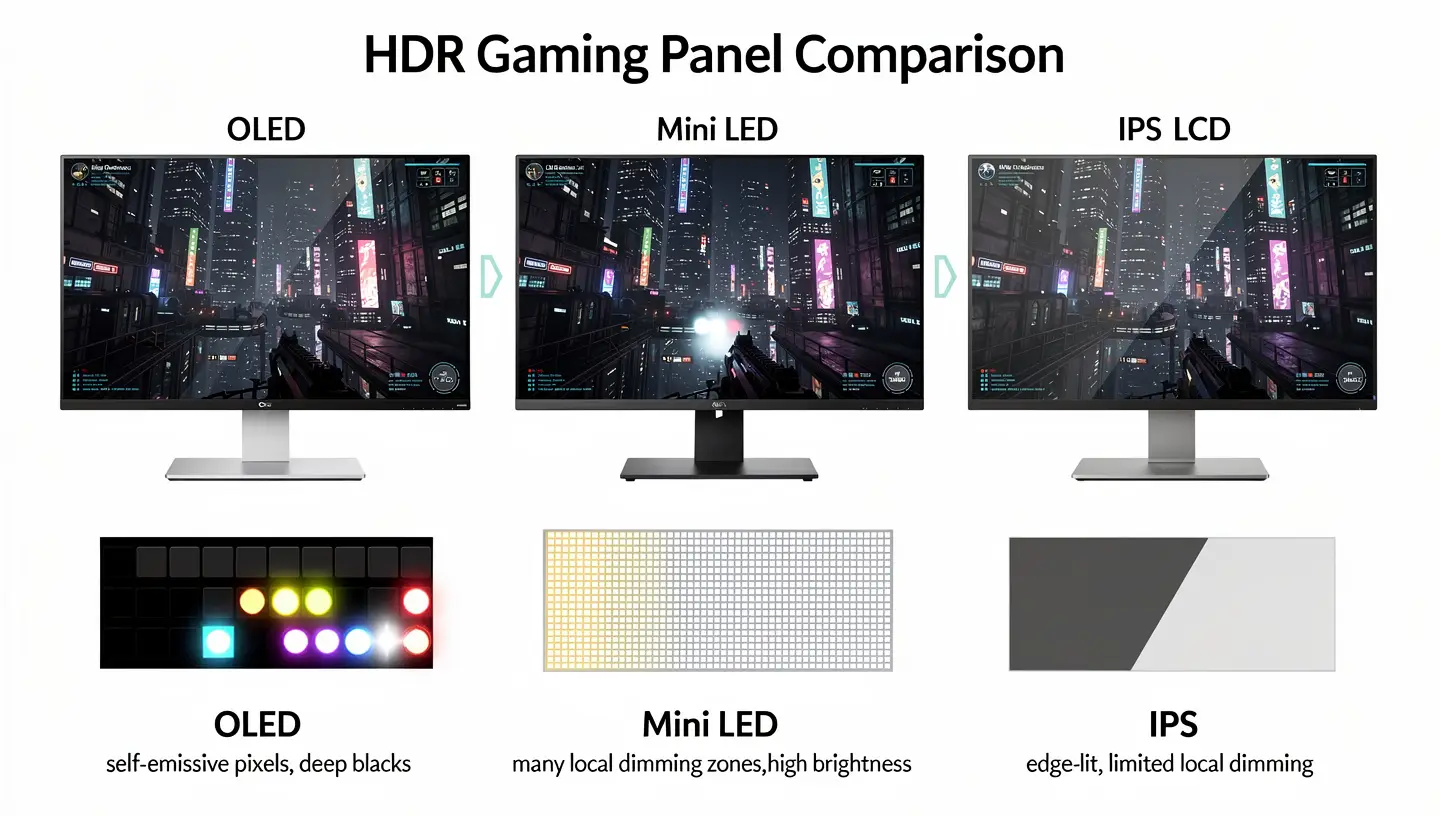
OLED panels are self-emissive, meaning every pixel produces its own light and can switch off completely, which gives true blacks and near infinite contrast without needing a backlight at all. This is exactly what HDR content wants, since dark scenes can sit right next to bright highlights with no glow or blooming around them. The tradeoff is that OLED peak brightness sits lower than the best mini LED panels, and there is a small long-term risk of burn-in with static elements like HUDs or health bars left on screen for long sessions.
Mini LED panels use an IPS or VA base layer with a backlight split into hundreds or thousands of independently controlled dimming zones. More zones generally means better local dimming, since the backlight can brighten one section for a highlight while dimming a neighboring section for a shadow. Fewer zones means more blooming, where bright objects cast a visible halo into darker areas around them. Mini LED panels can hit higher sustained brightness than OLED, which suits brighter rooms and daytime gaming, without the burn-in risk that comes with organic panels.
Standard VA panels without mini LED backlighting can still offer HDR support, and their native contrast ratio is usually stronger than plain IPS, but without proper local dimming the HDR effect tends to feel modest rather than dramatic. A basic IPS panel with an HDR badge and no meaningful dimming zones is where most of the disappointing HDR experiences people complain about actually come from.
TN panels are rarely paired with HDR at all in 2026, and for good reason. Their narrow viewing angles and limited color output work against everything HDR is trying to achieve, since colors shift and contrast falls apart the moment you are not looking dead center at the screen. If a monitor is built around a TN panel, HDR support is usually a marketing checkbox rather than a feature that adds anything meaningful to the picture.
Does an HDR Gaming Monitor Add Input Lag?
This is one of the more common worries among competitive players, and the honest answer depends heavily on the monitor rather than HDR itself. On a proper gaming monitor, HDR is processed inside the same fast signal path used for SDR, and the added delay from tone mapping and 10-bit color output is typically small enough that it falls under a millisecond, well below what a player could actually feel.
Where HDR does add noticeable lag is usually tied to something else changing alongside it, not HDR by itself. A monitor might drop from a high refresh rate to a lower one once HDR is enabled, or switch into a heavier picture processing mode, and that is what actually introduces the delay a player notices. Mini LED panels with many active dimming zones can add a touch more processing time than OLED, since the backlight needs to calculate zone brightness on the fly, but on a monitor built for gaming this difference is usually small.
Auto HDR in Windows 11 works a little differently, since it uses machine learning to expand SDR games into an HDR-like range rather than relying on native game support. It only activates through DirectX 11 or 12 titles, and most players report no meaningful difference in feel when it is turned on, though anyone chasing every last millisecond in ranked play may still prefer to leave both HDR and Auto HDR off and rely on SDR with a fast response time instead. Consoles follow a similar pattern. Enabling HDR on a PS5 or Xbox rarely slows a monitor down on its own, but if the console forces a lower refresh rate or a non-game picture preset to accommodate HDR, that is where the sluggish feeling actually comes from rather than HDR itself.
Is an HDR Gaming Monitor Worth It?
Whether an HDR gaming monitor is worth paying extra for comes down to what you play and how strong the panel actually is behind the certification badge. A weak implementation, low brightness, no local dimming, an entry-level DisplayHDR 400 badge on a basic panel, will rarely look dramatically different from a good SDR screen, so the certification number alone should never be the deciding factor.
HDR is worth prioritizing if:
- You mostly play single player or story driven games with strong lighting design
- Your monitor is OLED or a mini LED panel with a meaningful number of dimming zones
- You also watch HDR films or edit photo and video content
- You play open world, racing, or horror titles where contrast matters to the mood
HDR matters less if:
- You play mostly competitive shooters or older titles without HDR support
- Your budget monitor has HDR listed but no local dimming or strong peak brightness
- Refresh rate and response time matter more to you than picture depth
- You mainly use the screen for office work or browsing rather than gaming
How to Enable HDR on Your Gaming Monitor
Even a capable HDR gaming monitor usually needs HDR switched on manually, both in the operating system and sometimes in the monitor’s own menu, before it will actually display the wider range properly.
Enable HDR on Windows 11
Open Settings, go to System, then Display, and select the correct monitor if more than one is connected. Find the HDR toggle and turn it on, then check the calibration option Windows offers to fine tune brightness levels for your specific panel.

If the toggle does not appear, the monitor, cable, or port in use may not support HDR output, so it is worth checking that a compatible HDMI or DisplayPort cable is connected to the right port. Microsoft’s own HDR and wide color gamut support page covers calibration steps in more detail if the picture looks off after turning it on.
Enable HDR on PS5 and Xbox
Both consoles detect HDR support automatically during setup in most cases, but it is worth confirming manually. On PS5, this sits under Settings, then Screen and Video, then Video Output, where an HDR toggle and test pattern are available. On Xbox, it is under Settings, General, then TV and display options, followed by Video modes, where HDR can be enabled and tested against a calibration screen. If HDR does not appear as an option on either console, double check that the monitor is connected through a port and cable rated for the required bandwidth, since an older HDMI cable can silently cap the signal below what HDR needs.
G-Sync HDR and FreeSync Premium Pro Explained
Adaptive sync and HDR are handled separately by most monitors, but Nvidia and AMD both built dedicated tiers that combine the two. G-Sync HDR was Nvidia’s original certification for monitors that paired variable refresh rate with strong HDR performance, historically requiring high peak brightness and full array local dimming, though newer G-Sync Ultimate branding has largely replaced it on current panels.
AMD’s equivalent is FreeSync Premium Pro, which requires a monitor to support HDR gaming with low latency and no visible flickering or blanking during variable refresh operation, on top of the baseline FreeSync tear-free requirement. A monitor carrying either certification is a reasonably safe signal that HDR and variable refresh rate will work together smoothly rather than fighting each other, which is not guaranteed on a panel with HDR and adaptive sync support that was never tested together.
How to Choose the Right HDR Gaming Monitor
Picking the right panel depends more on how you play than on chasing the highest certification number on the box. Before locking in a purchase, our full walkthrough on how to choose a gaming monitor covers panel type, size, and connectivity alongside HDR specifically, and our guide on how to set up a gaming monitor walks through calibration once you have picked one.
- Competitive and esports players: prioritize refresh rate and response time first, since a fast refresh rate matters more in ranked play than HDR depth, and consider leaving HDR off during matches
- Single player and story driven gamers: look for OLED or a mini LED panel with a high dimming zone count over a monitor with only an entry-level DisplayHDR badge
- Console gamers: confirm HDMI 2.1 support so HDR and high refresh rate can run together without one forcing a compromise on the other
- Mixed use buyers: a mid-tier mini LED panel with good peak brightness offers a reasonable balance between HDR quality and everyday brightness for office use
Common HDR Gaming Monitor Mistakes to Avoid
A handful of buying mistakes come up again and again once people start comparing HDR gaming monitors, and most of them come down to trusting the badge instead of the specification sheet behind it.
The first is assuming every monitor with an HDR label performs the same. A DisplayHDR 400 panel with no local dimming and a cheap 1000-nit mini LED panel with hundreds of dimming zones both carry HDR support, but they produce completely different pictures. Always check peak brightness and dimming zone count rather than stopping at the certification name alone. This is where the term fake HDR, sometimes called pseudo-HDR, comes from. It describes a monitor that can accept and process an HDR signal but lacks the brightness or contrast hardware to actually improve the picture, so the image looks the same as SDR or, in some cases, slightly worse due to dimmer overall output.
The second mistake is ignoring the content side of the equation. HDR only changes anything when the game, the cable, and the operating system are all set up correctly. A monitor can have excellent hardware and still show a flat, SDR-like picture if HDR was never actually turned on in Windows or in the game’s own display settings.
The third is buying HDR for the wrong use case. Paying extra for a high tier DisplayHDR certification on a monitor meant mainly for spreadsheets, browsing, or competitive shooters rarely pays off, since the games and tasks involved do not lean on the contrast range HDR is built to improve. In that situation, the same money usually buys a better refresh rate, a faster response time, or a sharper resolution instead, all of which matter more day to day than a badge that barely gets used.
Frequently Asked Questions
What does HDR mean on a monitor?
HDR stands for High Dynamic Range. On a monitor, it means the panel can display a wider range of brightness, contrast, and color than a standard SDR screen, so bright highlights and dark shadows can both hold detail in the same scene.
Is HDR worth it for gaming?
It depends on the panel and the games you play. A strong HDR gaming monitor with OLED or mini LED local dimming makes a real visual difference in single player and story driven games, while a budget panel with only entry-level HDR certification often looks barely different from SDR.
Does HDR increase input lag?
On a properly built gaming monitor, the added delay from HDR processing is typically small enough to be imperceptible. Noticeable lag usually comes from a related change, such as the monitor dropping refresh rate or switching into a heavier picture mode once HDR is turned on, rather than from HDR itself.
What is the difference between HDR10 and DisplayHDR?
HDR10 is a content format that tells the monitor what brightness and color information to display. DisplayHDR is a separate hardware certification from VESA that rates how well the actual screen can reproduce that content, covering peak brightness, contrast, and local dimming requirements.
Do I need HDR for competitive esports games?
Not really. Most competitive shooters and esports titles are built around fast, flat lighting rather than the dramatic contrast HDR is designed to enhance, so refresh rate and response time typically matter more than HDR support for that kind of play.
What is local dimming and why does it matter for HDR?
Local dimming lets a monitor’s backlight brighten or dim separate zones of the screen independently, rather than treating the whole panel as one light source. More zones generally means better contrast between bright highlights and dark shadows in the same scene, which is a big part of what makes HDR content look convincing rather than flat.
Can an HDR gaming monitor also work well for SDR content?
Yes. A well built HDR gaming monitor still displays SDR content normally, and features like strong brightness and good color coverage benefit everyday use too. The extra dynamic range only kicks in when HDR content and HDR mode are both active at the same time.
Conclusion
An HDR gaming monitor can deliver a real jump in picture quality, but only when the hardware behind the badge actually backs it up. Peak brightness, local dimming, and panel type matter far more than the HDR label itself, and a cheap monitor with basic HDR support will rarely look much different from a good SDR screen. For single player and visually rich games, a properly certified OLED or mini LED panel is worth the investment. For competitive play, refresh rate and response time still come first, and HDR becomes a nice extra rather than the deciding factor.