FreeSync is a technology built by AMD that syncs a monitor’s refresh rate with the frame rate coming from your graphics card. It removes screen tearing and cuts down on stuttering, without adding the input lag that older sync methods like V-Sync introduce. FreeSync is a free, open standard, which is why it shows up on such a wide range of gaming monitors, from budget 1080p screens to high end 4K panels.
Below we cover exactly how FreeSync works, what the different tiers mean, how it stacks up against Nvidia G-Sync, whether it works on consoles, and what to do if it stops working properly.
What Is FreeSync
FreeSync is AMD’s implementation of variable refresh rate, built on top of the VESA Adaptive-Sync standard that is part of the DisplayPort specification. In plain terms, it lets your monitor change how often it redraws the screen so that it always matches the number of frames your graphics card is sending it. On a normal monitor, the refresh rate is fixed, so a 60Hz screen always draws 60 frames a second no matter what the GPU is producing. FreeSync breaks that fixed relationship and lets the display speed up or slow down to follow the GPU instead.
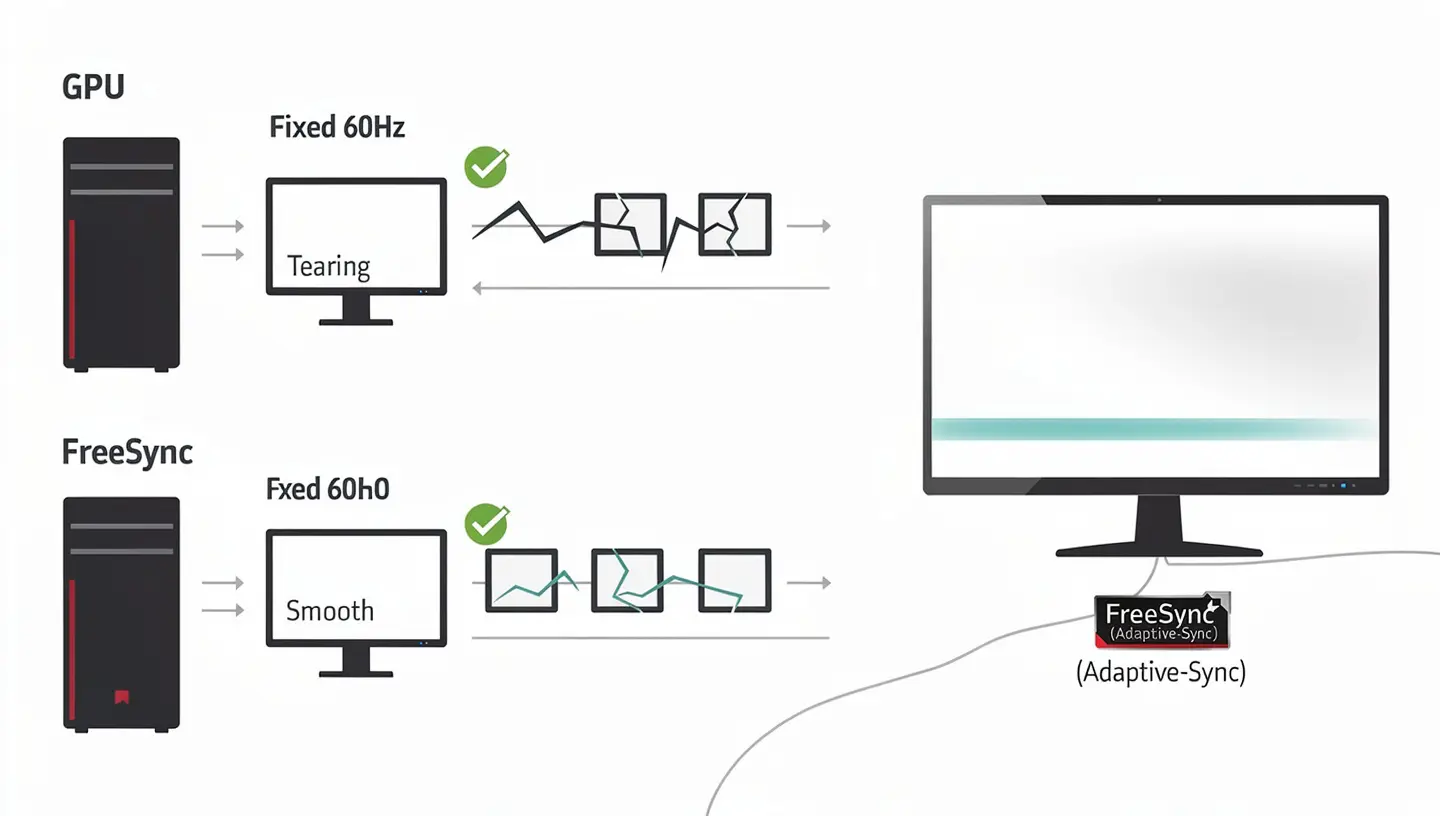
AMD first announced FreeSync in 2014 and released it publicly in 2015 as a direct answer to Nvidia’s G-Sync, which had launched a year earlier using proprietary hardware. Because FreeSync runs on an open standard rather than a custom chip inside the monitor, it does not add licensing costs to the display, which is a big part of why FreeSync monitors tend to be cheaper than G-Sync equivalents.
How FreeSync Compares to V-Sync
Before adaptive sync technologies existed, the main tool for dealing with a mismatch between refresh rate and frame rate was V-Sync. V-Sync forces the graphics card to hold back frames until the monitor is ready for them, which does stop tearing, but it also introduces extra input lag and can cause stuttering if the frame rate drops below the monitor’s refresh rate. FreeSync takes the opposite approach. Instead of forcing the GPU to wait, it makes the monitor adjust to the GPU, so you get a tear free picture without the added lag that V-Sync brings.
What Does FreeSync Actually Do on a Gaming Monitor
To understand what FreeSync fixes, it helps to know how a monitor and graphics card normally talk to each other. The GPU renders frames and sends them out as fast as it can, while the monitor refreshes the screen a set number of times per second. When those two numbers do not line up, you run into visible problems during gameplay.
What Is Screen Tearing
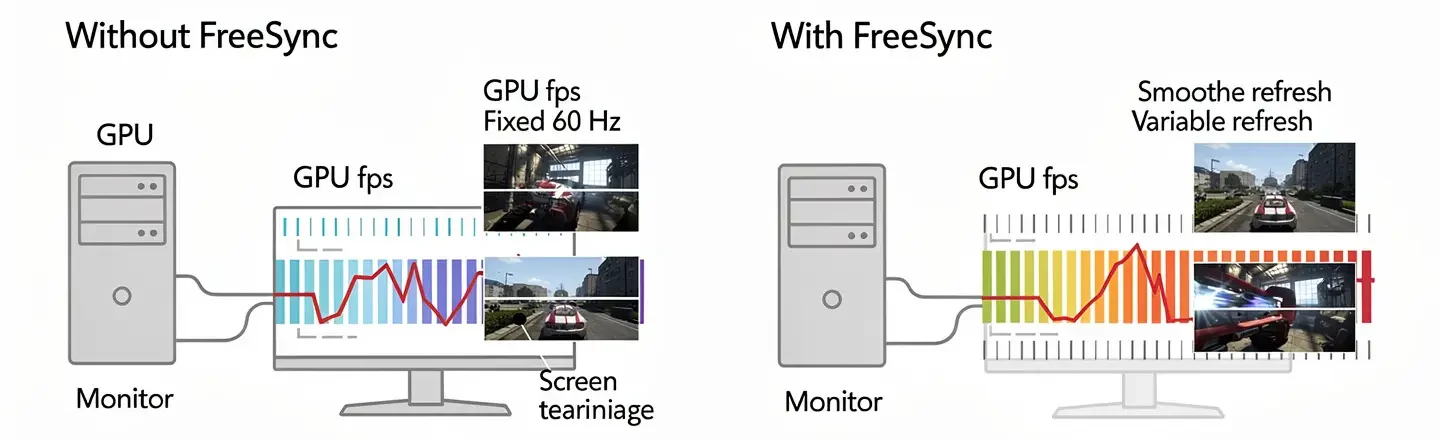
Screen tearing happens when the GPU sends a new frame to the monitor before the previous frame has finished being drawn. The result is a picture that looks split, with the top part of the screen showing one frame and the bottom part showing another. It is most noticeable during fast horizontal movement, like turning quickly in a shooter or panning the camera in a racing game. Screen tearing has nothing to do with your monitor being faulty, it is simply a symptom of the GPU’s frame rate and the display’s refresh rate running out of sync.
How FreeSync Fixes Tearing and Stuttering
With FreeSync turned on, the monitor stops running at a fixed refresh rate and instead refreshes only when a new frame actually arrives from the GPU. If your graphics card is putting out 90 frames per second, the monitor refreshes 90 times a second to match it. If that number drops to 65 a moment later during a demanding scene, the monitor drops right along with it. Because the monitor and GPU are always working from the same number, there is no gap for tearing to appear in, and the stuttering that comes from a fixed refresh rate fighting a variable frame rate goes away too.
FreeSync Range and Low Framerate Compensation
Every FreeSync monitor has a supported range, usually shown as something like 48 to 144Hz. Within that range, FreeSync works exactly as described, matching the refresh rate to whatever frame rate the GPU delivers. The range varies from monitor to monitor, and a wider range generally gives a better experience since it covers more real world frame rate situations.
What Happens When FPS Drops Below the Range
Problems start when your frame rate falls below the lower end of that range. If a monitor supports 48 to 144Hz and your game drops to 35 FPS during a heavy scene, the display can no longer simply match the frame rate, since it cannot refresh slower than its minimum. This is where Low Framerate Compensation, usually shortened to LFC, comes in. LFC works by duplicating frames so the monitor’s actual refresh rate stays inside its supported range even though the game’s real frame rate has dropped below it. A monitor needs a range of at least 2 to 1, such as 48 to 96Hz, to support LFC automatically, and most modern FreeSync displays with a 100Hz or higher maximum meet this easily.
FreeSync, FreeSync Premium and FreeSync Premium Pro Explained
AMD certifies FreeSync monitors under three tiers, and the differences between them come down to a handful of specific requirements rather than marketing labels.
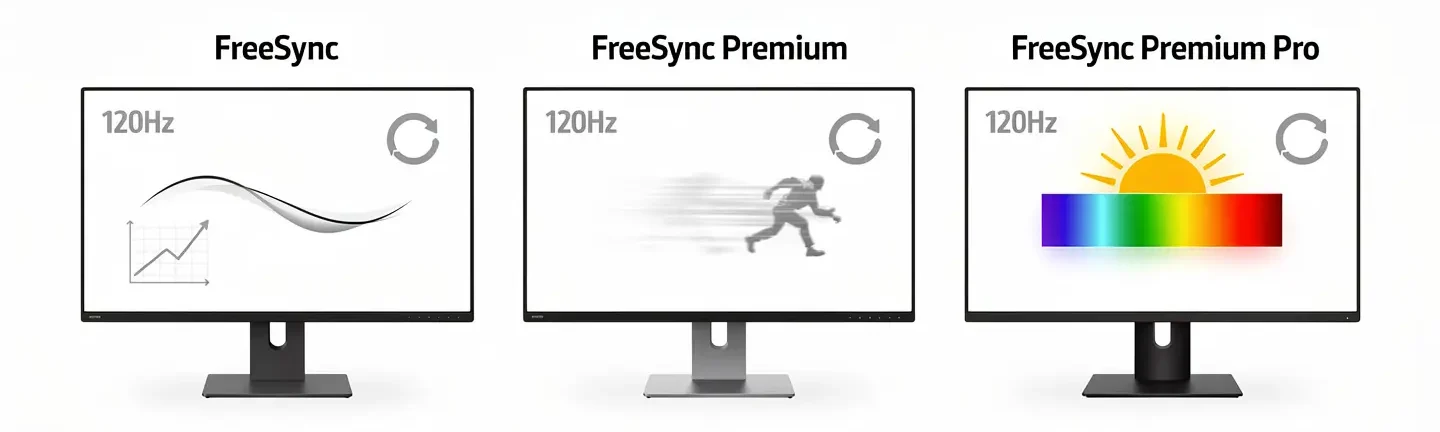
| Tier | Key Requirement | Best For |
|---|---|---|
| FreeSync | Tear free experience, low latency | Budget and mid range monitors |
| FreeSync Premium | 120Hz minimum at Full HD, LFC required | Fast paced and competitive gaming |
| FreeSync Premium Pro | Everything in Premium plus HDR support | Gamers who also want HDR visuals |
FreeSync Premium
FreeSync Premium sits in the middle tier and adds two requirements on top of the base standard: a minimum refresh rate of 120Hz at Full HD resolution or higher, and mandatory support for Low Framerate Compensation. This tier is aimed squarely at gamers who want a smoother experience across a wider range of frame rates, without paying extra for HDR features they might not use.
FreeSync Premium Pro
FreeSync Premium Pro, previously called FreeSync 2, keeps the same refresh rate and LFC requirements as Premium but adds certified HDR support. The key difference from ordinary HDR is that FreeSync Premium Pro shares brightness and color data between the game and the display more directly, which helps keep input latency low even with HDR turned on. If you play games that support HDR and want that visual boost without sacrificing responsiveness, Premium Pro is the tier to look for.
Knowing which tier a monitor carries matters more than it might seem when you are comparing two similarly priced displays. A base FreeSync monitor and a FreeSync Premium monitor can look almost identical on a spec sheet at first glance, yet the Premium model guarantees a minimum refresh rate and mandatory LFC support that the base tier does not. Checking the certification tier directly on AMD’s own list, rather than relying on marketing text on a retail page, is the most reliable way to confirm exactly what you are getting before you buy.
FreeSync vs G-Sync, What Is the Difference
FreeSync and G-Sync solve the exact same problem, but they take different routes to get there, and the differences matter when you are shopping for a monitor.

Which Graphics Cards Actually Support FreeSync
FreeSync works with a wide range of AMD hardware, but not every card ever made supports it. On the desktop side, AMD Radeon R9 and R7 200 series cards and newer generally support FreeSync, with a handful of exceptions in that lineup, including the R9 270, R9 280, R9 370, R7 370X and R7 265, which shipped just before FreeSync support was added at the driver level. Every Radeon card released since then, along with any card built on GCN 2.0 architecture or later, supports it without issue. You do not need a dedicated graphics card either, since AMD Ryzen processors with integrated Radeon graphics can also drive a FreeSync display on their own, which is useful for budget builds or laptops without a separate GPU.
Cost and Availability
G-Sync monitors use a dedicated hardware module built into the display, which handles the sync process directly. That module adds to the manufacturing cost, and that extra cost gets passed on to the buyer, so G-Sync monitors have historically been more expensive than FreeSync ones at similar specs. FreeSync, being a free and open standard, does not require that extra hardware, which keeps prices down and explains why FreeSync monitors are far more common on store shelves overall.
Compatibility with Graphics Cards
FreeSync is built for AMD Radeon graphics cards, though Nvidia has opened up support for many FreeSync monitors under its own G-Sync Compatible certification, which covers GTX 10 series cards and newer. G-Sync, on the other hand, is designed around Nvidia hardware and does not work with AMD graphics cards at all. One practical advantage FreeSync has is that it works over both DisplayPort and HDMI, while G-Sync historically required DisplayPort, which matters if your monitor or TV only has HDMI inputs available.
Which One Should You Choose
If you already own an AMD graphics card, FreeSync is the natural choice and there is little reason to pay more for a G-Sync display. If you have an Nvidia card, checking whether a FreeSync monitor carries G-Sync Compatible certification is usually the more budget friendly path, since it gives you a tear free experience without the premium price tag of a native G-Sync panel. One area where G-Sync still holds a slight edge is response time consistency, since its variable overdrive feature adjusts pixel response on the fly to reduce ghosting at different frame rates, something FreeSync monitors do not always manage as smoothly.
Do You Need an AMD Graphics Card for FreeSync
Technically, FreeSync is designed to work with AMD Radeon graphics cards and AMD APUs, and that remains the most straightforward way to use it. That said, Nvidia opened the door for many of its own graphics cards to use FreeSync monitors through the G-Sync Compatible program, so owning an Nvidia GTX 10 series card or newer does not automatically rule out a FreeSync display. Before buying, it is worth checking whether a specific FreeSync monitor has passed Nvidia’s certification, since not every FreeSync panel has been tested and approved this way, even if it will often still work to some degree without official certification.
FreeSync on Smart TVs
FreeSync has spread well beyond PC monitors and now shows up on a large number of smart TVs, mostly because of how common console gaming has become alongside HDMI 2.1 and VRR support in newer TV models. A FreeSync certified TV works the same way a monitor does, adjusting its refresh rate to match whatever is feeding it, whether that is a gaming PC connected over HDMI or a console like the Xbox Series X. Not every TV that supports variable refresh rate carries official FreeSync certification, since some manufacturers rely on the more general VESA Adaptive-Sync standard or their own VRR implementation instead, so it is worth checking the specific certification a TV carries rather than assuming VRR support automatically means full FreeSync support.
FreeSync on Consoles: Xbox and PS5
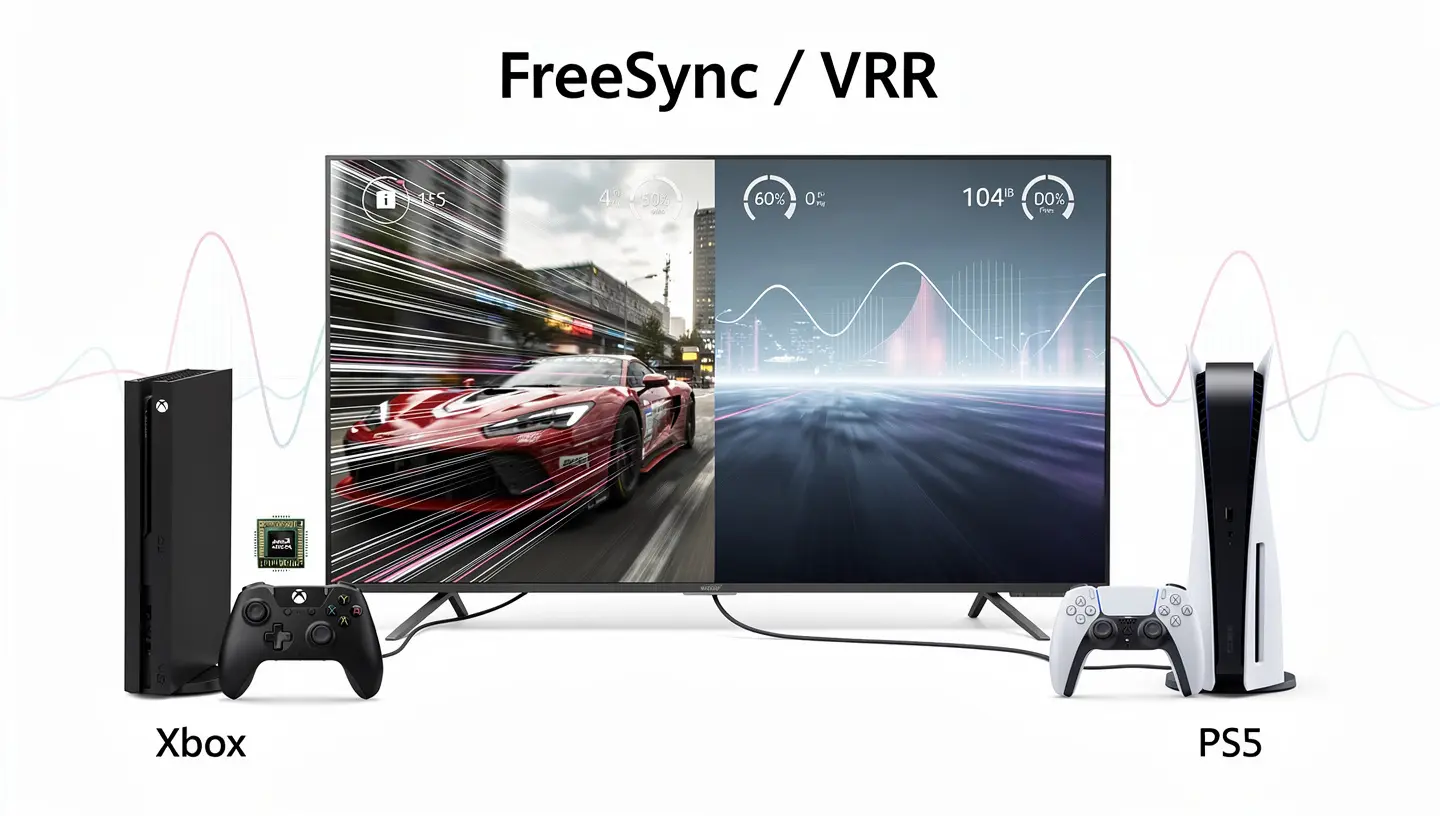
FreeSync is not limited to PC monitors. Because Xbox consoles run on AMD hardware internally, FreeSync support carries over naturally to console gaming, and Sony has added variable refresh rate support to PS5 as well.
FreeSync on Xbox
Xbox One S, Xbox One X, and the Xbox Series X and S all support FreeSync over HDMI, since their internal chips are built by AMD. This means a FreeSync certified TV or monitor connected to an Xbox console can take advantage of variable refresh rate just like a gaming PC would, cutting down on tearing and stuttering during fast paced games without needing any extra setup beyond enabling the feature in the console’s display settings.
Does PS5 Support FreeSync
At launch, the PS5 did not support any form of variable refresh rate. That changed with a 2022 system software update, which added VRR support, including basic compatibility with FreeSync certified displays. To use it, you need a FreeSync or VRR compatible TV or monitor, an HDMI 2.1 connection, and the latest PS5 firmware, with VRR turned on under the console’s video output settings. Once enabled, the PS5 behaves much like a FreeSync equipped PC, smoothing out the frame rate fluctuations that show up in graphically demanding games.
How to Enable FreeSync
Getting FreeSync running usually takes only a few steps, though the exact process depends on whether you are on a PC or console. On PC, you first need to connect your monitor using a cable and port combination that supports FreeSync, then confirm your AMD graphics driver is up to date through AMD Software: Adrenalin Edition. From there, open the Display section in Adrenalin and switch on the Radeon FreeSync toggle. You may also need to enable FreeSync directly in your monitor’s on screen menu, since some displays ship with the feature switched off by default. If you are setting up a new monitor for the first time, our guide to connecting a gaming monitor to a PC covers cable choice and initial setup in more detail.
On console, the process is simpler. Xbox applies FreeSync automatically once VRR is turned on in the console’s display settings, as long as the connected screen is FreeSync certified. On PS5, VRR needs to be manually enabled under Settings, then Screen and Video, then Video Output, and the console will use it automatically in supported games from that point on.
Do You Need FreeSync for Gaming
Whether FreeSync matters to you depends heavily on what kind of games you play and how your system performs. For fast paced, graphically demanding titles like open world games or competitive shooters, frame rates tend to fluctuate a lot, which is exactly the situation FreeSync is built to smooth out. If your graphics card struggles to hold a steady frame rate in a game, FreeSync becomes noticeably more useful, since it hides the dips rather than letting them show up as tearing or stuttering. This is especially true in newer, graphically heavy releases, where even a strong GPU can see its frame rate swing by twenty or thirty frames between a quiet area and a busy firefight, and FreeSync smooths over exactly that kind of swing without you needing to adjust any settings mid game.
If you mostly play less demanding games such as strategy titles, turn based games, or older, simpler games where your GPU can easily hold a stable frame rate above your monitor’s refresh rate, the benefits of FreeSync are much smaller. In those cases, a high enough refresh rate on its own is often enough to avoid noticeable tearing without needing FreeSync at all. Casual users who mainly browse, watch video, or work on their PC will also see little practical benefit from FreeSync, since those tasks rarely involve the kind of frame rate swings that cause tearing in the first place.
FreeSync on Laptop Displays
FreeSync is not limited to desktop monitors either. Many gaming laptops built around AMD Radeon graphics, and some with Nvidia GPUs paired with an AMD integrated chip, ship with FreeSync built directly into the laptop screen. This works the same way it does on a desktop monitor, syncing the built in display’s refresh rate to whatever frame rate the laptop’s graphics hardware is producing at that moment. If your laptop does not have FreeSync on its own screen, it is sometimes still possible to use it by connecting an external FreeSync certified monitor through DisplayPort or HDMI, provided the laptop’s graphics hardware supports it.
Common FreeSync Problems
FreeSync generally works reliably, but a few issues come up often enough to be worth knowing about before they catch you off guard.
- Flickering during dark scenes, loading screens, or static menus, which is a known side effect on some monitors when the frame rate dips very low within the FreeSync range
- Ghosting on fast moving objects, particularly on panels with a narrow FreeSync range or an overdrive setting that is not well tuned for variable refresh
- FreeSync appearing to stop working after a few hours of play, which is often tied to a graphics driver issue rather than the monitor itself
- Stuttering returning even with FreeSync enabled, usually caused by running a game in windowed mode instead of fullscreen or borderless fullscreen
If you run into flickering, the most reliable fix is usually a fresh graphics driver install, since several documented flicker issues have been traced back to specific driver versions rather than the monitor hardware. Capping your frame rate a few frames below your monitor’s maximum refresh rate, using a tool with an accurate frame limiter, can also help stabilize frame times enough to stop flickering in games with heavy frame time swings. If problems persist across multiple driver versions, checking your monitor’s on screen menu for a FreeSync range or overdrive setting, and adjusting it manually, resolves the issue in many cases. For monitors with an especially narrow FreeSync range straight out of the box, a third party tool called Custom Resolution Utility, usually shortened to CRU, lets you widen that range manually, which often reduces both flickering and the chance of dropping below the LFC threshold during normal play.
Is FreeSync Worth It: Final Verdict
For most gamers, FreeSync is worth having, especially since it rarely adds much to the price of a monitor compared to an equivalent screen without it. It solves a real, visible problem, screen tearing and stuttering, without the input lag penalty that older solutions like V-Sync carry. Competitive and fast paced games benefit the most, but even casual gaming sessions look noticeably cleaner once tearing is out of the picture.
The main thing to check before buying is whether the tier you are getting, whether that is base FreeSync, Premium, or Premium Pro, actually matches how you plan to use the monitor. If you are still deciding between different monitors and specs, our guide to choosing a gaming monitor walks through how refresh rate, panel type, and sync technology all fit together when picking a display.
Frequently Asked Questions
Does FreeSync cost extra?
No, FreeSync does not require proprietary hardware, so it rarely adds a noticeable premium to a monitor’s price. This is one of the main reasons FreeSync monitors are generally cheaper than comparable G-Sync models.
Can I use FreeSync with an Nvidia graphics card?
Yes, in many cases. Nvidia GTX 10 series cards and newer can use FreeSync monitors that have passed its G-Sync Compatible certification. Some uncertified FreeSync monitors may still work with Nvidia cards, but the experience is not guaranteed to be as consistent.
Does FreeSync work over HDMI?
Yes, FreeSync has supported HDMI since it launched, which is part of why it works with Xbox consoles and many smart TVs, not just PC monitors connected over DisplayPort.
What is FreeSync range?
FreeSync range is the span of refresh rates a monitor can dynamically match, shown as something like 48 to 144Hz. Frame rates within that range are matched directly, while frame rates below the minimum rely on Low Framerate Compensation to stay smooth.
Is FreeSync better than no sync at all?
Yes, running without any sync method leaves your monitor and GPU completely unsynchronized, which almost always causes screen tearing during fast motion. FreeSync fixes that mismatch without adding the input lag that comes with traditional V-Sync.
Does FreeSync reduce input lag?
FreeSync itself does not add input lag the way V-Sync does, and in many cases it actually feels more responsive than V-Sync because the GPU is never forced to hold back finished frames. It does not reduce lag below what your system would have with no sync at all, it simply avoids adding extra delay on top.
References: AMD FreeSync technology overview and AMD FreeSync tier requirements.