The first thing to look for in a gaming monitor is a resolution that your graphics card can drive at high frame rates, followed by a refresh rate of 144Hz or more, a response time close to 1ms, and adaptive sync. Panel type, screen size, HDR, ports, and the stand come after those four. If you get the first four right, the rest is mostly about taste and budget. If you get them wrong, even an expensive gaming monitor can look choppy or feel slow.
Stores are full of numbers such as 1080p, 4K, 240Hz, 0.5ms, HDR, IPS, and 1000R, and many of them mean less than they look like. This gaming monitor buying guide, built as a spec by spec explainer, goes through every spec in the order that matters, explains what each number does in a game, and points out which ones you can skip. We also cover consoles, graphics card pairing, extra features, and a checklist you can use before you pay.
What to Look for in a Gaming Monitor at a Glance
Use this table as a quick answer. The sections below explain each row in more detail.
| Spec | What to Look For | When You Can Skip It |
|---|---|---|
| Resolution | 1440p for most players, 1080p on a tight budget, 4K with a strong graphics card | 4K, if your card cannot hold high frame rates |
| Refresh rate | 144Hz to 165Hz for most, 240Hz or more for competitive play | Anything above 165Hz, if you play slower games |
| Response time | 1ms GtG or lower, confirmed in independent reviews | Exact numbers, on slow single player games |
| Panel type | IPS for all around use, OLED for contrast and speed, VA for budget contrast | TN, unless price and raw speed are all you want |
| Adaptive sync | G-Sync Compatible or FreeSync Premium, matched to your card | Rarely worth skipping |
| Screen size | 24 inch for small desks, 27 inch for most, 32 inch for big desks | Ultrawide and curved, if you want a standard setup |
| HDR | DisplayHDR 600 or higher | HDR labels with no brightness or dimming listed |
| Ports | DisplayPort for PC, HDMI 2.1 for consoles | USB-C and KVM, if you use one device |
| Stand | Height and tilt adjustment, VESA mount | Swivel and pivot, if the monitor never moves |
Gaming Monitor vs Regular Monitor: What Is Different
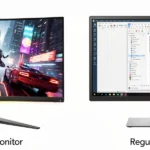
A regular monitor is built for office work, browsing, and video, so it usually runs at 60Hz, has a response time of 5ms or more, and has no adaptive sync. A gaming monitor keeps the same basic job but adds what games ask for: a higher refresh rate, a faster response time, adaptive sync, and gaming tools in the menu. Many also have better stands and more ports. The price gap is smaller than it used to be, and a 144Hz gaming monitor now costs about the same as a good regular monitor. If you only browse and watch video, a regular monitor is enough. If you play anything fast, a gaming monitor is worth the small extra cost.
Resolution: 1080p, 1440p, or 4K
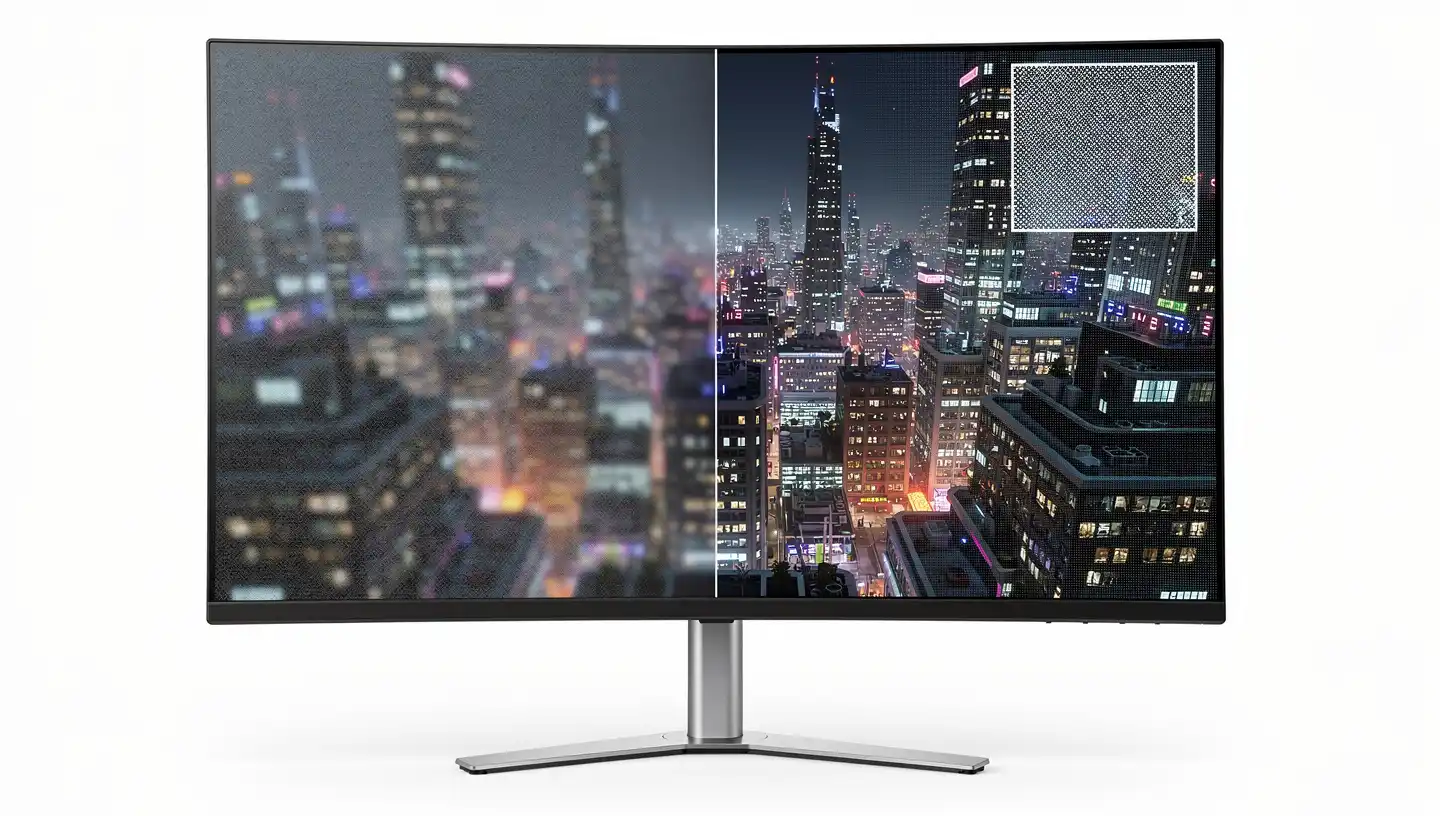
Resolution is the number of pixels on the screen, and it decides how sharp a game looks. It also decides how hard your graphics card has to work, which is why it comes first. There is no point buying a 4K gaming monitor if your card can only run games well at 1080p. The one exception is when you plan to upgrade the card soon and want a monitor that will still fit.
1080p
1080p is 1920 x 1080 pixels and is still the most common resolution for PC gaming. It is the cheapest option and it runs well on entry level graphics cards. It looks sharp on a 24 inch screen, at about 92 pixels per inch, but it starts to look soft on anything bigger. Stay at 24 inches or below, unless budget forces your hand.
1440p
1440p, also called QHD or 2K, is 2560 x 1440 pixels. That is about 78% more pixels than 1080p, so text is cleaner and edges look smoother on a 27 inch screen, where density lands around 109 pixels per inch. Most guides call it the sweet spot for gaming, because it looks clearly better than 1080p without the price and power demands of 4K. A mid range graphics card can hold high frame rates at this resolution in most games.
4K
4K is 3840 x 2160 pixels, four times as many as 1080p. On a 32 inch monitor that gives about 138 pixels per inch, and on a 27 inch monitor it goes above 160. Games look very detailed, especially with HDR, but you need a high end graphics card to run them well, and text can look small without scaling in Windows. 8K is not worth thinking about for gaming yet, since hardware and games are not ready for it. If you do pick 4K, aim for a 27 inch or larger gaming monitor and a graphics card that holds at least 60 frames per second in your main games, and expect to lower a few settings in the newest releases.
Native Resolution and Upscaling
Every monitor has a native resolution, which is the number of pixels it really has. If a game runs at a lower resolution than that, the monitor stretches the image to fit, and it usually looks softer. 1080p on a 4K screen divides evenly, since each 1080p pixel becomes a block of four, so many monitors and graphics drivers handle it cleanly. 1440p on a 4K screen does not divide evenly, and it often looks blurrier. Upscaling features in modern graphics cards and games, such as DLSS and FSR, render at a lower resolution and scale the image up, which lets a weaker card drive a 4K gaming monitor. For the sharpest picture, still match the monitor resolution to what your card can run natively.
Refresh Rate: How Many Hz Do You Need
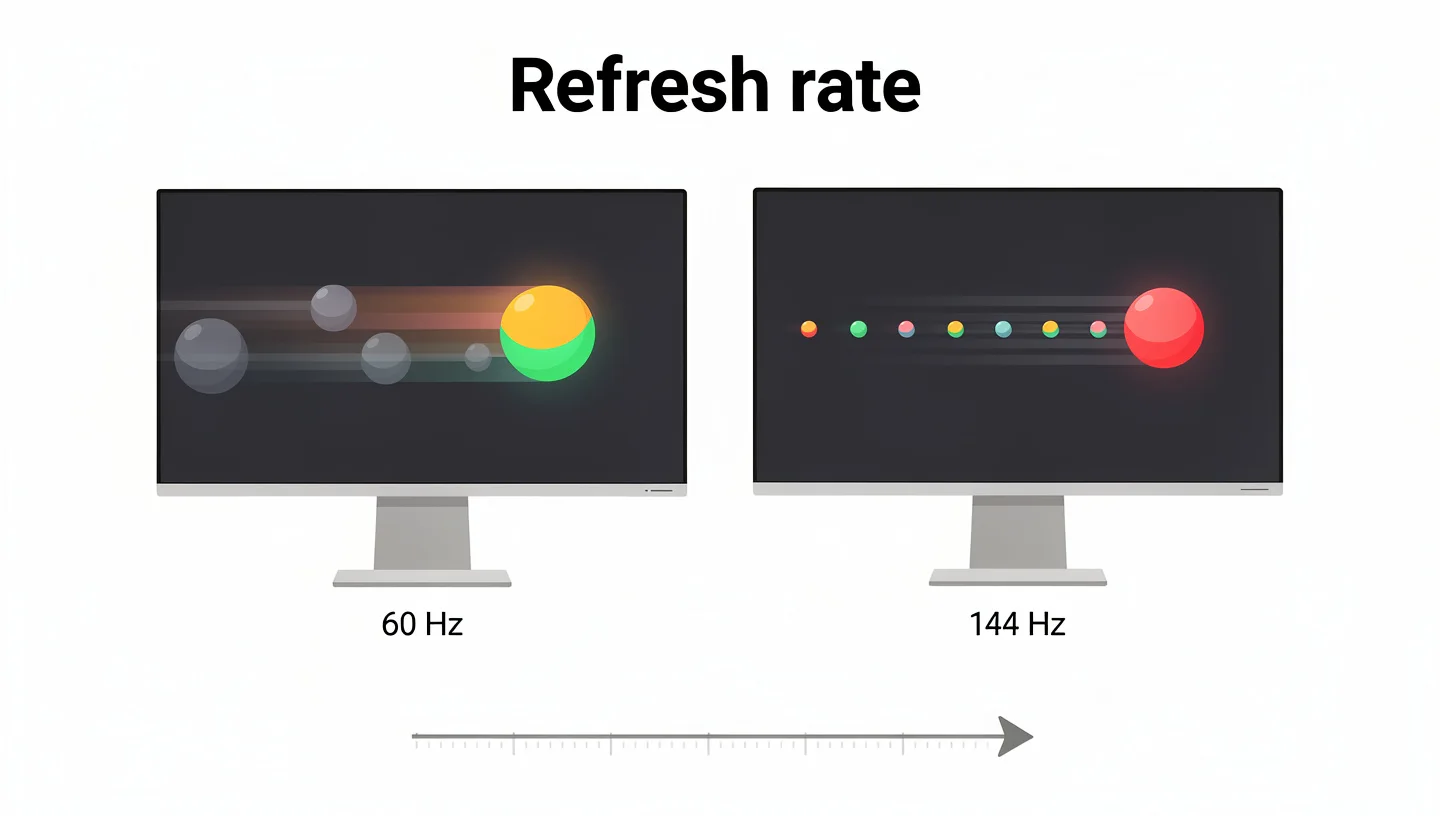
A higher refresh rate means the monitor draws a new image more times per second, so motion looks smoother and camera turns stay easier to follow. It is measured in Hertz (Hz). Refresh rate is tied to frame rate, which is how many frames per second your graphics card produces. A 144Hz gaming monitor only shows 144 different frames every second if the card can make them, and a fast card cannot show more frames than the monitor refreshes.
60Hz to 120Hz: Entry Level
60Hz is the bare minimum for PC gaming and fine for office work, strategy games, and slower titles. A 100Hz to 120Hz monitor is a clear step up, with smoother scrolling and less blur, and it suits casual players who want a better feel without paying for the top of the range. In fast shooters and racing games, you will still notice a gap compared with 144Hz.
144Hz to 200Hz: The Usual Choice
144Hz is widely seen as the standard for gaming, and 165Hz and 180Hz models cost only a little more. This range makes fast action look smoother in shooters, racing games, and fighting games, and it is enough for most players. Tom’s Hardware makes the same point, that unless you play esports at a professional level, you probably do not need more than 165Hz.
240Hz and Above: Competitive Play
240Hz, 360Hz, and even 500Hz monitors exist for players who care about every millisecond. At 240Hz a new frame arrives every 4.17 milliseconds, which helps you track targets and react a little faster. These monitors are pricier, and the benefit is wasted if your system cannot reach that many frames per second. A strong 144Hz gaming monitor is often the smarter buy, unless you own a very fast graphics card and play competitive games.
Refresh Rate or Resolution: Which Matters More
It depends on what you play. For competitive shooters, refresh rate matters more, since smoother motion and quicker response help you aim. For story driven and open world games, resolution gives more back, because the picture is sharper and more detailed. If your budget forces a choice, 1440p at 144Hz is the balance most players end up with.
Response Time and Input Lag
Response time is how long a single pixel takes to change from one color to another, measured in milliseconds. A slow response time leaves a faint trail behind moving objects, called ghosting. Aim for 1ms or lower in a gaming monitor, as most testers recommend. A response time of 4ms or 5ms is still acceptable on a budget monitor, and OLED panels go as low as 0.03ms.

Why Rated Response Time Can Mislead
The number printed on the box is usually gray to gray (GtG), which is the best result from a set of tests rather than an average. Manufacturers also use overdrive, which pushes more voltage into the pixels to make them change faster. Done well, overdrive reduces trails. Done badly, it overshoots and creates bright halos around objects. The response time also has to keep up with the refresh rate. On a 240Hz screen, a new frame shows every 4.17ms, so a pixel that needs longer than that cannot finish changing in time. The best way to judge a monitor is to read measured results from independent reviewers.
Response Time vs Input Lag
People often mix up the two. Response time is what you see on the screen, and input lag is what you feel. It is the delay between pressing a button or moving the mouse and seeing the result. Input lag comes from the processing inside the monitor, and it matters most in shooters and fighting games. Switching on the Game Mode in the monitor menu usually turns off extra image processing and lowers the delay. Turning off V-Sync inside a game can also reduce input lag.
Motion Blur Reduction and Backlight Strobing
Many gaming monitors include a motion blur reduction mode, sold under names such as ULMB, ELMB, or DyAc. It flashes the backlight between frames, which cuts the blur your eyes see on fast moving objects, even on a screen with a fast response time. The cost is lower brightness, some flicker, and a limit on most monitors, since strobing usually cannot run together with variable refresh rate. G-Sync Pulsar monitors launched in 2026 were built to combine the two. Strobing works best at a high, steady frame rate, so it is mainly useful for competitive shooters and fast games on a strong graphics card.
Panel Type: IPS, VA, TN, or OLED
The panel type of a gaming monitor decides color, contrast, viewing angles, and a good part of the speed. The table shows how the main types compare.

| Panel | Strength | Weakness | Best For |
|---|---|---|---|
| TN | Fastest and cheapest | Narrow viewing angles, weaker color | Tight budgets, esports |
| VA | Strong contrast, deep blacks | Slower response, black smearing | Dark games, budget screens |
| IPS | Wide viewing angles, good color | IPS glow, average contrast | All around use |
| OLED | Perfect blacks, instant response | Burn-in risk, price, lower full screen brightness | Picture quality and speed |
IPS
An IPS panel gives the widest viewing angles and the most stable image, with good color and decent contrast. It used to be slower than TN, but Fast IPS panels now reach 1ms and are the most popular choice for gaming. The usual downside is IPS glow, a pale haze in the corners that shows up in a dark room.
VA
VA panels have the best contrast of the three LCD types, with deeper blacks than IPS or TN. That suits dark, story driven games. The weak point is speed, since slow pixel changes from black to gray can cause black smearing in fast motion, and some VA panels flicker in brightness when variable refresh rate is on.
TN
TN is the oldest and cheapest LCD type, with very fast response and high refresh rates. The trade is narrow viewing angles and weaker, washed out color. It still shows up in esports monitors where speed matters more than looks.
OLED and QD-OLED
OLED pixels light up on their own, so blacks are completely dark, contrast is huge, and response time is almost instant. QD-OLED adds quantum dots for brighter color. The downsides are the price, the risk of burn-in with static images such as a game HUD, and lower brightness when the whole screen is white. Check the burn-in warranty before you buy one.
Mini LED
Mini LED is an LCD with a backlight split into many small dimming zones, which gives strong HDR and high peak brightness without burn-in. TechSpot suggests a 1440p OLED if the monitor is mainly for gaming, and a 4K mini LED if it also has to handle desktop work all day.
Adaptive Sync: G-Sync and FreeSync
Adaptive sync makes the monitor match its refresh rate to the frame rate from your graphics card. Without it, the two run out of step, and you see screen tearing, where one part of the picture is a frame ahead of the other, or stuttering. V-Sync was the old fix, but it can add input lag and stutter when the frame rate drops. Adaptive sync does the job without those side effects. This is a feature almost every gaming monitor has, so it is rarely worth skipping.

The two names to know are G-Sync from Nvidia and FreeSync from AMD, and both are forms of variable refresh rate (VRR). FreeSync monitors use the open Adaptive-Sync standard built into DisplayPort, and many of them are also tested by Nvidia as G-Sync Compatible. If you own a GeForce card, look for G-Sync Compatible or native G-Sync. If you own a Radeon card, look for FreeSync Premium or Premium Pro. Our list of the best gaming monitors with G-Sync shows which models carry each version.
Screen Size and Viewing Distance
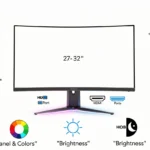
Screen size is the next thing to look for in a gaming monitor, and it comes down to your desk and how close you sit. Most players sit about 20 to 24 inches from the screen, which is closer than a TV, so the picture fills more of your view. If you have a small or shallow desk, a 24 inch monitor is easier to live with than a 32 inch one. With a big desk, a 32 inch monitor or a large ultrawide fits well.
Size and resolution work together through pixel density. The more pixels per inch (PPI), the sharper the image looks.
| Size and Resolution | Pixel Density | Good For |
|---|---|---|
| 24 inch, 1080p | About 92 PPI | Small desks, esports |
| 27 inch, 1440p | About 109 PPI | Most players |
| 27 inch, 4K | About 163 PPI | Very sharp image, strong graphics card |
| 32 inch, 1440p | About 92 PPI | Big screen on a budget |
| 32 inch, 4K | About 138 PPI | Big desks, single player games |
For games like strategy titles and MOBAs, a smaller screen up to 28 inches lets you see the whole picture without moving your eyes. For action and role playing games, 32 to 34 inches gives a good balance of space and detail, and monitors of 37 inches or more suit simulation and open world games if your desk and graphics card can handle them.
Curved vs Flat and Ultrawide Monitors
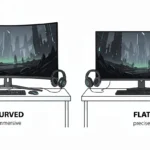
A curved monitor bends the screen toward you, and the curve is shown as a number followed by R, such as 1000R or 1500R. The number is the radius of the circle in millimeters, so a 1000R screen would form a full circle with a radius of one meter. A lower number means a tighter curve. Curves are most noticeable on large screens above 27 inches, and they work best on ultrawide monitors in driving, flight, and open world games. Our guide on whether curved monitors are good for gaming covers the details.

Ultrawide monitors have aspect ratios of 21:9 or 32:9 instead of the usual 16:9. They fill more of your view and give a wider field of view in games that support it, but they need a few days to get used to. Flat monitors cost less, take up less room, and fit better in multi monitor setups. Curved and ultrawide screens are nice to have, so spec priorities like resolution, refresh rate, and adaptive sync should come first. If you are unsure about a curve, try to see one in a store before you buy, since the effect is easier to judge in person than on a spec sheet.
HDR, Color, and Brightness
HDR and DisplayHDR Levels
HDR lets a monitor show brighter highlights and darker shadows in the same image, so sunlight, fire, and dark corridors look more natural. The label alone means little. A gaming monitor can accept an HDR signal and still look no better than a normal screen, because real HDR needs high brightness and a backlight that can dim in zones. The VESA DisplayHDR rating is the most reliable way to compare monitors.
| Level | Peak Brightness | Color | Local Dimming |
|---|---|---|---|
| DisplayHDR 400 | 400 nits | 95% sRGB, 8-bit | Not required |
| DisplayHDR 600 | 600 nits | 90% DCI-P3, 10-bit | Required in some form |
| DisplayHDR True Black 400 and 500 | 400 or 500 nits | OLED black level below 0.0005 nits | Per pixel on OLED |
Most HDR games use the HDR10 format, so look for a monitor that supports it. DisplayHDR 400 adds little over a standard monitor, so aim for DisplayHDR 600 or higher, or an OLED with True Black certification. HDR is also expensive, and a 4K monitor with proper HDR costs more than the same screen without it.
Color Gamut and Contrast
Color is measured in several ways, and no single number tells the whole story. Color gamut shows how many colors the screen can display. sRGB is the standard used by Windows and the web, DCI-P3 is wider and common in HDR content, and Adobe RGB is mostly used by photo and video editors. A monitor that covers 99% of sRGB is accurate enough for gaming. Accurate color matters most for creative work, so it should not outrank refresh rate or response time for a gaming monitor.
Contrast ratio compares the brightest white with the darkest black. A ratio of 1000:1 is a normal baseline for IPS, and VA panels go several times higher. Brightness is measured in nits, and 300 to 400 nits is typical for a gaming monitor, which is fine for most rooms. Color depth also matters. A true 10-bit panel shows more shades, but many monitors use an 8-bit panel with an extra step called FRC to approximate 10-bit, and for games the difference is small.
Ports, Cables, and Connectivity
DisplayPort and HDMI
For a gaming PC, DisplayPort is usually the better connection, since it supports the highest refresh rates and features like G-Sync. HDMI 2.1 matters if you connect a console or a TV style setup. Make sure your graphics card supports the same connection standard as the gaming monitor, and check that every port can carry the full resolution and refresh rate you want. Some monitors limit HDMI to a lower refresh rate than DisplayPort, so the spec sheet should list each port separately. Our guide to connecting a gaming monitor to a PC explains cables and ports step by step.
USB-C, USB Hub, and KVM
A USB-C port that supports DisplayPort and power delivery lets a laptop send video, data, and charging through one cable. A built in USB hub gives you extra ports for a keyboard, mouse, or headset. A KVM switch lets one keyboard and mouse control two computers, which is useful if you game on a desktop and work on a laptop. None of these improve the picture, but they make a desk cleaner and are common on mid range and high end monitors.
Stand, Ergonomics, and Build Quality
A good stand on a gaming monitor is easy to overlook and easy to regret. Look for height and tilt adjustment at the very least, with swivel and pivot as a bonus. Sitting with the top of the screen at or just below eye level is more comfortable over long hours. If the stand is basic, check that the monitor has VESA mounting holes, which follow a standard spacing in millimeters, usually 100 x 100mm. That lets you attach a monitor arm or wall mount later. Build quality matters too, since a wobbly stand shakes with every keystroke.
Console Gaming: What to Look for in a Gaming Monitor for PS5 and Xbox
Many players use a gaming monitor for a console instead of a TV, because monitors have lower input lag, a sharper picture at close range, and take less room on a desk. The PS5 and Xbox Series X and S work with 1080p, 1440p, and 4K monitors, but a few specs decide which modes you can use.
HDMI 2.1 and 4K 120Hz
To run a console at 4K and 120Hz, the monitor needs an HDMI 2.1 input, not an older HDMI 2.0 port. The label alone is not enough, so check that the listing says 4K 120Hz for consoles. Console bandwidth also differs. According to the TFTCentral console monitor guide, the Xbox can send 4K 120Hz with full 4:4:4 chroma within its 40Gbps limit, and the PS5 uses 4:2:2 chroma at 32Gbps for 4K 120Hz. You also need an Ultra High Speed HDMI cable, because an older cable can cap the picture at 4K 60Hz. Consoles do not go above 120Hz, so a 144Hz or 240Hz monitor will only use part of its speed on them.
VRR on PS5 and Xbox
Variable refresh rate removes tearing on consoles the same way it does on PC. The Xbox supports VRR through FreeSync, even over HDMI 2.0 on monitors that include it. The PS5 supports VRR only through HDMI 2.1, so it will not work with FreeSync over an older HDMI port. If a monitor is meant for both consoles and a PC, make sure its HDMI port supports VRR and not just the DisplayPort.
1440p or 4K for Consoles
Both consoles output 1080p, 1440p, and 4K. A 4K monitor makes more sense at 32 inches or if you sit further back and play single player games. A 1440p monitor at 120Hz is a better fit for a desk setup, since many console games run their 120Hz performance modes at a lower internal resolution anyway. If one monitor has to serve a PC and a console, look for two HDMI 2.1 ports, a DisplayPort, and input switching without menu digging.
Matching a Monitor to Your Graphics Card
A gaming monitor can only show what your graphics card sends, so the two have to be matched. An entry level card works best with a 1080p monitor at 144Hz. A mid range card suits 1440p at 144Hz to 240Hz in most games. A high end card is what you need for 4K at high frame rates, or for 1440p at 240Hz in demanding titles. Check benchmarks for your card in the games you actually play, since results swing a lot from one game to another.
It also helps to look at the frame rate you get today. If your card averages 90 frames per second in your main games, a 240Hz monitor will not show its full speed, and a 144Hz or 165Hz model costs less. Dual mode monitors, which switch between a 4K mode at 160Hz to 180Hz and a Full HD mode at 360Hz or more, are an option if you want sharp visuals in single player games and extra speed in shooters.
Extra Features: Which Ones Are Worth It
Eye Comfort: Flicker-Free and Low Blue Light
Flicker-free backlights and low blue light modes are meant to reduce eye strain during long hours. Some monitors carry a TÜV Rheinland eye comfort certification. These features are cheap to include and worth having if you spend long hours in front of the screen, but they do not change how a game looks or plays.
Crosshair, Black Stabilizer, and Game Modes
Many gaming monitors add on screen tools. A crosshair overlay puts a fixed aiming dot on the screen, a black stabilizer or black equalizer brightens dark areas so enemies are easier to spot, and an FPS counter shows your frame rate. Game mode presets change picture settings for shooters, strategy, or racing. These help in some competitive games, but they are easy to find on almost any gaming monitor, so they should not decide your purchase.
Speakers and Other Extras
Built in speakers on monitors are usually weak, so a headset or desk speakers are a better choice. Extras like a webcam, Bluetooth, or smart apps show up on premium monitors, and they are useful only if you actually use them.
Warranty and Dead Pixel Policy
Warranties on monitors usually last one to three years. Some brands offer a zero dead pixel or zero bright dot guarantee, and OLED makers often cover burn-in for a set period. Check the screen for dead pixels as soon as it arrives, and return it inside the return window if you find any. Keep your proof of purchase for warranty claims.
Using a Gaming Monitor for Work and Everyday Use
A gaming monitor also works well as a main screen for work, and a high refresh rate makes scrolling and moving windows feel smoother. For text, resolution and pixel density matter most, so a 27 inch 1440p or a 4K screen looks cleaner than 1080p. IPS panels are the safest choice for mixed use, thanks to even color and wide viewing angles. OLED needs more care, since static items like a taskbar can lead to burn-in over time, and the pixel layout can make small text look slightly fuzzy. A USB-C port with power delivery and a KVM switch make it easy to share one monitor between a work laptop and a gaming PC.
What to Ignore on the Spec Sheet
Some numbers on the box are marketing, and knowing them saves money.
- Dynamic contrast ratio: a huge number made by changing the backlight, so look at the standard static contrast ratio
- HDR ready or HDR support with no details: the monitor can accept the signal but may not look any better
- 0.5ms MPRT: often reached with backlight strobing, which is not the same as real pixel speed
- Best case GtG response time: the quoted figure is usually the fastest of many tests
- Overclocked refresh rate in small print: check if it is the default or an overclock mode
- Built in speakers: rarely worth paying for
The Intel gaming monitor buying guide makes the same point about response time numbers, and suggests reading measured results from independent testers instead of relying on the box.
What to Look for in a Gaming Monitor by Budget and Play Style
The best spec mix changes with what you play and how much you spend. This table shows a reasonable starting point.
| Player Type | Resolution | Refresh Rate | Panel | Extras |
|---|---|---|---|---|
| Budget | 1080p or 1440p | 144Hz to 165Hz | IPS or VA | FreeSync, adjustable stand |
| Competitive and esports | 1080p or 1440p | 240Hz or more | Fast IPS, TN, or OLED | Low response time, G-Sync Compatible, motion blur reduction |
| Single player and story games | 1440p or 4K | 120Hz to 165Hz | OLED, VA, or IPS | HDR, curved or ultrawide |
| PC and console together | 1440p or 4K | 120Hz to 144Hz | IPS or OLED | Two HDMI 2.1 ports, DisplayPort, KVM |
Budget Gaming Monitor
On a budget, spend on refresh rate and a decent panel first. A 144Hz or 165Hz IPS or VA gaming monitor with FreeSync is the best value, and a 1080p or 1440p screen suits most entry level cards. Skip HDR, USB hubs, and curved screens until the basics are covered. A budget gaming monitor can still be worth it if you do not need top level specs for competitive play.
Competitive and Esports
Speed matters most here. Look for 240Hz or more, a measured response time that keeps up, and low input lag. A 24 or 27 inch screen at 1080p or 1440p is easier to scan quickly, and motion blur reduction or a strobing mode helps in fast shooters. Your graphics card has to hold those high frame rates, or the extra Hz are wasted.
Single Player and Story Games
For cinematic games, picture quality matters more than raw speed. An OLED or a VA panel with strong contrast, HDR, and a larger or curved screen makes dark scenes and wide open areas look better. 4K is worth it if your card can run it, and 120Hz to 165Hz is plenty.
PC and Console Together
If one gaming monitor has to serve both a PC and a console, check the ports. Two HDMI 2.1 ports, a DisplayPort, and a KVM switch or easy input switching save a lot of cable swapping. A resolution of 1440p or 4K at 120Hz to 144Hz fits both well.
Checklist Before You Buy a Gaming Monitor
This is what to look for in a gaming monitor before you pay, in the order that saves the most trouble. If you want the buying decision laid out in steps, use our step by step guide to choosing a gaming monitor.
- Check what your graphics card or console can output in your games
- Pick the resolution and screen size that fit your desk and your card
- Choose a refresh rate your card can actually reach
- Read measured response time and input lag in independent reviews
- Match adaptive sync to your graphics card
- Choose a panel type that suits the games you play
- Check the DisplayHDR level, not just the HDR label
- Confirm the ports, cables, and bandwidth for each device
- Test the stand adjustment and VESA support
- Read the warranty and return policy, and check for dead pixels on arrival
Bottom Line: What to Look for in a Gaming Monitor
Start with your graphics card or console and work backward. Pick the resolution it can run well, then a refresh rate it can reach, then check measured response time and adaptive sync. For most players that means a 27 inch 1440p IPS monitor at 144Hz to 165Hz with G-Sync Compatible or FreeSync Premium. Go to 240Hz or more only if you play competitive games on a fast card, and choose OLED if contrast and speed matter more than price. Ports, stand, HDR level, and warranty come last, but they are the details that decide whether you are still happy with the monitor a few years later.
Frequently Asked Questions
What is the most important spec in a gaming monitor?
Resolution matched to your graphics card comes first, then refresh rate. A monitor that your card cannot drive well wastes its specs, so the pairing matters more than any single number.
Is 144Hz enough for gaming?
Yes, for most players. 144Hz to 165Hz makes fast games look smooth, and you usually only need 240Hz or more for competitive esports, as long as your graphics card can reach those frame rates.
Is 1440p or 4K better for gaming?
1440p suits most players because it looks sharp on a 27 inch screen and runs well on a mid range card. 4K gives more detail on a 32 inch screen, but it needs a high end graphics card to hold good frame rates.
Is an OLED gaming monitor worth it?
OLED gives perfect blacks, huge contrast, and almost instant response time, so it is a strong choice if picture quality and speed matter most. The downsides are the price, the risk of burn-in, and lower brightness on bright screens, so check the burn-in warranty.
Do I need G-Sync or FreeSync?
You need one of them, and it should match your graphics card. G-Sync Compatible monitors work with GeForce cards and FreeSync monitors work with Radeon cards. Both stop screen tearing and stuttering.
Can I use a gaming monitor with a PS5 or Xbox?
Yes, through HDMI. For 4K at 120Hz you need an HDMI 2.1 input and an Ultra High Speed cable. The PS5 supports VRR only over HDMI 2.1, while the Xbox also supports it through FreeSync.
Is a gaming monitor better than a TV for gaming?
For competitive and fast games, a gaming monitor is usually better, thanks to higher refresh rates, quicker response, and a sharper picture at desk distance. A TV is bigger and suits relaxed, cinematic play from a couch.
Is a budget gaming monitor worth it?
Yes, if you pick the right specs. A 144Hz or 165Hz IPS monitor with adaptive sync gives most of the benefit of a gaming monitor at a low price. Skip HDR, curved screens, and extras, and spend on refresh rate and panel quality first.
Is 144Hz or 165Hz better?
165Hz is about 15% faster, but most players cannot tell the difference. Choose the one with the better panel and the lower price, since a good 144Hz monitor beats a poor 165Hz one.
Can I use a gaming monitor for work?
Yes. A gaming monitor works well for office tasks and browsing, and the high refresh rate makes scrolling smoother. Pick a 1440p or 4K IPS model for sharp text, and be careful with OLED if the same static windows stay on screen all day.
How long does a gaming monitor last?
Most gaming monitors last for many years of normal use, and the backlight slowly dims over time. OLED panels can develop burn-in sooner if the same image stays on screen, which is why the warranty length is worth checking.
What should I check before buying a gaming monitor on sale?
Compare the exact model number against similar models, since sale listings are sometimes older or lower tier versions. Check the real refresh rate, response time, panel type, and HDR level, look at the price history, and read the return policy so you can send it back if you find dead pixels.