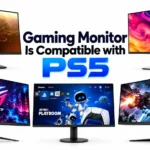
Almost any gaming monitor with an HDMI input is compatible with PS5, but only a monitor with an HDMI 2.1 port gives you 4K at 120Hz with VRR. The console sends its picture through HDMI only, so it does not matter if a monitor has a great DisplayPort. A monitor with HDMI 2.0 still works, but it caps the picture at 4K 60Hz, or at 1080p and 1440p for 120Hz, and it cannot use variable refresh rate with the console.
So what gaming monitor is compatible with PS5 in the full sense? One that lists 4K 120Hz over HDMI and VRR support, not just the words HDMI 2.1 on the box. Since 2022 the console also outputs 1440p, and since March 2023 it supports VRR at that resolution. In August 2026 PlayStation even launched a monitor of its own. Below we go through the requirements, the best picks for PS5 and PS5 Pro, how to switch on 120Hz and VRR, and what to do when they do not work.
PS5 Monitor Compatibility at a Glance
This table shows what the PS5 supports and what a gaming monitor for PS5 needs to match it.
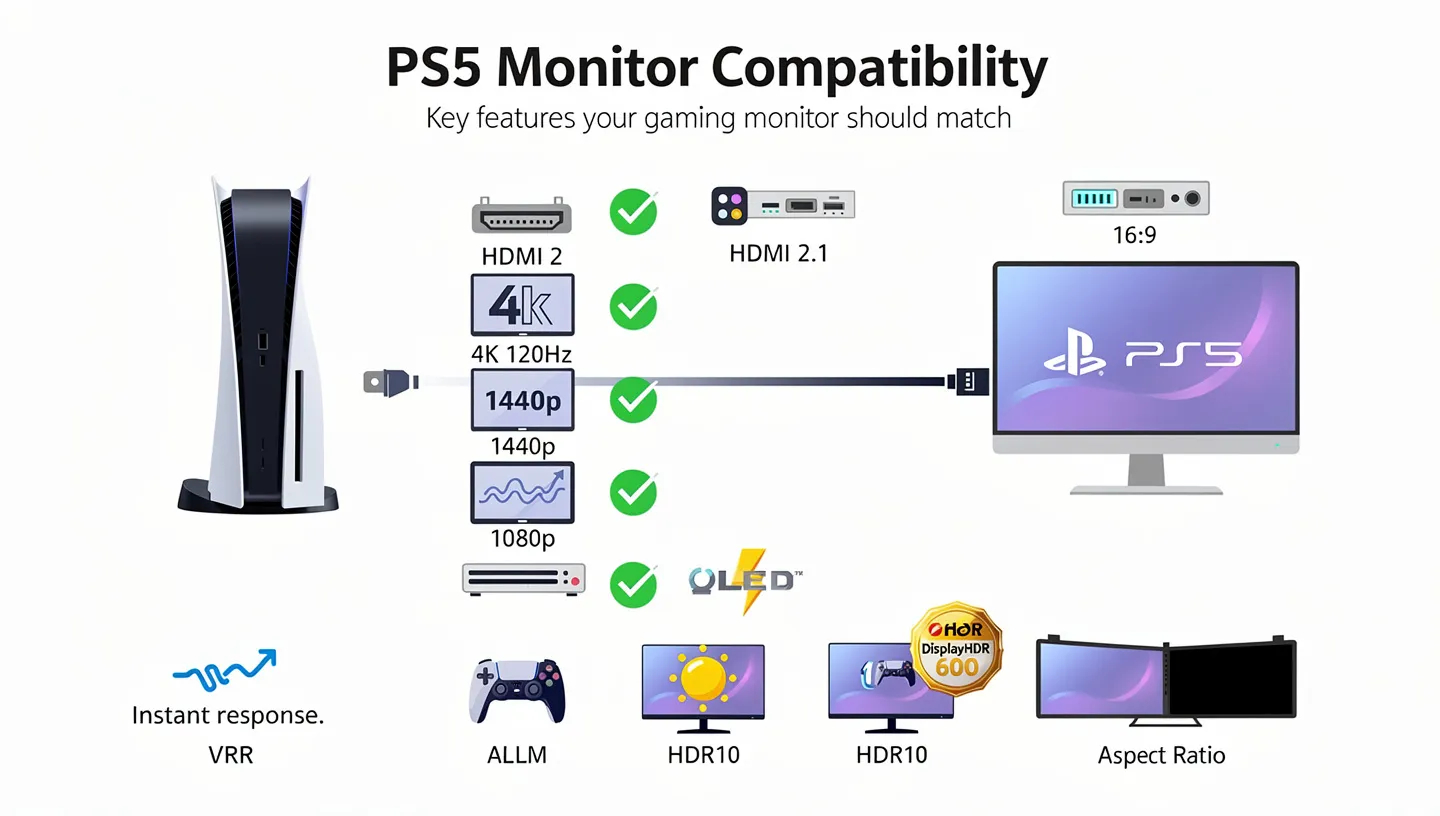
A gaming monitor compatible with PS5 should tick every row that matters to you.
| Feature | What PS5 Supports | What the Monitor Needs |
|---|---|---|
| Connection | HDMI only | An HDMI input, HDMI 2.1 for full features |
| 4K 120Hz | Yes, in games with a 120fps mode | HDMI 2.1 with 4K 120Hz listed |
| 1440p | Yes, at 60Hz and 120Hz | A 1440p input, HDMI 2.1 for VRR |
| 1080p | Yes, with 120Hz in supported games | HDMI 2.0 is enough for 120Hz |
| VRR | HDMI Forum VRR at 1080p, 1440p, and 4K | HDMI 2.1 VRR support |
| ALLM | Yes | A game mode that reacts to ALLM |
| HDR | HDR10 | HDR10 input, DisplayHDR 600 or OLED for a real effect |
| Aspect ratio | 16:9 only | Ultrawide monitors show black bars or a stretched image |
PS5 Monitor Requirements: What Makes a Gaming Monitor Compatible
Six things decide whether a gaming monitor works well with the PS5. The first two matter most, and they apply to the PS5 Pro as well.

HDMI Only, No DisplayPort
The PS5 has an HDMI output and nothing else, so the only connection that counts on a monitor is HDMI. DisplayPort is useful for a PC, but the console cannot use it. Adapters that convert HDMI to DisplayPort exist, though they often add input lag and tend to break 120Hz and VRR, so it is better to pick a gaming monitor for PS5 with a proper HDMI input.
Many gaming monitors list DisplayPort performance first and HDMI second, which is why the HDMI specs in the manual deserve a closer look.
HDMI 2.1 for 4K at 120Hz
HDMI 2.1 is the port that carries 4K at 120Hz with HDR and VRR. It has much more bandwidth than HDMI 2.0, and the PS5 needs a link of about 32Gbps for 4K 120Hz, according to the TFTCentral PS5 and Xbox monitor guide. The console uses 4:2:2 chroma at that setting to fit the link. A port labeled HDMI 2.1 can still fall short, because some monitors support only parts of the standard. Check that the listing says 4K 120Hz over HDMI and mentions VRR for consoles. You also need an Ultra High Speed HDMI cable, since an older cable can limit the signal to 4K 60Hz.
Not Every HDMI 2.1 Port Is the Same
Some monitors advertise HDMI 2.1 but use a port with lower bandwidth, around 24Gbps instead of the 40Gbps or 48Gbps of a full port. On those monitors, 4K at 120Hz can force a drop in color quality, or it may not work at all, and a few popular OLED monitors have been flagged for this in reviews. Reviewers do not always agree on the exact numbers, which is why a test with a real console tells you more than the spec sheet. Before you buy, read independent reviews that mention the PS5 by name and list the resolution, refresh rate, and chroma they achieved.
HDMI 2.0 Monitors: What Still Works
HDMI 2.0 monitors are not useless with a PS5. They run 4K at 60Hz, and many accept 1080p or 1440p at 120Hz, as long as the monitor lists those timings. What they cannot do is 4K at 120Hz or VRR, which the console only offers on HDMI 2.1 displays. A 28 inch 4K monitor with two HDMI 2.0 ports is fine for slower story games, but a fast shooter at 120fps needs HDMI 2.1 or a lower resolution. A popular budget example is the AOC Q27G3XMN, a 27 inch 1440p monitor with two HDMI 2.0 ports limited to 144Hz. It reaches 180Hz only over DisplayPort, which the console cannot use, so it has no VRR on PS5, even though reviewers rate it as a very good PC monitor.
VRR on PS5: HDMI Forum VRR, Not FreeSync
VRR makes the monitor change its refresh rate to match the frame rate of the console, which removes screen tearing and cuts stutter when a game drops below 60 or 120 fps. Sony switched it on in April 2022 for HDMI 2.1 VRR compatible TVs and monitors, as the PlayStation Blog VRR announcement explains, and added support at 1440p in March 2023. The PS5 uses the HDMI Forum VRR standard, not AMD FreeSync or Nvidia G-Sync. That means a FreeSync badge on an HDMI 2.0 monitor does nothing for the PS5, while the Xbox Series X and S do accept FreeSync over HDMI, which is why an Xbox monitor and a PS5 monitor are not always the same thing. VRR sits in the video settings on Automatic, and there is an option to apply it to games that do not support it.
ALLM and Game Mode
Auto Low Latency Mode (ALLM) lets the console tell the monitor to switch to its lowest lag setting when a game starts. It works over HDMI 2.1 and is also set to Automatic in the video output menu. Some monitors need a game mode switched on in the menu before it works, so check that setting if the picture feels slow.
HDR10 and Auto HDR Tone Mapping
The PS5 outputs HDR in the HDR10 format. When you connect a new screen, the console runs a short HDR setup with three screens, and you adjust each one until the symbol just disappears. An HDR label on a monitor is not enough for a good picture. DisplayHDR 600 or higher, or an OLED panel, gives real contrast. Sony monitors add Auto HDR Tone Mapping, which sets the HDR values for you during setup.
Resolution: 1080p, 1440p, or 4K on PS5
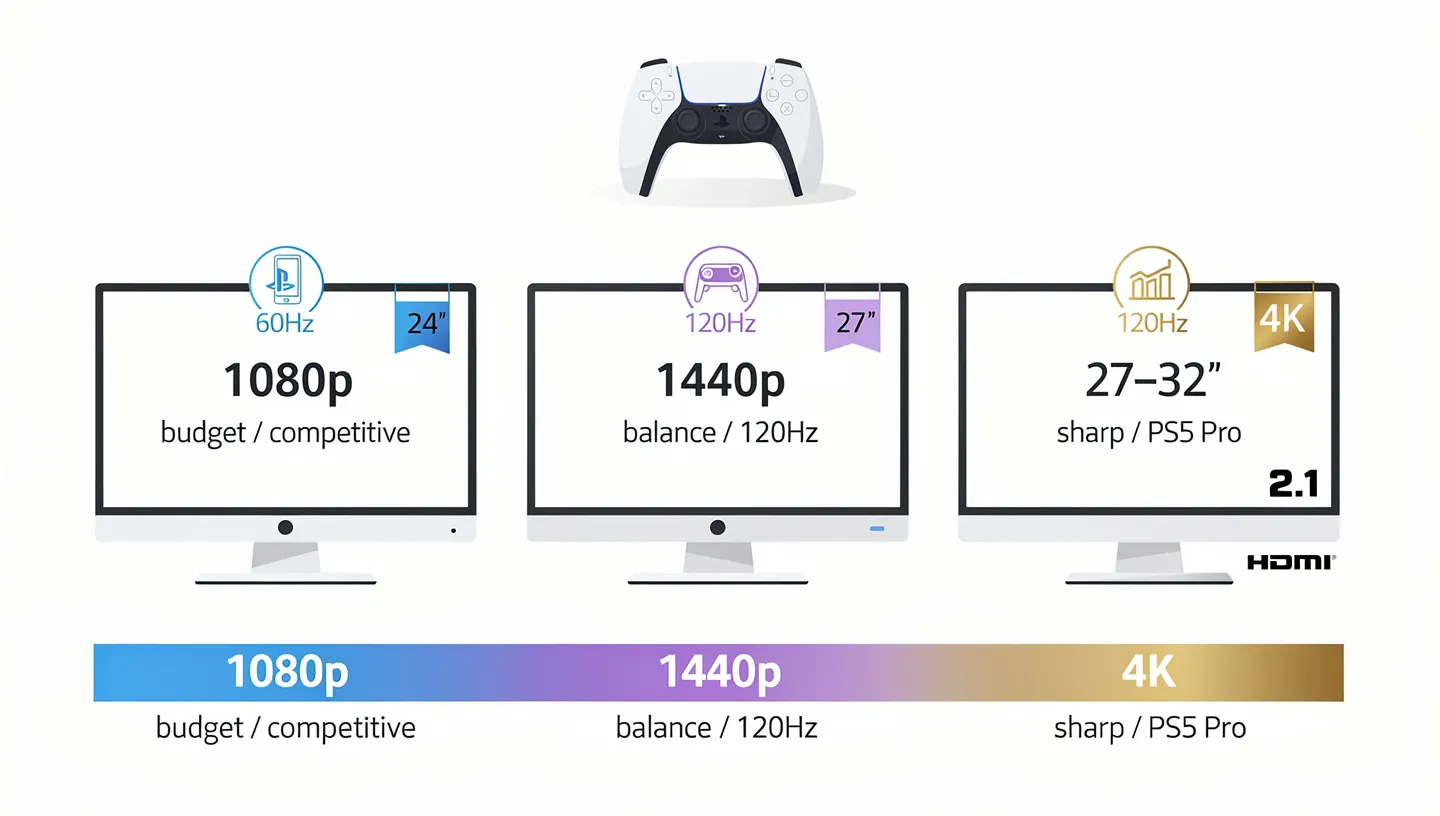
The PS5 supports three resolutions on a monitor, and each one suits a different budget and desk. The right gaming monitor for PS5 depends on the games you play and how much you want the console to push.
4K
4K is the highest resolution the PS5 outputs, and it is the one the console is built around. A 4K gaming monitor with HDMI 2.1 shows the sharpest picture and lets the PS5 Pro use its upscaling, called PSSR, which TechRadar says makes a 4K screen the better companion for the Pro. Many PS5 games run their 120Hz performance modes at a lower internal resolution and scale the image up, so you will not always see true 4K at 120fps. A 27 or 32 inch 4K monitor still looks very sharp at desk distance.
1440p
Sony added 1440p output in September 2022, with support for 60Hz and 120Hz in SDR and HDR. Before that, the console downscaled to 1080p and the monitor stretched the image up to 1440p, which never looked perfect. VRR at 1440p arrived with system update 7.00 on March 8, 2023, and it needs an HDMI 2.1 VRR compatible monitor. To check if your monitor accepts 1440p, go to Settings, Screen and Video, Video Output, and run Test 1440p Output. A 27 inch 1440p gaming monitor at 120Hz is often the best balance of price and sharpness for a PS5 on a desk.
1080p
1080p still works well, and VRR works at this resolution too. A 24 inch 1080p monitor is cheap, and it can run 120Hz even over HDMI 2.0. It is a good fit for competitive shooters where frame rate matters more than detail. On bigger screens, 1080p looks soft, so keep it to 24 inches.
4K or 1440p: Which Should You Pick
Pick 4K if you own a PS5 Pro, play on a 32 inch screen or bigger, or want the sharpest picture in single player games. Pick 1440p if you play on a 27 inch monitor at a desk, want 120Hz at a lower price, or mostly use performance modes. Many PS5 games already render below 4K in their 120Hz modes, so a 1440p monitor often shows a cleaner image with less scaling. A 1440p monitor at 144Hz is the best value for a standard PS5, while a 4K monitor with HDMI 2.1 makes more sense for the PS5 Pro and its upscaling.
Refresh Rate: Does PS5 Support 144Hz or 240Hz
The PS5 tops out at 120Hz, so a 144Hz, 240Hz, or even 540Hz gaming monitor will never run at its full speed with the PS5. These monitors still work. They run at 120Hz, or follow the frame rate of the game when VRR is on. TechRadar calls 240Hz a little overkill for the console, but notes that the monitor handles the 120Hz limit with no issues.
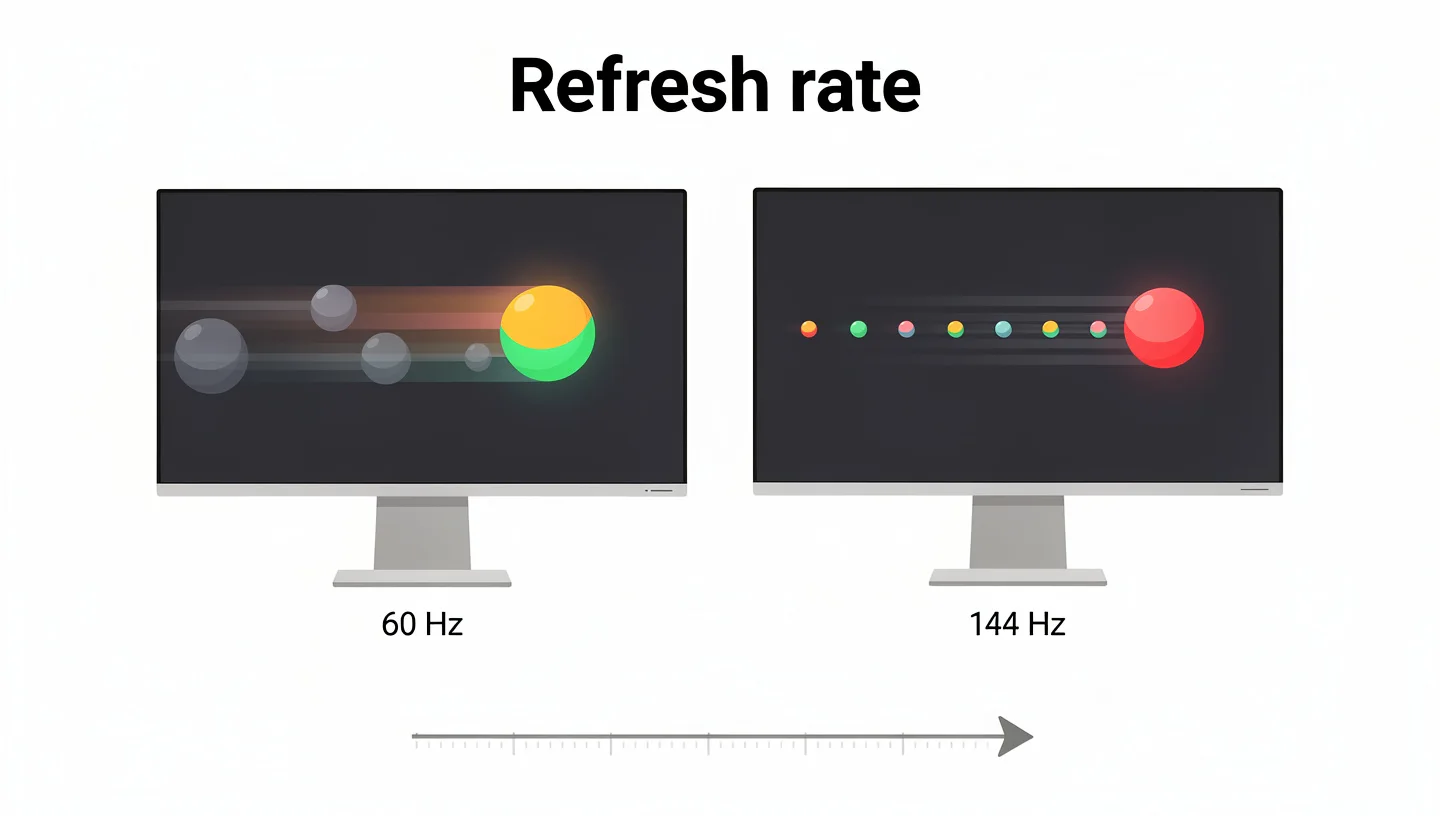
Not every game supports 120Hz, and developers add it as a performance mode in the game settings. Many shooters and racing games have one, but large story games often stick to 60fps or 30fps. If you want more on how 120Hz looks and feels, read our guide on whether 120Hz is good for gaming. A 144Hz monitor for PS5 is also a good choice if you plan to use the same screen with a PC later.
Best Gaming Monitors for PS5 at a Glance
These are the gaming monitors for PS5 that reviewers rate best, covering every budget and resolution. Check the current price before you buy, since it changes often.
| Model | Best For | Size | Resolution | Refresh Rate | HDMI | Panel |
|---|---|---|---|---|---|---|
| PlayStation 27 inch Gaming Monitor | Made for PS5 | 27 inch | 2560 x 1440 | 120Hz on PS5 | 2x HDMI 2.1 | IPS |
| Alienware AW3225QF | Best premium | 32 inch | 3840 x 2160 | 240Hz | 2x HDMI 2.1 | QD-OLED |
| ASUS ROG Swift OLED PG27UCDM | Best 27 inch 4K OLED | 26.5 inch | 3840 x 2160 | 240Hz | HDMI 2.1 | QD-OLED |
| Sony Inzone M10S II | Best 1440p | 26.5 inch | 2560 x 1440 | 540Hz | 2x HDMI 2.1 | OLED |
| Dell S2725QS | Best value 4K 120Hz | 27 inch | 3840 x 2160 | 120Hz | HDMI 2.1 | IPS |
| ASUS TUF Gaming VG289Q | Best budget 4K | 28 inch | 3840 x 2160 | 60Hz | 2x HDMI 2.0 | IPS |
Best Made for PS5: PlayStation 27 Inch Gaming Monitor with DualSense Charging Hook
Sony launched its own PlayStation monitor on August 27, 2026, and it is the first one designed by the console maker for desk play. It is a 27 inch 1440p IPS screen with VRR support, HDR with Auto HDR Tone Mapping, and a fold-away hook that holds and charges a DualSense controller.

On PS5 and PS5 Pro it runs up to 120Hz at up to QHD resolution, and it goes up to 240Hz when connected to a PC or Mac. You get two HDMI 2.1 ports, one DisplayPort 1.4, a USB-C port, two USB-A ports, stereo speakers, and a 3.5mm headphone jack. The price is $349.99 and it is sold only in the United States and Japan so far.
| Spec | Detail |
|---|---|
| Screen size | 27 inch |
| Resolution | 2560 x 1440 |
| Panel type | IPS |
| Refresh rate | 120Hz on PS5, 240Hz on PC |
| VRR | HDMI VRR |
| HDMI | 2x HDMI 2.1 |
| Price | $349.99 (US and Japan) |
Pros
- Auto HDR Tone Mapping sets up HDR for you
- DualSense charging hook built in
- Two HDMI 2.1 ports
- Low price for the features
Cons
- Sold only in the US and Japan
- 1440p and 120Hz limit on PS5
- Average IPS contrast
Best 4K OLED: Alienware AW3225QF
TechRadar names the Alienware AW3225QF the best gaming monitor for PS5 and PS5 Pro. It is a 32 inch 4K QD-OLED with a 240Hz refresh rate, two HDMI 2.1 ports, one DisplayPort 1.4, and a set of USB ports. The panel gives deep blacks, wide color, and very fast pixel response, and the curve pulls you toward the screen.

If you wonder about that shape, our guide on whether curved monitors are good for gaming covers the pros and cons. HDR modes can be confusing to set up, and the price is high for a console only setup, since the 240Hz is wasted on PS5 and only a PC uses it fully.
| Spec | Detail |
|---|---|
| Screen size | 32 inch, curved |
| Resolution | 3840 x 2160 |
| Panel type | QD-OLED |
| Refresh rate | 240Hz |
| HDMI | 2x HDMI 2.1 |
| HDR | DisplayHDR True Black 400 |
Pros
- Excellent picture quality
- Very fast pixel response
- Two HDMI 2.1 ports
- Strong build quality
Cons
- High price
- Confusing HDR modes
- 240Hz not used by PS5
Best 27 Inch 4K OLED: ASUS ROG Swift OLED PG27UCDM
The ASUS ROG Swift OLED PG27UCDM is a smaller 26.5 inch QD-OLED with 4K resolution, which makes it sharper than a 32 inch screen. Its response time is 0.03ms, and RTINGS praises the picture quality and gaming performance.

It is not cheap, but it fits a desk better than a 32 inch monitor and works well for both the PS5 and a PC. TechRadar says the design looks a little try-hard, but it still lists the monitor as a great pick for a 4K OLED at 27 inches.
| Spec | Detail |
|---|---|
| Screen size | 26.5 inch |
| Resolution | 3840 x 2160 |
| Panel type | QD-OLED |
| Refresh rate | 240Hz |
| Response time | 0.03ms |
| HDMI | HDMI 2.1 |
Pros
- Sharp 4K image at 27 inches
- Near instant response time
- Works for PS5 and PC
Cons
- Not budget friendly
- Busy design
- OLED burn-in risk
Best 1440p for PS5 and PC: Sony Inzone M10S II
The Inzone M10S II is a 26.5 inch 1440p OLED that reaches 540Hz, and 720Hz at a lower resolution. TechRadar measured a response time of 0.02ms and calls it the best 1440p monitor for PS5 and PC esports. It has two HDMI 2.1 ports, a DisplayPort 2.1 input, and USB-C.
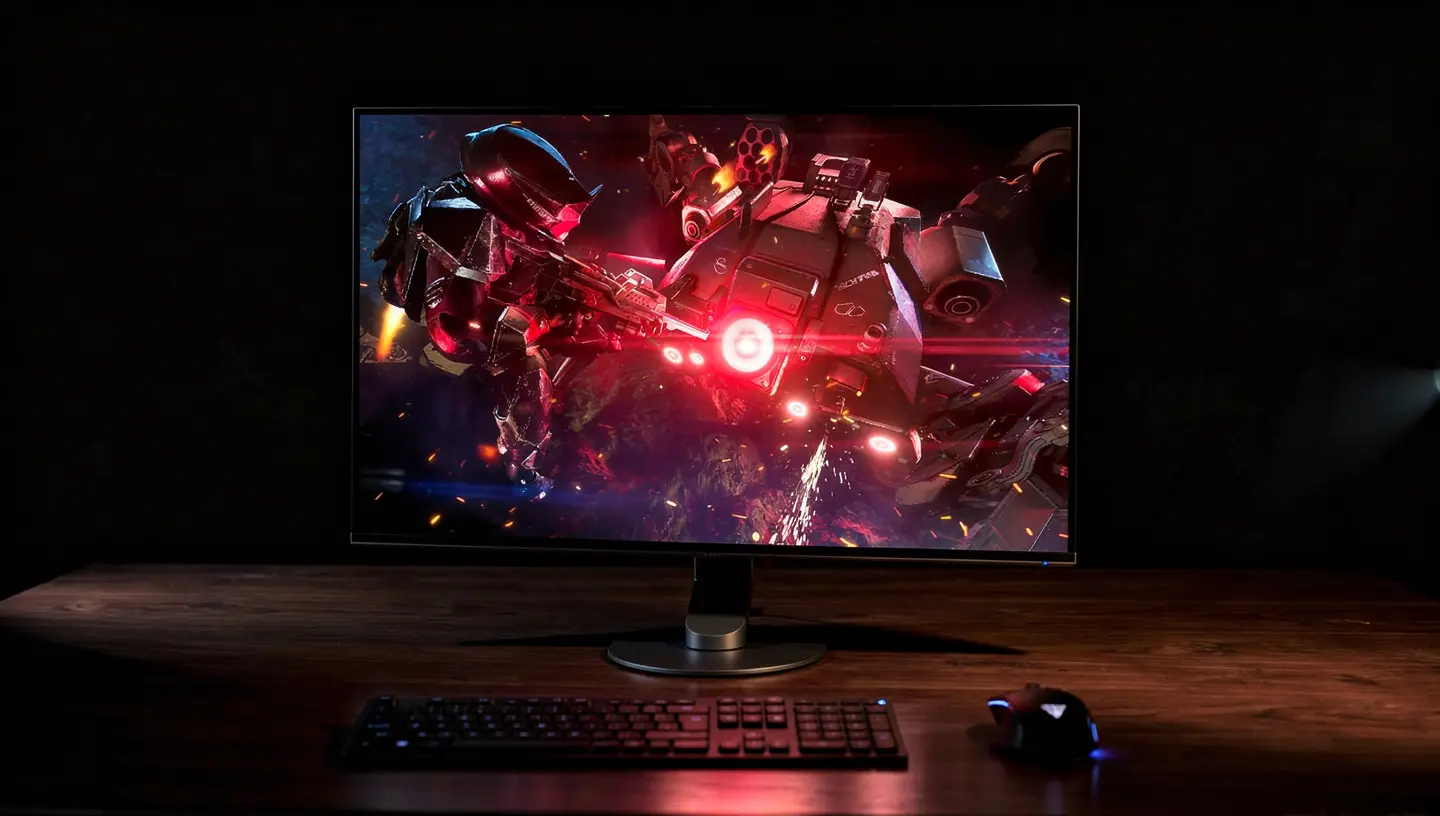
The PS5 uses only 120Hz of that speed, so the monitor shines most on a PC, but the OLED panel looks great on the console too, and VRR works at 1440p. The anti-glare coating is effective but hard to clean, and the price is high.
| Spec | Detail |
|---|---|
| Screen size | 26.5 inch |
| Resolution | 2560 x 1440 |
| Panel type | OLED |
| Refresh rate | 540Hz |
| HDMI | 2x HDMI 2.1 |
| HDR | HDR10 |
Pros
- 540Hz on PC, 120Hz on PS5
- Very low measured response time
- Brighter than the older Inzone M10S
- Useful esports features
Cons
- Expensive
- Coating is hard to clean
- Small 26.5 inch screen
Best Value 4K 120Hz: Dell S2725QS
The Dell S2725QS is a 27 inch 4K IPS monitor with a refresh rate of up to 120Hz and an HDMI 2.1 port, so it can run 4K at 120Hz on PS5. BGR and RTINGS both rate it as a good value pick, and RTINGS names it as a budget choice for PS5 Pro.

It looks more like an office monitor than a gaming one, so it skips most gaming extras, but it covers the specs that matter for the console. If you want 4K 120Hz without OLED money, it is one of the cheapest ways in.
| Spec | Detail |
|---|---|
| Screen size | 27 inch |
| Resolution | 3840 x 2160 |
| Panel type | IPS |
| Refresh rate | 120Hz |
| HDMI | HDMI 2.1 |
Pros
- 4K 120Hz at a low price
- HDMI 2.1 with VRR
- Sharp 27 inch picture
Cons
- Few gaming features
- Average IPS contrast
- Basic stand
Best Budget 4K: ASUS TUF Gaming VG289Q
The ASUS TUF Gaming VG289Q is a 28 inch 4K IPS monitor that TechRadar calls the best budget option for PS5. It costs a fraction of an OLED gaming monitor, and the colors are strong, with good viewing angles and a stand that moves in many directions.

The trade-off is clear. It runs at only 60Hz, it has two HDMI 2.0 ports, a 5ms response time, and simulated HDR. That means no 4K 120Hz and no VRR, so it suits slower story games, not shooters.
| Spec | Detail |
|---|---|
| Screen size | 28 inch |
| Resolution | 3840 x 2160 |
| Panel type | IPS |
| Refresh rate | 60Hz |
| Response time | 5ms |
| HDMI | 2x HDMI 2.0 |
Pros
- Low price for 4K
- Strong color and viewing angles
- Flexible stand
Cons
- 60Hz only
- Simulated HDR
- No VRR on PS5
How to Set Up a Monitor for PS5 and Enable 120Hz and VRR
A new gaming monitor needs a few minutes of setup before the PS5 uses all its features. If you are new to this, our guide on how to set up a gaming monitor covers the basics of stand, cables, and picture settings.
PS5 Console Settings
- Connect the console to an HDMI 2.1 port on the monitor with an Ultra High Speed HDMI cable, with nothing in between.
- Go to Settings, then Screen and Video, then Video Output.
- Set 120 Hz Output to Automatic.
- Set VRR to Automatic, and turn on the option to apply it to unsupported games if you want.
- Set ALLM to Automatic.
- Set HDR to Always On, and run the HDR setup screens.
- Go to Saved Data and Game/App Settings, then Game Presets, and choose Performance Mode.
Monitor Settings
On the monitor, select the HDMI 2.1 input and switch on the full bandwidth or enhanced HDMI mode if the menu has one. Turn on the game mode, and leave adaptive sync enabled on HDMI 2.1 monitors. Avoid overclock modes during setup, because the console handshake is most reliable at the native refresh rate of the monitor.
How to Check the Signal
The home screen of the PS5 often stays at 60Hz, so it is not a good test. Open Video Output Information and Current Video Output Signal in the settings during a game to see the real resolution and refresh rate. Use Test 1440p Output to check 1440p modes, and start a game with a 120fps performance mode to confirm 120Hz.
PS5 Not Showing 120Hz or VRR: How to Fix It
When 120Hz or VRR will not turn on, the cause is usually a setting, a cable, or the wrong port. Work through this list in order.
- Plug into the right HDMI port, since some monitors and TVs support full bandwidth on only one port
- Use an Ultra High Speed HDMI cable, and keep it short
- Connect the console straight to the monitor, with no receiver or switch between them
- Switch on the game mode or the enhanced HDMI mode in the monitor menu
- Turn off overclock or extended refresh modes on the monitor
- On an HDMI 2.0 monitor, turn off FreeSync, since it can block the 120Hz signal
- Check that the game has a 120fps mode, because many do not
A 144Hz or 240Hz label does not mean the monitor accepts 120Hz from a console over HDMI, so look at the supported HDMI timings in the manual. If 4K 120Hz does not appear, test 1440p or 1080p at 120Hz. If the signal still falls back to 60Hz, a different cable is the next thing to try.
Does PS5 Work with Ultrawide Monitors
The PS5 outputs only the 16:9 aspect ratio, and it has no 21:9 or 32:9 mode. On an ultrawide monitor, the picture shows black bars on the sides or the image stretches to fill the screen, depending on the monitor settings. Some monitor makers say 1440p content is scaled well on a 3440 x 1440 screen, but the image is still 16:9 at its source.
Death Stranding Director’s Cut uses its own widescreen mode inside the 16:9 frame to mimic 21:9. If you want a true wide field of view, a gaming PC is the better choice, while a 16:9 monitor makes the most of the console.
PS5 on a Monitor vs a TV
Both a TV and a gaming monitor work well with the PS5, and the choice comes down to where you play. A monitor suits a desk, with a sharper picture at close range, faster response, and a lower price for 4K 120Hz and HDMI 2.1. A TV is bigger and fits a couch, with better built in speakers.
| Point | Gaming Monitor | TV |
|---|---|---|
| Price | Usually cheaper for 4K 120Hz | Higher for 120Hz and HDMI 2.1 |
| Size | 24 to 43 inch | 42 inch and up |
| Distance | Desk | Couch |
| Response time | Often 1ms or less | Good in game mode |
| PC use | Fits a desk and a PC | Mostly for the console |
| Speakers | Weak or missing | Usually better |
TechRadar says you can get an equally great experience on either one, as long as you decide if you want a big screen for relaxed play or the fastest frame rate for competitive games on your PS5. Monitors are cheaper than a 4K gaming TV, and 1440p is a common standard on them, unlike on a TV. A TV with HDMI 2.1 is also a good fit for the PS5 Pro if you play from a couch.
Reasons to Play PS5 on a Monitor
- A 4K 120Hz monitor usually costs less than a gaming TV with the same features
- Response times are fast, often 1ms or lower, with low input lag
- 1440p, which many TVs skip, is a common and popular monitor resolution
- The picture is sharper at desk distance, because pixel density is higher
- A monitor fits on a desk and also works with a PC
When a TV Is the Better Choice
A TV is the better choice if you play from a couch, share the screen with family, or want a picture of 55 inches or more. TVs also tend to have better built in speakers and more HDMI 2.1 ports, and some OLED models handle HDR very well in a dark living room. If the PS5 sits in a living room, a TV is usually the easier choice, and a monitor wins when the console sits on a desk.
Using One Monitor for PS5 and PC
Many players want one gaming monitor for both a PS5 and a PC, and the right monitor handles it well. Look for two HDMI 2.1 ports, so the console and a second device can both be connected, plus a DisplayPort for the PC. Our guide on how to connect a gaming monitor to a PC explains the cables and ports in more detail.
On a PC, adaptive sync uses G-Sync or FreeSync over DisplayPort, while the console uses HDMI VRR, so both can run on the same monitor. Switching inputs takes a button press, and a KVM switch helps if you also share a keyboard and mouse. A monitor with a higher refresh rate such as 240Hz gives the PC its full speed, and the PS5 simply runs at 120Hz on the same screen.
Size, Panel Type, and Extras for a PS5 Monitor
Screen Size and Viewing Distance
You sit closer to a monitor than a TV, so size matters more. TechRadar says a 32 inch screen is a good fit for most desks, and a 27 or 28 inch monitor is plenty for a smaller setup. Some pro players use 24 inch monitors, since it is easier to see the whole screen.

Monitors above 32 inches suit a deep desk, and 42 and 43 inch models such as the Gigabyte Aorus FV43U and the Philips Evnia 42M2N8900 work as big screen alternatives to a TV.
OLED, IPS, VA, or Mini LED
OLED gives the best contrast, color, and response time, and it suits PS5 games well, although it costs more and has a risk of burn-in with static images. An IPS panel gives accurate color and wide viewing angles at a lower price. VA panels have stronger contrast and deeper blacks than IPS, but they can be slower. Mini LED screens add bright HDR with local dimming and no burn-in, and they are a good middle choice if you want HDR power without OLED.
Speakers, Headset, and Other Extras
A gaming monitor for PS5 does not need speakers to work. Plug a headset into the DualSense controller, or connect speakers to the headphone jack on the monitor if it has one. Many gaming monitors have weak speakers, so a headset is the better choice for sound. The PlayStation monitor is one of the few with built in stereo speakers and a 3.5mm output.
PS5 vs PS5 Pro: Does Your Monitor Choice Change
The requirements are the same for both consoles, so any gaming monitor in this list works with the PS5 Pro. The difference is how much the Pro can use. It aims for better resolution and frame rates, and its upscaling, PSSR, helps games reach 60fps at high quality. TechRadar suggests a 4K monitor for the Pro to get the most from PSSR. A monitor with VRR gives you more options on the Pro, since you can use higher frame rate modes between 60 and 120fps, and PC Gamer notes that even a 40Hz mode feels responsive on a VRR screen. If you plan to buy a monitor for the PS5 Pro, aim for 4K 120Hz with a full HDMI 2.1 port.
Common Mistakes When Buying a Monitor for PS5
Most buying problems come from trusting the spec sheet too quickly. These are the mistakes that show up most often.
- Trusting the HDMI 2.1 label: a port can carry less bandwidth than a full HDMI 2.1 port, and some monitors do not list 4K 120Hz or VRR for consoles at all
- Buying a PC monitor with HDMI 2.0 only: many budget picks reach their top refresh rate only over DisplayPort, so the PS5 gets less
- Counting on FreeSync: a FreeSync badge does not guarantee HDMI VRR on the PS5
- Paying for 240Hz or more: the PS5 stops at 120Hz, so the extra speed only helps if you also use a PC
- Buying an ultrawide: the console outputs 16:9, so you get black bars or a stretched image
- Using an old HDMI cable: an older cable can limit the picture to 4K 60Hz
- Ignoring sound: many monitors have weak or no speakers, so plan for a headset
- Skipping the return policy: if 120Hz or VRR will not turn on, you want to be able to send the monitor back
What to Check Before You Buy a Monitor for PS5
This is the short checklist for a gaming monitor for PS5. For the full list of general specs, see our guide on what to look for in a gaming monitor.
- An HDMI 2.1 port that lists 4K 120Hz and VRR for consoles
- A resolution that fits the games you play: 4K, 1440p, or 1080p
- A refresh rate of at least 120Hz, since the console never goes higher
- A game mode and ALLM support for low input lag
- HDR10 support, ideally DisplayHDR 600 or an OLED panel
- A size that fits your desk and viewing distance
- Extra HDMI ports if you plan to connect a PC or a second console
- A return policy, in case the 120Hz or VRR test fails
Bottom Line: What Gaming Monitor Is Compatible with PS5
Any monitor with an HDMI input will show a PS5 picture, but the monitor that is compatible with every console feature has HDMI 2.1, 4K 120Hz, and VRR. For most players a 27 inch 4K or 1440p monitor at 120Hz is the best fit, and the Dell S2725QS and PlayStation monitor are the most affordable ways in. For the best picture, a 4K OLED such as the Alienware AW3225QF or ASUS PG27UCDM is the top choice, and the Sony Inzone M10S II is the one to get if you also play fast PC games. Whatever you pick, a gaming monitor compatible with PS5 should list its HDMI features clearly, and that is the first thing to check before you pay.
Frequently Asked Questions
Can you use a gaming monitor with PS5?
Yes. Any gaming monitor with an HDMI input works with the PS5. To use 4K at 120Hz and VRR, the monitor needs an HDMI 2.1 port, and other monitors work at lower resolutions or frame rates.
Does PS5 support FreeSync or G-Sync?
Not by name. The PS5 uses the HDMI Forum VRR standard, so a monitor needs HDMI 2.1 VRR support. FreeSync and G-Sync Compatible monitors that also have HDMI 2.1 VRR work with the console, but G-Sync is a PC feature that works over DisplayPort.
Do you need HDMI 2.1 for PS5?
You need it for 4K at 120Hz and for VRR. A monitor with HDMI 2.0 still works, at 4K 60Hz or at 1080p and 1440p with 120Hz, but without VRR.
Will a 144Hz monitor work with PS5?
Yes. The monitor runs at 120Hz at most with the console, or follows the frame rate of the game when VRR is on. Check that the monitor accepts 120Hz over HDMI, since a high refresh rate label does not always mean the console signal works.
Does PS5 support DisplayPort?
No. The PS5 has only an HDMI output, so DisplayPort on a monitor is useless for the console. HDMI to DisplayPort adapters can add lag and often fail with 120Hz and VRR.
Does PS5 support 1440p monitors?
Yes, since September 2022, at 60Hz and 120Hz. VRR at 1440p arrived in March 2023 on HDMI 2.1 monitors. Use Test 1440p Output in the video settings to check if your monitor accepts it.
Is a monitor or TV better for PS5?
A monitor is better for desk play, with a sharper image, faster response, and a lower price for 4K 120Hz. A TV is better for a big screen from a couch. Both give a great experience.
Does a monitor need speakers for PS5?
No. You can play sound through a headset on the controller or through speakers connected to the monitor headphone jack. Many gaming monitors have weak speakers, so a headset is the better option.
Is the PlayStation monitor worth it?
For $349.99, it is a good desk monitor for PS5 players, with a 1440p IPS panel, two HDMI 2.1 ports, Auto HDR Tone Mapping, and the DualSense charging hook. It limits the PS5 to 120Hz and QHD, and it is sold only in the United States and Japan for now.
What is the best monitor for PS5 Pro?
The requirements are the same as for the PS5, so any monitor in this list works. A 4K monitor with HDMI 2.1 and 4K 120Hz gets the most from the Pro and its PSSR upscaling, and an OLED such as the Alienware AW3225QF is the best choice for picture quality.
Is it worth buying a monitor for PS5?
Yes, if you play at a desk. A monitor costs less than a TV with the same 4K 120Hz and VRR features, responds quickly, and can also serve a PC. If you play from a couch or share the screen, a TV is the better choice.
Is 4K or 1440p better for PS5?
4K is better on a PS5 Pro and on screens of 32 inches or more. 1440p at 120Hz or 144Hz is the best value on a 27 inch desk monitor, and many 120Hz game modes render below 4K anyway.
What panel type is best for PS5?
OLED gives the best picture, with deep blacks and almost instant response. IPS is the safe choice for color and price, VA has strong contrast, and mini LED gives strong HDR without the burn-in risk.
Is a curved or flat monitor better for PS5?
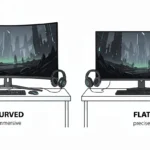
Both work. A flat screen is cheaper and fits a shared setup, while a curve is a matter of taste on larger monitors above 27 inches. Neither one changes how the PS5 works.