FPS stands for frames per second, and it tells you how many separate images your graphics card draws every second while you play. Your gaming monitor then shows those images through its refresh rate, measured in Hz. The FPS number comes from your PC, not from the screen, but the monitor decides how many of those frames you actually get to see. That link between the two numbers is the whole story behind an fps gaming monitor.
One warning about the term before we go further. In monitor menus and store listings, FPS can also mean first-person shooter, and “FPS mode” is a picture preset, not a frame rate setting. Both meanings are covered below, along with what a good FPS looks like, how it differs from Hz, why tearing and stutter happen, and how to match a monitor to your hardware.
- FPS is produced by your GPU and CPU, Hz is the speed of your monitor
- A monitor cannot show more frames than its refresh rate allows
- 60 FPS is the usual floor for PC gaming, 144 or more is the competitive standard
- Frame time and steady pacing matter as much as the average number on the counter
- FPS mode on a monitor is a picture preset and does not raise your frame rate
What Is FPS in Gaming?
Everything you see on a screen, whether it is a game, a movie or a mouse cursor moving across the desktop, is a stack of still images shown one after another. Each image is a frame, and the number of frames shown per second is the frame rate.
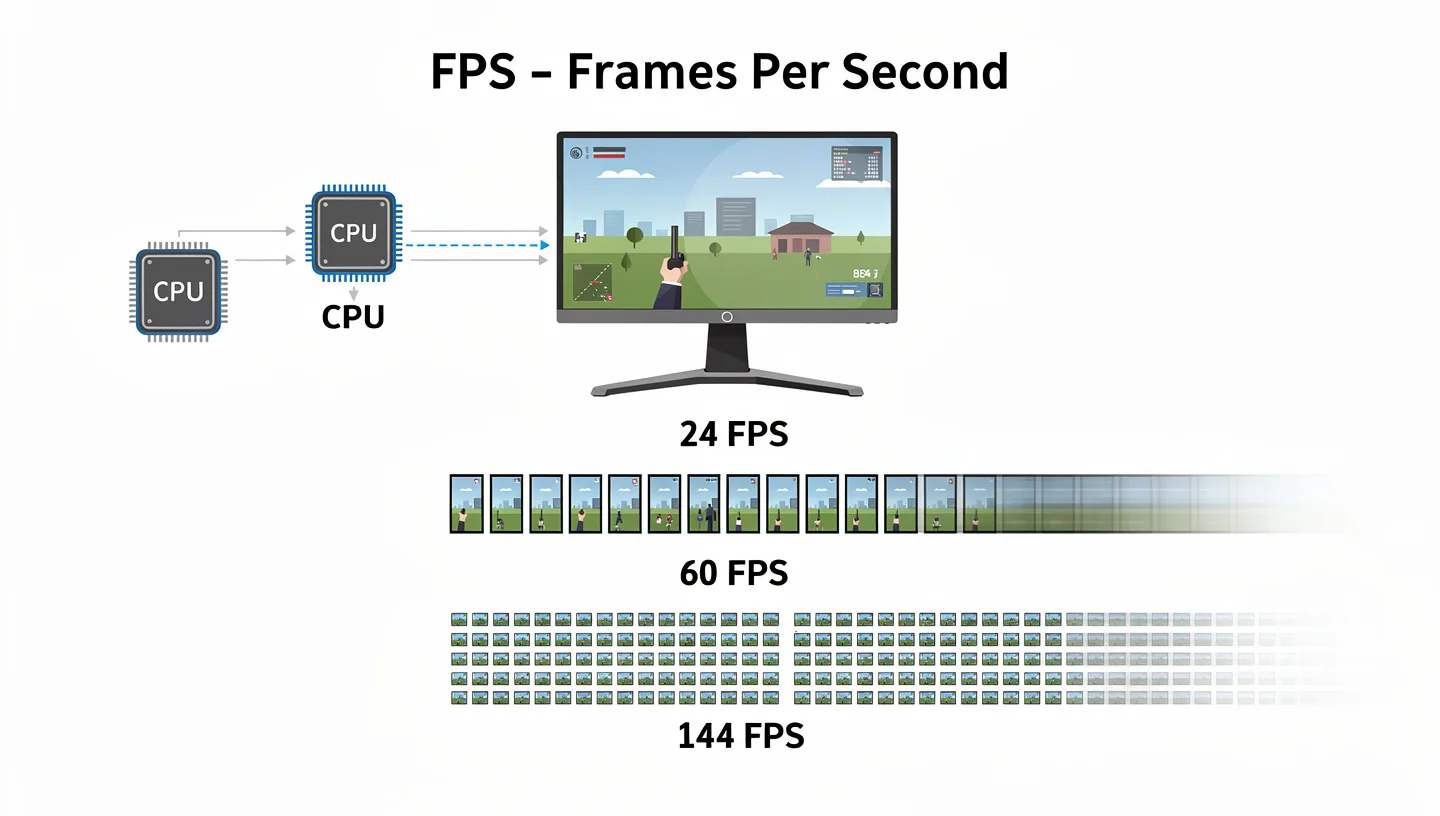
Your GPU and CPU build every frame from game logic, physics, textures and lighting, then send it to the monitor. The stronger the hardware and the lighter the game settings, the more frames per second you get. Movies sit at 24 FPS, consoles ran at 30 for years, and PC gaming treats 60 FPS as the baseline. Competitive players aim much higher.
Is FPS the Same as Frame Rate?
Yes. Frame rate is the plain name and FPS is the short form you see on counters and spec sheets. A few pages also call it frame frequency and quote it in Hz, which causes confusion, since Hz is normally the language of monitor refresh rate. A simple habit keeps it clear: use FPS when you talk about your PC and Hz when you talk about your screen.
Two Meanings of FPS: Frames Per Second and First-Person Shooter
In games, FPS also stands for first-person shooter, the genre of Counter-Strike 2, Valorant and Call of Duty. That is why you will find “FPS mode” in monitor menus and on product pages. It has nothing to do with counting frames, it is a preset built for shooters. The two meanings collide all the time, so when a store says “best FPS monitor”, read the page. It usually means a fast screen for shooters, which is picked to keep up with high frames per second.
FPS vs Hz: What Is the Difference?
FPS counts the frames your PC makes each second. Hz counts how many times your monitor redraws the picture each second. One belongs to the graphics card, the other belongs to the display. A 144Hz monitor can show up to 144 frames a second and no more, while your PC might make 80 FPS in one game and 300 in another.
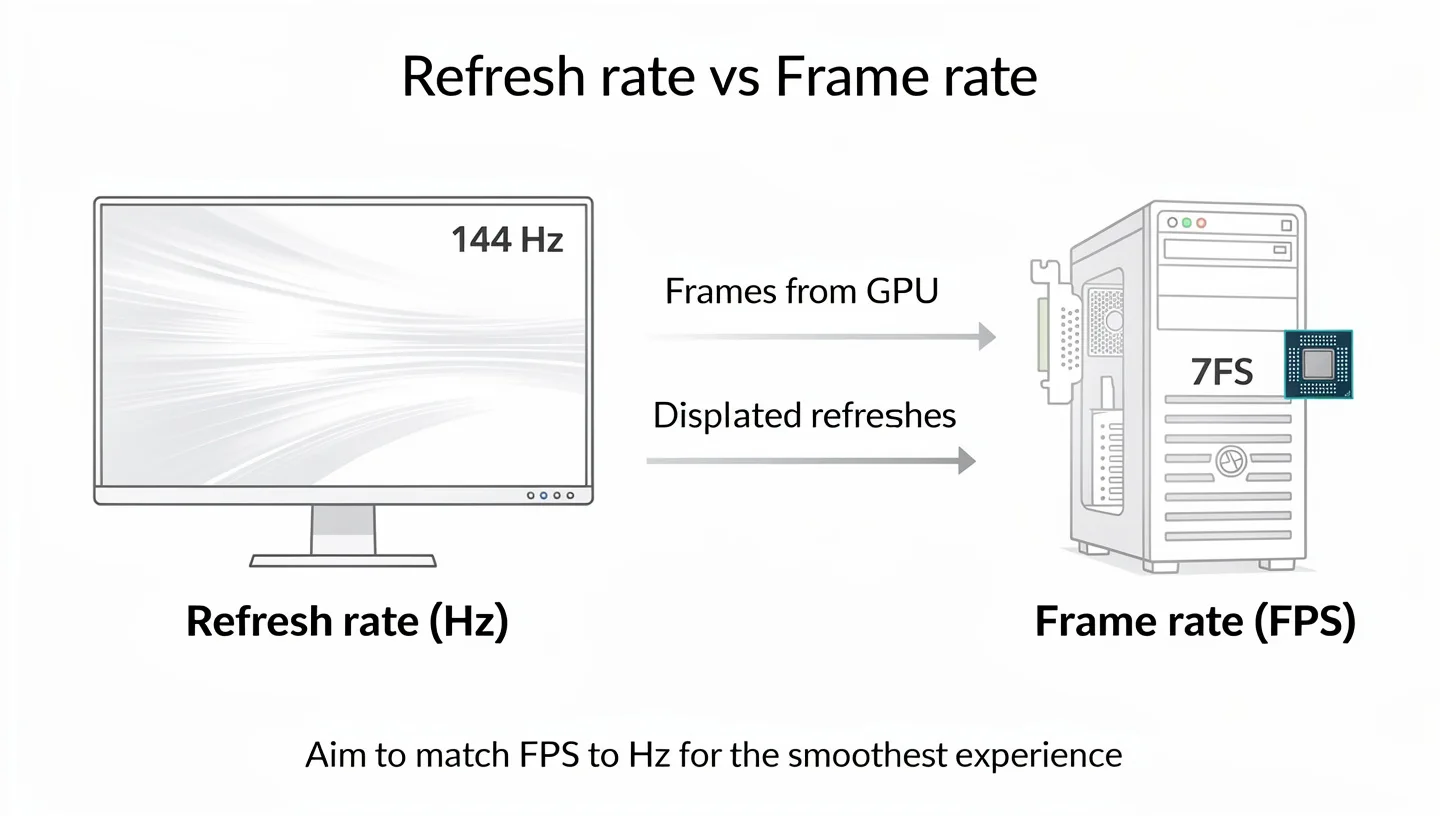
The two numbers work as a pair, and the lower one always sets the limit of what you see.
| Topic | FPS | Refresh rate (Hz) |
|---|---|---|
| What it measures | Frames your PC renders per second | Times your monitor redraws per second |
| Who controls it | GPU, CPU, game and graphics settings | Monitor, port, cable and display settings |
| Typical values | 30 to 300+ depending on the game | 60, 120, 144, 165, 240, 360 |
| If it is low | The game stutters or feels heavy | Motion looks less smooth |
| How to raise it | Stronger hardware, lower settings | Faster monitor, correct display settings |
Does a Gaming Monitor Affect Your FPS?
No. A monitor does not make your GPU draw more frames, so a 144Hz screen will not lift a game from 60 to 144 FPS on its own. What it does is set the ceiling for what you can see and shorten the wait before each new frame appears. If you want the full breakdown of that spec, our guide on what refresh rate means goes through it. Think of FPS as the supply and Hz as how much of that supply gets through to your eyes.
What Happens When FPS Is Higher Than Your Refresh Rate?
The monitor cannot display the extra frames. If your PC pushes 200 FPS to a 60Hz screen, you see 60 of them. Worse, when a new frame arrives in the middle of a redraw, the screen can show parts of two frames at once, which is screen tearing. Not everything is wasted, though. A higher FPS can slightly cut the delay between your input and the picture, because the newest frame is always ready. The smoothness you see stays capped at the refresh rate. If you bought a strong card and kept an old 60Hz monitor, you have two fixes: raise the graphics settings until FPS lands near 60, or buy a faster screen.
What Happens When FPS Is Lower Than Your Refresh Rate?
The monitor repeats frames while it waits for the next one. A 144Hz monitor fed 60 FPS still shows only 60 different pictures per second, so motion looks the same as on a 60Hz screen, just not better. Variable refresh rate helps in this case, and it is covered further down. It also explains why a high FPS monitor makes little sense without a graphics card that can feed it.
What Is a Good FPS for Gaming?
There is no single number that fits everyone. 30 FPS is playable, 60 FPS is where PC gaming starts to feel smooth for most people, and competitive shooters ask for 144 or more. A good FPS depends on the genre, your screen, and how much you care about reaction time.

Good FPS by Game Type
The table below shows common targets for popular game types. They are guidelines, not rules, and they shift with your hardware and settings.
| Game type | Minimum | Recommended | Competitive |
|---|---|---|---|
| Competitive shooters (CS2, Valorant, Overwatch) | 144 | 240 | 300+ |
| Battle royale (Fortnite, Apex Legends, Warzone) | 60 | 120 to 144 | 165 to 240 |
| Fighting games | 60 (locked) | 60 (locked) | 60 |
| Racing and sims | 60 | 90 to 120 | 144+ |
| RPG and adventure | 30 | 60 | 60 to 120 |
| Strategy | 30 | 60 | 144 for esports |
Fighting games are the odd one out. Their combos and frame data are built around 60 frames per second, so running them faster can break the mechanics. That is why even a powerful PC stays at 60 in most fighting titles.
Is 60 FPS Enough?
For single-player games, RPGs, strategy and casual play, yes. At 60 FPS a new frame shows up every 16.67 ms, and the motion looks smooth to most people. Competitive players feel the difference right away, because aiming and tracking targets get sharper as the frame count climbs. If you play shooters seriously, 60 will feel slow once you have tried 144.
Is 144 FPS or 240 FPS Worth It?
144 is the sweet spot. The jump from 60 to 144 is the one most people notice at once, monitors are affordable, and the hardware demand is reasonable. 240 makes sense for competitive play, but the gains get smaller and you need a strong CPU to hold that number. Players chasing 240 or 360 FPS often stay at 1080p, because fewer pixels mean more frames, and our page on Full HD resolution explains why that resolution is still common in competitive setups.
How Many FPS Can the Human Eye See?
The old claim that eyes can only see 30 FPS is false. Eyes do not work in frames, they gather light continuously. Most people can spot the jump from 60 to 144 in fast motion, and trained players notice even more. After around 240, the gains show up mostly as lower input lag and clearer motion when tracking a moving target, not as a smoother picture. Movies look fine at 24 FPS because they carry natural motion blur and you only watch. Games draw sharp frames and react to your hands, so low FPS is far easier to feel.
Why Higher FPS Feels Better on a Gaming Monitor
Three things change when the frame count goes up. Motion looks smoother, the game reacts sooner to your mouse or controller, and fast targets look clearer. All three come back to how long each frame takes to appear.
FPS and Input Lag
Input lag is the delay between pressing a button and seeing the result on screen. Frame time is one link in that chain, and you get it by dividing 1000 by your FPS. At 30 FPS a single frame takes 33.33 ms, at 240 FPS it takes 4.17 ms.
| FPS | Time per frame |
|---|---|
| 30 | 33.33 ms |
| 60 | 16.67 ms |
| 120 | 8.33 ms |
| 144 | 6.94 ms |
| 240 | 4.17 ms |
| 360 | 2.78 ms |
Frame time is not the full story, since your mouse, the game engine and the display add their own delay. It still explains why a player on 240 FPS can see an enemy appear around a corner about 12 ms earlier than a player on 60 FPS. In a close duel, that head start counts.
Frame Time and 1% Lows: Why 60 FPS Can Still Stutter
An FPS counter usually shows an average. If frames arrive at uneven intervals, say 10 ms and then 30 ms, the game feels choppy even when the counter reads 60. A frame time graph shows this clearly. The 1% lows are the slowest one percent of frames, and the 0.1% lows are the worst moments of all. A game that averages 144 FPS but drops to 45 in the 1% lows will feel bad. Steady pacing beats a high peak. Tools like MSI Afterburner with RTSS, CapFrameX and PresentMon can record frame times if you want to check your own setup.
Screen Tearing, V-Sync and Adaptive Sync
When FPS and Hz do not line up, the screen shows the problem. Three terms come up again and again: tearing, V-Sync and variable refresh rate.
What Is Screen Tearing?
Screen tearing happens when the monitor shows parts of two or more frames in a single redraw. You see a horizontal split in the picture, most visible when the camera turns fast. It shows up when FPS and refresh rate are out of step, whether FPS is higher or lower. It looks ugly, but it does no damage to the monitor or the graphics card.
Does V-Sync Fix It?
V-Sync makes the GPU wait for the monitor, so each frame goes out on a refresh. That stops tearing and caps your FPS at the refresh rate, so on a 60Hz screen you are locked to 60. The price is extra input lag, and if FPS drops below the refresh rate the game can stutter as frames get held back. V-Sync is fine for slower single-player games and a poor choice for competitive shooters.
What Are VRR, G-Sync and FreeSync?
Variable refresh rate (VRR) lets the monitor change its refresh rate to follow your FPS, so every frame is shown the moment it is ready. That ends tearing and cuts stutter without the lag of V-Sync. Nvidia calls its version G-Sync and AMD calls its version FreeSync. Most recent monitors work with both, and RTINGS notes on its G-Sync test page that most modern monitors are at least G-Sync compatible. VRR only works inside a range, and that range differs from model to model, so check the spec sheet before you buy.
Should You Cap Your FPS?
With VRR on, yes. Set the cap a few frames under the monitor’s top refresh rate, for example 141 on a 144Hz screen or 237 on a 240Hz screen. That keeps you inside the VRR range and avoids the lag that comes when FPS hits the ceiling. If you run an Nvidia card, our page on how G-Sync works shows how it fits together. Without VRR you have two choices, V-Sync with its lag or an uncapped game with some tearing. A few game engines also misbehave at very high FPS, and a cap fixes that too.
What Is FPS Mode on a Gaming Monitor?
FPS mode is a preset inside the monitor’s own menu, made for first-person shooters. It changes how the picture looks and how fast the panel reacts. It does not change your frame rate.
What Does FPS Mode Change?
The exact list depends on the brand, but the usual changes are the same. The preset picks the fastest response time setting, brightens dark areas so enemies are easier to spot in shadows (often called a black equalizer), and raises contrast and color saturation. Some monitors also add a crosshair overlay. Names differ, so you may see the same idea called a shooter mode, a game mode or a competitive preset.
Does FPS Mode Increase Your FPS?
No. FPS mode changes picture and panel settings, not what your GPU renders, so your frame rate stays where it was. It can help you see targets more easily and may trim a bit of processing delay, which is a different thing from raising FPS. The downside is worse color accuracy, so switch it off for movies, photo editing and story-driven games.
FPS Mode vs Racing, RTS and Cinema Modes
Monitors often ship with several presets. Racing mode leans on contrast and saturation and reduces motion blur to sell the sense of speed. RTS mode separates colors so units and quick commands are easier to read. Cinema mode aims for accurate color and keeps the original film frame rate. Pick the preset that matches what you are playing, and change it when the game changes.
Should You Use FPS Mode for Non-Shooter Games?
Generally no. FPS mode pushes brightness, contrast and saturation past natural levels to make enemies stand out, and that same push makes RPGs, racing games and movies look washed out or oversaturated. Story-driven and open world games lose the lighting and color balance the developers intended. It is worth switching FPS mode on only when you are actually playing a shooter, and switching back to a standard or cinema preset for everything else.
What Affects Your FPS in Games?
FPS comes from a mix of hardware, game settings and software, and one weak part can hold back everything else.
GPU, CPU and RAM
The graphics card is the biggest factor in most games, especially at high resolution and maximum settings. The CPU matters more in competitive shooters at low settings, in strategy games and in large online games. 16GB of RAM is a common baseline for gaming, with more helping in open-world titles. A fast SSD cuts the stutter caused by texture loading. Background apps like a browser, Discord or streaming software also eat resources, so close what you do not need.
Resolution and FPS
More pixels means more work for every frame. A 4K image has four times the pixels of 1080p, so the same card falls much lower in FPS. Lowering the resolution is the quickest way to gain frames. That is why 1080p dominates ultra-high FPS setups, 1440p is a balance for 144 to 240 FPS, and 4K usually aims for 60 to 120. Our guide on 4K resolution shows what that level of detail demands from your PC.
Graphics Settings, DLSS and FSR
Shadows, reflections, ambient occlusion and ray tracing cost the most frames. Turning them down gives a fast boost, and many competitive players keep settings low on purpose for a cleaner picture. DLSS and FSR render the game at a lower resolution and upscale it, which lifts FPS. Frame generation goes further and inserts extra frames, so the counter climbs, but those extra frames do not cut input lag the way real frames do.
How to Spot a Bottleneck
A GPU bottleneck shows up as GPU usage near 95 to 100 percent, and lowering the resolution raises FPS clearly. A CPU bottleneck shows up as GPU usage under 90 percent while one CPU core sits at its limit, and a lower resolution does not help. Heat is another cause. If FPS falls after an hour of play, check temperatures, since overheating makes hardware slow itself down.
How to Check and Increase Your FPS
Start by measuring. You cannot fix what you cannot see, and a few free tools show your frame rate while you play.
- Steam has a built-in FPS counter in its in-game settings
- Many games have their own FPS counter in the video options
- Nvidia and AMD software both include a performance overlay
- MSI Afterburner with RTSS adds frame time graphs and 1% lows
Once you know your numbers, these steps raise FPS in order of how easy they are:
- Lower the settings that cost the most, like shadows, reflections and ray tracing
- Drop the resolution or switch on DLSS or FSR
- Close background apps before you start a game
- Update your GPU drivers
- Make sure your monitor runs at its top refresh rate
- Upgrade the GPU or CPU if you still fall short
What Refresh Rate Do You Need for High FPS?
Buy the refresh rate you can actually feed. A monitor faster than your PC can drive only adds cost.
60Hz vs 144Hz vs 240Hz vs 360Hz
| Refresh rate | Time between refreshes | Best for |
|---|---|---|
| 60Hz | 16.67 ms | Office work, casual play, tight budgets |
| 120Hz or 144Hz | 8.33 ms or 6.94 ms | Most gamers, the biggest jump from 60Hz |
| 240Hz | 4.17 ms | Competitive players with a strong PC |
| 360Hz and up | 2.78 ms | Esports players, smaller gains for most people |
If your typical FPS sits under about 120, a 144Hz monitor with VRR gives you more than paying for 360Hz you cannot reach. If you can hold 180 to 240 FPS in your main games, 240Hz becomes a real upgrade.
Is 120Hz Enough for Consoles?
The 120Hz refresh rate is what current consoles top out at. The PS5 and Xbox Series X can output up to 120 FPS in supported games, so a 120Hz screen is enough for a console player. Many games run at 60 in their quality mode and offer a separate 120 FPS mode that drops resolution or detail. Some games do not offer 120 at all. To run 4K at 120Hz you also need an HDMI 2.1 connection on both the console and the monitor, and the Nintendo Switch stays at 60 FPS at most.
| Console | Max FPS supported | Notes |
|---|---|---|
| PlayStation 5 | 120 | Needs a 120Hz-capable display and HDMI 2.1 for 4K at 120Hz |
| Xbox Series X | 120 | Same requirements as PS5, support depends on the game |
| Xbox Series S | 120 | Usually at 1080p or 1440p rather than 4K |
| Nintendo Switch | 60 | Most titles run at 30, a handful reach 60 |
DisplayPort vs HDMI for High Refresh Rates
Your port and cable can cap your refresh rate, so read how to connect a gaming monitor to a PC before you plug anything in. Some 120Hz and 144Hz monitors reach their top rate only over DisplayPort and stay stuck at 60Hz over an older HDMI port. For 4K at 120Hz you generally need HDMI 2.1 or a recent version of DisplayPort. At 1080p, many monitors reach 120Hz over older HDMI, but it depends on the model. When in doubt, use the cable that came in the box and check the ports listed in the spec sheet.
How to Set the Right Refresh Rate in Windows
A new monitor often starts at 60Hz, so the first job is to change it. Our page on how to set up a gaming monitor covers the wider setup, and the refresh rate takes three steps:
- Right-click the desktop and open Display settings
- Scroll down and open Advanced display
- Pick the highest refresh rate from the list
Then check that your games use it too, since a fullscreen mode can override the desktop setting. A motion test like TestUFO lets you compare 60Hz with your top rate. If you see no difference, the cable, the port or a setting is holding you back.
Response Time and Panel Type for High FPS Gaming
A fast refresh rate means little if the pixels change color slowly. Slow pixels leave trails behind moving objects, called ghosting, and an overdrive setting pushed too far causes bright halos instead. Response time measures how fast a pixel switches color, in milliseconds, and our guide on what response time means explains how to read that number. TN panels have traditionally reacted fastest, fast IPS panels now come close and look better, and VA panels sit in the middle with deeper blacks. A 240Hz label does not guarantee clean motion, so look at reviews that test the panel in real games.
How to Pick a Gaming Monitor for Your FPS
Start from the FPS you can hold, not from the biggest number on the box. Check your counter in the games you play most, then match the screen to it.
| Resolution | Refresh rate | What it asks for |
|---|---|---|
| 1080p | 240 to 360Hz | Strong CPU, focus on competitive play |
| 1440p | 144 to 240Hz | Mid to high-end GPU, balance of sharpness and speed |
| 4K | 60 to 120Hz | Top-end GPU, sharpest picture |
After that, look for VRR support, the right ports for your refresh rate, and a response time that suits your games. A high FPS monitor also makes scrolling, video timelines and everyday windows feel smoother, so the upgrade is not only for gaming. For the wider buying checklist, our guide on how to choose a gaming monitor covers size, panel and price. The right fps gaming monitor is the one that matches your graphics card, your games and your budget, not the one with the highest Hz.
Does Screen Size or Panel Type Affect FPS?
Screen size on its own does not change FPS, a 24 inch and a 32 inch monitor at the same resolution place the same load on your GPU. Panel type does not set your FPS either, since TN, IPS and VA panels all just display whatever frames the GPU sends. What panel type does change is how clean fast motion looks and how quickly the screen reacts, so a slow panel can make even a high FPS feel less crisp, even though the number on the counter has not moved.
Is a High FPS Monitor Worth It Outside Gaming?
Yes, for everyday use too. Scrolling through a webpage, dragging windows around and moving the mouse all look noticeably smoother above 60Hz, and video editors benefit from a cleaner view when scrubbing through a timeline. Office work does not need the frame rate that gaming does, but once someone gets used to a 120Hz or 144Hz desktop, going back to 60Hz feels sluggish even outside games.
How Much More Does a High FPS Monitor Cost?
A basic 144Hz monitor at 1080p often costs close to what a standard 60Hz monitor does, since 144Hz has become the entry level for gaming screens. Prices climb from there with resolution, panel quality and refresh rate, and a 240Hz or 360Hz monitor with a premium panel and full VRR support sits well above a budget 144Hz model. The jump from 60Hz to 144Hz is usually the smallest price step for the biggest gain in feel, while going from 144Hz to 240Hz or higher costs more for a smaller improvement.
Common FPS Problems and Fixes
A few issues come up often enough to cover on their own, along with what usually causes them.
| Symptom | Likely cause | Fix |
|---|---|---|
| Screen tears even with V-Sync on | FPS swings wildly above and below the refresh rate | Turn on G-Sync or FreeSync and cap FPS a few frames under your refresh rate |
| Monitor stuck at 60Hz | Wrong cable or port, or Windows has not been set to the higher rate | Use DisplayPort or HDMI 2.1, then set the refresh rate in Display settings |
| FPS drops after playing for a while | The GPU or CPU is overheating and throttling itself | Check temperatures, clean dust from fans, improve case airflow |
| High average FPS but the game still feels choppy | Uneven frame times or bad 1% lows | Check frame time graphs, close background apps, lower a CPU-heavy setting |
| FPS counter shows a high number but Hz looks capped visually | V-Sync or a frame rate limiter is active | Turn off V-Sync or raise the in-game FPS limit if you have VRR |
| Console shows only 60 FPS despite a 120Hz TV or monitor | The game’s performance mode was never switched on, or the HDMI port is not 2.1 | Enable the 120Hz or performance mode in game settings and check the HDMI port |
FPS Myths and Misconceptions
A few ideas about FPS keep circulating even though they do not hold up.
“The human eye can only see 30 FPS.” Covered earlier, this is false. Eyes do not process light in discrete frames, and most people can tell 60 FPS from 144 FPS in fast motion without any training.
“More FPS always means a better game.” Not on its own. A game running at 300 FPS with bad frame pacing or heavy input lag from other sources can feel worse than a steady 90 FPS. Consistency and low latency matter as much as the raw average.
“24 FPS looks cinematic, so games should aim for it too.” Film looks acceptable at 24 FPS because of motion blur baked into each frame and because the viewer is not controlling anything. A game rendered at 24 FPS feels sluggish and laggy to control, since every input has to wait far longer to show up on screen.
“Consoles are stuck at 30 FPS because the hardware is weak.” Hardware is only part of it. Many console games lock to 30 or 60 FPS as a design choice, trading frame rate for more detailed graphics, since developers often decide a steadier 30 FPS with better visuals is preferable to an uneven 60.
Final Thoughts: What FPS Means for Your Next Gaming Monitor
FPS measures how many frames your PC makes each second, and refresh rate measures how many your monitor can show. The lower of the two decides what you see. A stronger graphics card raises FPS, a faster monitor raises the ceiling, and VRR keeps everything smooth when the numbers move around. Steady frame times matter as much as a big average, and FPS mode is only a picture preset. Match your monitor to the frames you can really produce, and you get a smooth game without paying for speed you will never use.
FPS Gaming Monitor FAQ
What Does FPS Stand for in Gaming?
FPS stands for frames per second. It counts how many still images your PC draws every second to create motion. In game menus and monitor settings, FPS can also mean first-person shooter, which is a genre and a picture preset.
Is FPS the Same as Hz?
No. FPS is how many frames your PC produces per second, and Hz is how many times your monitor refreshes the screen per second. For the smoothest picture, the two should be close, with the monitor matching or slightly beating your typical FPS.
Does a 144Hz Monitor Increase FPS?
No. FPS comes from your GPU, CPU and game settings. A 144Hz monitor can show up to 144 frames, so it lets you see higher FPS you already have, but it will not make the game render more frames by itself.
Can a 60Hz Monitor Show More Than 60 FPS?
No. A 60Hz monitor displays 60 images per second at most. If your PC makes 200 FPS, the extra frames are not shown, though they can still trim a little input lag and may cause screen tearing.
What Is a Good FPS for a Gaming Monitor?
60 FPS is a solid floor for smooth play. 144 FPS is the standard for competitive shooters, and 240 FPS or more helps serious esports players. Slower story games look good at 60 to 100 FPS.
Is 60 FPS on a 144Hz Monitor Better Than on a 60Hz Monitor?
It can feel slightly more responsive because the screen updates more often, but the motion is still limited by the 60 frames your PC makes. With VRR switched on, the difference is usually small.
Should I Turn On V-Sync?
Turn it on if tearing bothers you and your monitor has no VRR, or if a game behaves better with it. The trade-off is extra input lag. If your monitor supports G-Sync or FreeSync, use that first.
What Is FPS Mode on a Monitor?
FPS mode is a preset for first-person shooters. It sets the fastest response time, brightens dark areas and boosts contrast so enemies are easier to see. It does not raise your frame rate.
Should I Cap My FPS?
With G-Sync or FreeSync on, cap FPS a few frames under your top refresh rate, for example 141 on a 144Hz monitor. Without VRR, capping is optional, but it can help games that become unstable at very high FPS.
Do I Need HDMI 2.1 for 120Hz?
Not always. Many monitors reach 120Hz at 1080p over older HDMI or over DisplayPort. For 4K at 120Hz you generally need HDMI 2.1 or a recent DisplayPort connection, and both devices must support it.