A G-Sync gaming monitor is a display built to match its refresh rate to the frame rate your graphics card produces. When both numbers move together, the picture stays clean. You stop seeing torn frames and the choppy feel that shows up when a game drops below the speed of your screen.
G-Sync is technology from NVIDIA, and it only works with NVIDIA graphics cards. That detail matters when you shop, because a G-Sync monitor usually costs more than a plain one and gives nothing extra to a PC with an AMD card. The name also covers several versions today, from the original hardware module to G-Sync Compatible and the newer Pulsar models.
This guide explains what a G-Sync gaming monitor does, which types exist, what you need to run it, how to turn it on, and whether it is worth paying for in 2026.
What Is G-Sync?
G-Sync is the variable refresh rate technology NVIDIA introduced in 2013 for monitors, gaming laptops and a few TVs. Its job is to fight screen tearing and stuttering in fast games. A G-Sync monitor changes its refresh rate on the fly, so it always follows the frame rate your GPU sends out.
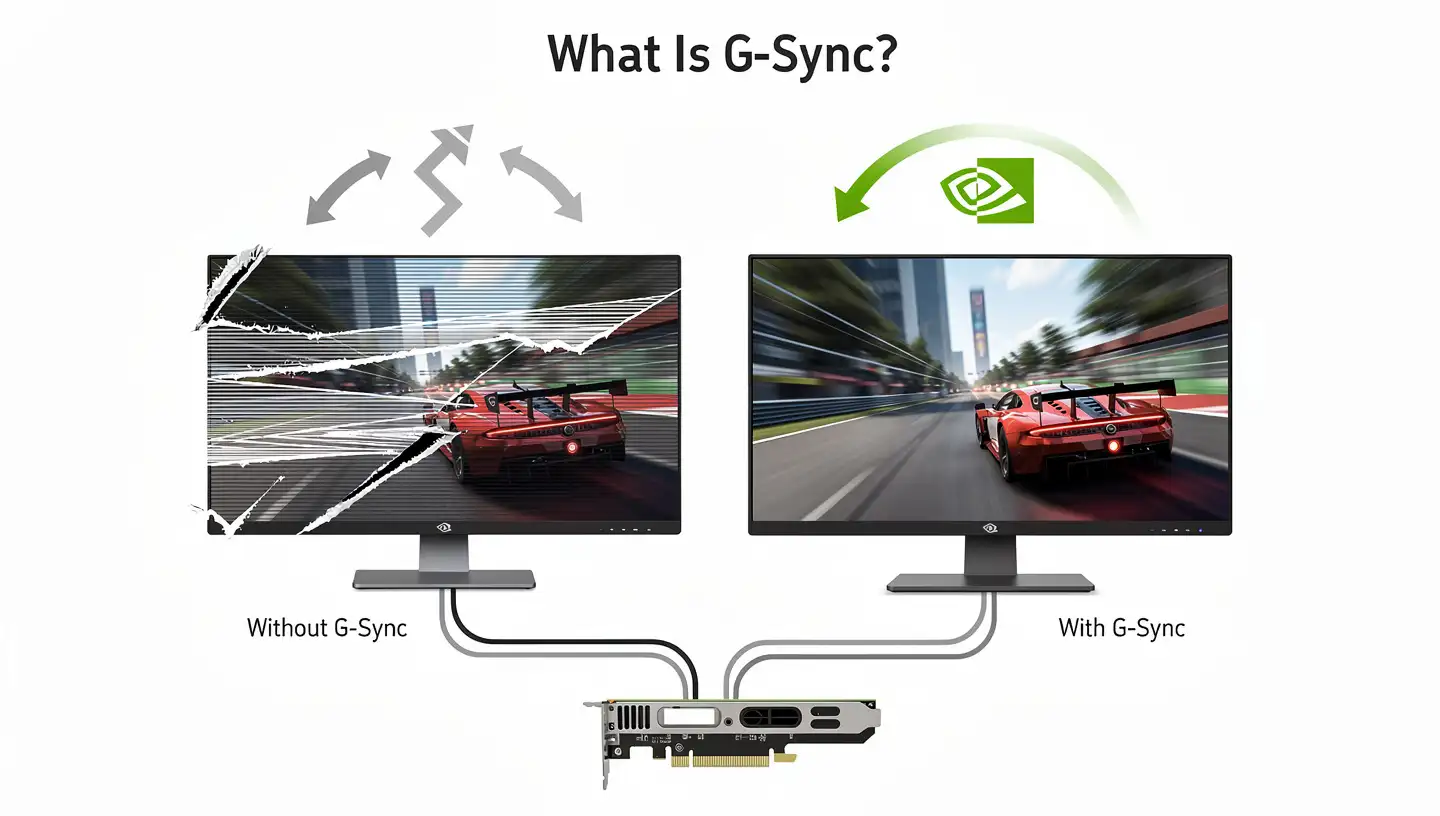
Older monitors run at a fixed refresh rate, usually 60Hz or 144Hz. A graphics card, on the other hand, never sends a steady number of frames. The count changes with every scene, explosion and loading area. That mismatch is the problem G-Sync was made to solve.
Screen Tearing and Stuttering Explained
Screen tearing happens when the monitor starts drawing a new frame before it finishes the old one. You see pieces of two different frames at the same time, with a horizontal line between them. It looks like the picture has been ripped in half.
Stuttering is the other side of the same issue. When the GPU is slower than the monitor, one frame stays on screen too long and motion feels uneven. Both problems get worse when your frame rate and your refresh rate drift apart, which is why a fast panel alone does not fix them.
How G-Sync Works With Your GPU
With G-Sync, the monitor waits for the graphics card. When a frame is ready, the screen refreshes and shows it right away. If your card outputs 87 frames per second, the monitor runs at 87Hz. If the count falls to 62, the monitor follows and runs at 62Hz. This method is called variable refresh rate, or VRR, and G-Sync is the NVIDIA version of it.
A G-Sync monitor with the full module holds this sync across a wide range, from 30Hz up to its maximum refresh rate. Below 30 FPS the module repeats frames to keep tearing away. The result is a clean picture with almost no added input lag, and that is where G-Sync beats the older V-Sync method. Technically, the module changes the vertical blanking interval, the short pause between the end of one frame and the start of the next, so the card sends a new frame only when the screen is ready for it.
G-Sync vs V-Sync
V-Sync was the first fix for tearing. It caps the frame rate at the refresh rate of the monitor, so the GPU never sends more frames than the screen can show. That works well when your PC easily reaches the cap. It works badly when the frame rate falls under the cap, because the screen has to wait for the next refresh and you get stutter and extra input lag.

On a 240Hz screen, V-Sync often ends up limiting games to half of that speed to keep a buffer against tearing. G-Sync avoids this problem. It moves the monitor to the frame rate instead of forcing the frame rate to fit the monitor. If your PC pushes a high FPS count that keeps jumping up and down, the difference is easy to feel.
G-Sync was first designed to run together with V-Sync, but NVIDIA later allowed players to switch V-Sync off. Today most people keep V-Sync on in the NVIDIA settings and off inside the game. The setup section below explains why.
Types of G-Sync Gaming Monitors
Not every monitor with a G-Sync sticker is the same. There are four versions, and the difference decides price, features and how smooth the result feels in a real game.

Native G-Sync
Native G-Sync monitors carry a dedicated NVIDIA module that replaces the regular scaler. This chip gives a wide VRR range, low latency and variable overdrive. Overdrive controls how fast pixels change color, and it needs to change with the frame rate. A fixed mode that looks perfect at 144Hz can cause pixel overshoot when the game falls to 60 FPS. The module adjusts overdrive on the fly, so the response time stays even across the whole range. The extra hardware also raises the price of the monitor.
G-Sync Compatible
In January 2019, NVIDIA let its cards run variable refresh rate on monitors that use the open Adaptive-Sync standard. Monitors that pass NVIDIA tests get the G-Sync Compatible label. They have no NVIDIA module and cost less. The list started with 12 monitors and now has more than 300.
Two warnings apply here. Some sellers put the label on monitors that NVIDIA never tested, and a few VA and OLED models still show brightness flicker even with the badge. Many of these monitors are also sold as FreeSync models, so read a review before you buy. Compatible monitors also cannot use ULMB, overclocking or variable overdrive, which native G-Sync monitors can.
Why the VRR Range Matters
Every variable refresh rate monitor has a range in which it can follow your frame rate. A native G-Sync monitor covers 30Hz up to its maximum. Most Adaptive-Sync and G-Sync Compatible monitors start at 40Hz or 48Hz instead. When the frame rate falls under that floor, tearing or flicker can return.
The fix is low framerate compensation (LFC), which repeats frames so the screen stays inside its range. LFC only works when the top refresh rate is at least double the bottom of the range. A monitor with a 30Hz to 60Hz range supports it, and a monitor with a 40Hz to 60Hz range does not. Check the VRR range in the specs or in a review before you buy.
G-Sync Ultimate
G-Sync Ultimate was first called G-Sync HDR. It combined the NVIDIA module with strict rules for HDR, such as a peak brightness around 1000 nits, wide color and local dimming. NVIDIA said these displays passed more than 300 tests. HDR on PC was messy in the early years, and Ultimate was the answer. Games now handle HDR much better on their own, so no new Ultimate monitors are coming out.
ULMB and ULMB2
Some G-Sync monitors also offer ULMB, short for Ultra Low Motion Blur. It flashes the backlight in short bursts to cut motion blur, at the cost of brightness. The flicker is usually invisible, but sensitive users can get headaches or eye strain after long sessions. In most cases ULMB cannot run together with VRR, so you pick a fixed refresh rate and cap your FPS to match it.
ULMB2 is the improved version and has strict rules. The monitor has to strobe at its maximum refresh rate, reach at least 250 nits and run at 250Hz or higher, with little strobe crosstalk. Keep in mind that G-Sync alone does not reduce motion blur. That job belongs to strobing modes such as ULMB2 and Pulsar.
G-Sync Pulsar
Pulsar is the newest version. NVIDIA and MediaTek built it around a new scaler that runs VRR and motion blur reduction at the same time. Older strobing modes such as ULMB could not do both, so players had to pick between tear-free and blur-free. Pulsar works from 75Hz to 360Hz and also offers fixed 60Hz strobing. Motion looks close to an old CRT screen, with little brightness loss and no strobe crosstalk. For competitive shooters, this is the most interesting G-Sync monitor right now.
NVIDIA Reflex Analyzer and Cloud G-Sync
Some G-Sync monitors also include NVIDIA Reflex Analyzer. It measures the delay between a compatible mouse click and the flash on screen, so you can see the full system latency. Do not mix it up with NVIDIA Reflex, which is a setting inside supported games that lowers latency. Reflex needs a GTX 900 series card or newer. Since 2024, the GeForce NOW cloud service has also supported variable refresh rate. It needs a GTX 16 series, RTX 20 series or newer card, and a monitor with VRR support. A G-Sync monitor is the easiest match for both.
| Type | Hardware | Variable overdrive | Main focus |
|---|---|---|---|
| Native G-Sync | NVIDIA module | Yes | Wide VRR range, low latency |
| G-Sync Compatible | Standard scaler with Adaptive-Sync | No | Lower price, NVIDIA tested |
| G-Sync Ultimate | NVIDIA module | Yes | HDR with 1000 nits |
| G-Sync Pulsar | NVIDIA and MediaTek scaler | Not listed | VRR together with blur reduction |
How to Tell If a Monitor Has a Real G-Sync Module
Buying a G-Sync gaming monitor is trickier than it looks, because the badge is used loosely. The popular LG 27GL850 has an NVIDIA G-Sync sticker on the box, yet it has no module inside. NVIDIA only certified it as G-Sync Compatible. Some product pages also claim a monitor is Compatible while the certification is still pending or never happened.
The safest check is the list on the NVIDIA website. Monitors with the module are shown as G-Sync or G-Sync Ultimate, and tested Adaptive-Sync monitors are shown as G-Sync Compatible. If the model is not on the list, treat the claim as unproven. Reviews with VRR tests help as well, because a certified G-Sync monitor can still have flicker or weak overdrive at low refresh rates.
What You Need to Use G-Sync
G-Sync needs a matching set of parts. If one of them is missing, the option stays greyed out or simply does nothing.
- An NVIDIA GeForce graphics card, GTX 650 Ti Boost or newer for native G-Sync and GTX 10 series or newer for G-Sync Compatible
- A G-Sync or G-Sync Compatible monitor
- A DisplayPort cable connected straight to the graphics card
- The latest NVIDIA driver
- Windows 10 or newer
Consoles are not supported. A G-Sync monitor works on PCs with NVIDIA cards, and on laptops that pair an NVIDIA GPU with a compatible screen.
The exact list depends on the version. A native G-Sync monitor on a desktop asks for DisplayPort 1.2 straight from the card, while G-Sync Ultimate asks for a GTX 1050 or newer and DisplayPort 1.4. On a laptop, native G-Sync needs a GTX 980M, 970M or 965M or newer. G-Sync Compatible needs a GTX 10 series card or newer, Windows 10 and NVIDIA driver 417.71 or later.
Does G-Sync Work Over HDMI?
DisplayPort is the safe choice. Native G-Sync monitors were built around it, and NVIDIA guides still list it as the main connection. Some newer monitors and TVs also support VRR over HDMI 2.1, but this depends on the exact model. Check the specs of your monitor before you plan around HDMI, and use DisplayPort if you have the option.
G-Sync on Laptops and TVs
G-Sync is not limited to desktop monitors. Gaming laptops with an NVIDIA GPU and a certified display can run it, and the setup steps are the same. A few LG OLED TVs are also certified as G-Sync Compatible and work over HDMI with newer GeForce cards. If you use a TV as a G-Sync gaming monitor, check the firmware notes from NVIDIA and the TV maker first, since support varies by model and year.
How to Enable G-Sync
A G-Sync monitor does not switch itself on in every setup. Three parts have to agree: the monitor menu, the NVIDIA software and the cable. If you are still installing the screen, our page on how to set up a gaming monitor covers cables and basic settings first.

Step 1: Turn On Adaptive-Sync in the Monitor Menu
Open the on-screen menu (OSD) with the buttons or joystick on the bezel. Look for G-Sync, Adaptive-Sync, FreeSync or Variable Refresh Rate, the name changes by brand. Set it to On. Native G-Sync monitors usually have this enabled already, but it takes five seconds to check.
Step 2: Enable G-Sync in NVIDIA Control Panel or NVIDIA App
Right click the desktop and open NVIDIA Control Panel. Go to Display, then Set up G-SYNC, and tick Enable G-SYNC, G-SYNC Compatible. Choose full screen mode or windowed and full screen mode. Pick windowed if you play in borderless windows. If you use the newer NVIDIA App, the same options sit under its Display section. The NVIDIA Control Panel guide lists every option in detail.
With more than one monitor, the G-Sync screen should be your primary display. Also check that Monitor Technology under Manage 3D Settings is set to G-SYNC Compatible.
Step 3: Set V-Sync and a Frame Rate Cap
Set V-Sync to On inside the NVIDIA Control Panel and turn it Off inside the game. This gives you a safety net at the top of the range without adding lag. Then cap your frame rate a few frames below the maximum of the monitor, for example 237 FPS on a 240Hz screen. The cap keeps the game inside the VRR range so tearing does not come back at the ceiling.
How to Check That G-Sync Is Working
In NVIDIA Control Panel, open the Display menu and turn on the G-Sync Indicator. A small overlay shows when G-Sync is active in a game. You can also run the UFO test in a browser and watch for tearing while the frame rate changes. NVIDIA offers a G-Sync Pendulum demo for the same purpose, and a tool such as HWiNFO can show your frame rate next to the refresh rate in real time. If the picture stays smooth and clean, the setup is done.
How to Set Your G-Sync Monitor as the Main Display
G-Sync only works on the screen marked as primary, so this step matters when you use two or more monitors. Right click the desktop and open Display settings. Click Identify to see which number belongs to your G-Sync monitor, select it, and tick Make this my main display. Then return to NVIDIA Control Panel and check that the monitor is chosen on the G-Sync setup page.
How to Use G-Sync on a FreeSync Monitor
Many FreeSync monitors can run G-Sync. Turn on FreeSync or Adaptive-Sync in the monitor menu, connect it with DisplayPort to a GTX 10 series or newer card, and tick Enable G-SYNC, G-SYNC Compatible in NVIDIA Control Panel. If NVIDIA has not certified the model, use the display specific setting on that page to enable it for your monitor.
Uncertified monitors may work well, or they may show blanking, flicker, ghosting and other artifacts, and NVIDIA does not guarantee the result. Test a few games before you decide to keep the settings.
G-Sync vs FreeSync
FreeSync is the answer from AMD, released in 2015. Both technologies are built on the Adaptive-Sync standard, and both do the same basic job. The big difference is hardware. Native G-Sync uses a proprietary chip that monitor makers have to buy, while FreeSync uses the open standard and has no license fee. This is why FreeSync monitors are usually cheaper and easier to find.

Each one is tied to a brand of graphics card. G-Sync needs NVIDIA, and FreeSync is made for AMD. Since 2019 the split is less strict, because many FreeSync monitors also run as G-Sync Compatible on NVIDIA cards. A native G-Sync monitor still has small advantages such as a wider VRR range and variable overdrive. On a well tuned FreeSync Premium monitor, most players will not see any gap in daily gaming. Other sync tools exist too, such as NVIDIA Fast Sync and AMD Enhanced Sync, but they do not follow your frame rate the way VRR does.
Best Specs for a G-Sync Gaming Monitor
A G-Sync monitor should be picked like any other gaming monitor, with the sync feature as one item on the list. These are the specs that matter most.
- Refresh rate: 144Hz is a good starting point, and 240Hz or 360Hz suits competitive shooters
- Resolution: 1440p balances sharpness and GPU load, 1080p favors frame rate, and 4K needs a strong graphics card
- Panel type: an IPS panel gives strong color and wide viewing angles, while VA offers deeper contrast
- Response time: around 1ms to 4ms is normal for a gaming monitor
- Size: 24 to 27 inches for 1080p, 27 to 32 inches for 1440p, and 32 inches or more for 4K
- HDR: look for HDR10 or a DisplayHDR certification, since weak HDR can look worse than no HDR
Screen size and resolution should also match the distance you sit from the desk. A 27 inch monitor at 1440p is the most common pairing for a G-Sync monitor, because it looks sharp and still lets a mid range GPU reach a high frame rate. The G-Sync monitor you pick should also fit your graphics card, since a 4K panel at 144Hz needs far more power than a 1080p panel at the same speed.
Higher numbers help a G-Sync monitor too. The more frames the monitor can show per second, the smaller the gaps that tearing and stutter have to fill.
Examples of G-Sync Gaming Monitors
These models show how the different versions look on the market. Check the current price and the NVIDIA list before buying, since stock and certification change.
- MSI MPG 272QRF X36: a G-Sync Pulsar monitor with VRR and blur reduction together
- ASUS ROG Swift PG248QP: a native G-Sync monitor known for its ULMB2 strobing
- Dell Alienware AW3423DW: a native G-Sync ultrawide from 2022
- ASUS ROG Swift OLED PG32UCDM Gen3: a 4K 240Hz OLED that RTINGS ranks first on its list of the best G-Sync monitors
- LG 27GL850: a popular G-Sync Compatible monitor with no NVIDIA module inside
Pros and Cons of a G-Sync Gaming Monitor
Here is the short version of what a G-Sync monitor gives you and what it costs.
Pros
- Removes screen tearing and cuts stutter
- Adds almost no input lag compared to V-Sync
- Covers a wide VRR range on native modules, from 30Hz to the maximum
- Variable overdrive keeps response time even at different frame rates
- Certified monitors pass NVIDIA tests, so the quality is more consistent
Cons
- Native modules raise the price of the monitor
- Works only with NVIDIA graphics cards
- Usually needs a DisplayPort connection
- Few native G-Sync monitors are still being made
- The badge is used loosely, and some certified monitors still flicker
Is a G-Sync Gaming Monitor Worth It?
VRR itself is worth it for almost every gamer, because tear-free gaming beats the alternative and modern VRR adds no lag you can notice. The real question is whether to pay extra for a native G-Sync module. Since VRR and good overdrive tuning are now common, most people no longer need one. Monitors with dedicated modules are also no longer being made, and Pulsar models are replacing them.
The price gap also matters. In 2015, the G-Sync version of the Acer Predator XB270HU cost around $800, while the FreeSync twin, the XF270HU, sold for about $600 with the same 27 inch 1440p 144Hz IPS panel. That gap shrank once G-Sync Compatible arrived, and a certified Compatible monitor is now the practical choice for most people who want a G-Sync gaming monitor on a normal budget.
A G-Sync gaming monitor makes sense in these cases:
- You own an NVIDIA graphics card and play fast games such as shooters or racing titles
- Your frame rate changes a lot, so a fixed refresh rate would show tearing
- You want low motion blur and are ready to pay for a Pulsar model
You can skip it in these cases:
- You use an AMD graphics card, since G-Sync gives you nothing there
- You play slower or single player games at a steady frame rate
- Your budget is tight, and a G-Sync Compatible or FreeSync monitor already covers the basics
If you are still comparing options, our guide on how to choose a gaming monitor walks through the other specs that matter.
Common G-Sync Problems and Fixes
Most G-Sync issues come from settings or cables, not from broken hardware. These are the ones people run into most often.
- G-Sync option greyed out: the monitor may not support it, or the cable is not DisplayPort. Check the OSD setting and update the NVIDIA driver
- Flickering: some VA and OLED panels flicker in brightness when the frame rate changes. Turn off the monitor overclock setting, and if it continues, try a different cable or check reviews of that exact model
- Flicker at low frame rates: your FPS has dropped under the VRR range of the monitor. Raise your minimum FPS with lower graphics settings, or pick a monitor with a wider range or LFC support
- Stutter with V-Sync on: turn V-Sync off inside the game and cap the frame rate below the refresh rate
- Not working in a window: switch the NVIDIA setting to windowed and full screen mode
- Option missing after turning on HDR: on some setups HDR removes the G-Sync setup page, so test with HDR off
Frequently Asked Questions
Does G-Sync work with AMD graphics cards?
No. Native G-Sync is proprietary NVIDIA technology and needs an NVIDIA card. If you use an AMD card, FreeSync is the matching option. A G-Sync monitor will still show a picture on an AMD PC, but you pay a premium for a feature you cannot use.
Does G-Sync increase FPS?
No. G-Sync does not add frames. It only matches the refresh rate of the monitor to the frames your GPU already makes. Play feels smoother because tearing and stutter go away, and that can seem like a performance gain.
Should I turn G-Sync on or off?
Leave it on for most games. It removes tearing and adds no lag you can notice. Turn it off only if a specific game or monitor shows flicker or odd behavior, and then test again after a driver update.
Do I need G-Sync on a 144Hz monitor?
You do not strictly need it, but it still helps. Tearing can happen at any refresh rate when the frame rate does not match. If you are unsure whether the jump is worth it, read our page on whether 120Hz is good for gaming to see what higher speeds add.
Does G-Sync work on consoles?
No. G-Sync works only with PCs that have NVIDIA GeForce cards. The PS5 and Xbox Series consoles use other VRR standards such as HDMI VRR, so check the specs of your G-Sync monitor if you also play on a console.
Can I use G-Sync with multiple monitors or on a laptop?
Yes to both. Set the G-Sync monitor as your primary display when you use more than one screen. Gaming laptops with an NVIDIA GPU and a compatible built in display can run G-Sync as well.
How do I know if my monitor is really G-Sync Compatible?
Do not trust the sticker or a product page alone. Check the official list of certified G-Sync monitors from NVIDIA. If your model is not there, it is not certified, though it may still work with VRR turned on manually.
What is the difference between G-Sync and G-Sync Ultimate?
G-Sync Ultimate adds strict HDR rules on top of the standard module, including high peak brightness and local dimming. Standard G-Sync focuses on tear-free motion without those HDR demands. New Ultimate monitors are no longer being released.
Does G-Sync reduce motion blur?
No. G-Sync alone syncs the refresh rate and removes tearing and stutter, but it does not cut motion blur. Blur reduction comes from strobing modes such as ULMB2, and G-Sync Pulsar is the first version that runs it together with VRR.
Which games benefit most from G-Sync?
Fast games with a changing frame rate gain the most, such as shooters, racing titles, sports games and real-time strategy. In slower games that run at a steady frame rate the difference is small.
Does G-Sync affect performance?
It does not lower your FPS. It only changes how the monitor follows the frames your card makes. Running it with V-Sync switched on inside the game can add lag, so follow the settings from the setup section.
Can I use a G-Sync monitor for work?
Yes. A G-Sync monitor works like any other monitor for office tasks, video and editing. The feature helps most during motion such as games and video playback, so for static work specs such as color accuracy and ergonomics matter more.
Is a curved G-Sync monitor better for gaming?
It depends on taste. A curve can add immersion on ultrawide screens in racing and simulator games, but it has nothing to do with G-Sync itself. The sync feature works the same on flat and curved panels.
Final Thoughts
A G-Sync gaming monitor keeps your screen in step with your graphics card, and that removes tearing and uneven motion without adding lag. For most NVIDIA users, a G-Sync Compatible monitor gives the same everyday result for less money. Native modules were built for a wider range and better overdrive, and Pulsar models now go further for players who care about motion clarity. Match the version to your card, use DisplayPort, switch the feature on in the NVIDIA settings, and cap your frame rate slightly below the refresh rate.