Shopping for an HDR gaming monitor quickly turns into a comparison of three labels: HDR400, HDR600 and HDR1000. The number stands for the minimum peak brightness in nits that the DisplayHDR program tests for, but it says very little about how a game actually looks. Two monitors with the same badge can produce very different results, because local dimming, contrast and color coverage decide how much of that brightness you can really use. Some HDR400 screens look like a slightly brighter SDR picture. A good HDR600 screen shows a clear step up in explosions, reflections and night scenes. HDR1000 is where bright highlights start to hit hard, but it also brings higher prices, blooming on some panels and a lot of light at close range. Below you will find what each level guarantees, where the labels mislead, and which one fits your games, your room and your budget. The Windows setup steps and the most common questions are at the end.
What Do HDR400, HDR600 and HDR1000 Mean on a Gaming Monitor?
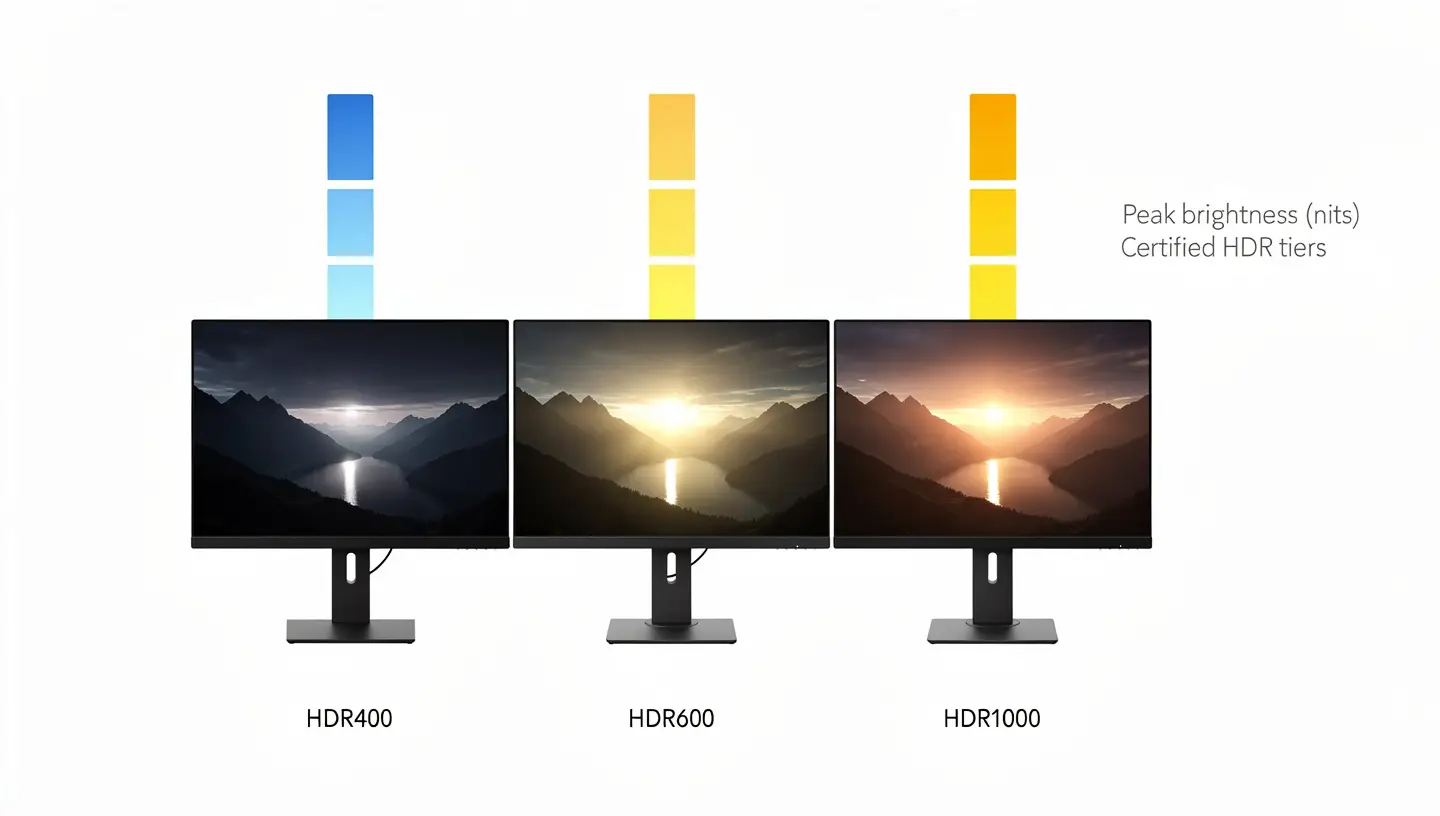
High dynamic range, or HDR, widens the distance between the darkest and the brightest parts of the picture and adds a wider color range than standard dynamic range (SDR). A monitor needs the right hardware to show that range, and the HDR400, HDR600 and HDR1000 badges try to describe that hardware in one number. They come from the DisplayHDR program run by VESA, and each number matches the minimum peak brightness in nits that a certified gaming monitor has to reach. If you are new to the topic, our page on how HDR works on a monitor covers the basics before you compare tiers.
HDR10 vs DisplayHDR: Format and Certification
These two terms are often mixed up. HDR10 is a content format. It tells the display how a game, movie or stream was mastered, and it uses 10-bit color with static metadata. DisplayHDR is a certification for the monitor itself. A screen can accept an HDR10 signal and still be certified only at the entry level, or not certified at all. So HDR10 on a spec sheet tells you the monitor can read the signal, while HDR400, HDR600 or HDR1000 tells you how well it can show it.
What the Number Means: Peak Brightness in Nits
A nit is one candela per square meter. A typical SDR monitor sits somewhere between 250 and 350 nits, so HDR400 is only a small jump in raw brightness, while HDR600 and HDR1000 raise the ceiling far higher. The peak value is measured on a small bright patch. The test also checks how much brightness the screen can hold across a larger area, and those sustained numbers are lower: around 320 nits for HDR400, 350 for HDR600 and 600 for HDR1000. This is why a white full-screen scene never looks as bright as a small highlight.
Certified HDR and the CTS 1.2 Update
VESA moved to the stricter CTS 1.2 test rules in May 2024, and the program now uses the name Certified HDR next to the older DisplayHDR label. The newer version checks static contrast, black crush, color accuracy and 10-bit input more closely. Even HDR400 now needs at least 90% DCI-P3 coverage and a static contrast of 1,300:1, so recent HDR400 monitors are somewhat better than older ones. Some listings still follow the previous rules, so it is worth checking which version a monitor was certified under.
HDR400 vs HDR600 vs HDR1000 at a Glance
The table below puts the main requirements side by side under the current rules. Real monitors can exceed these minimums, but they cannot go below them if the badge is genuine.
| Tier | Peak brightness | Static contrast | Local dimming | Color gamut | Best for |
|---|---|---|---|---|---|
| HDR400 | 400 nits | 1,300:1 | Not required | 90% DCI-P3 | Office, casual media, budget gaming |
| HDR500 | 500 nits | 7,000:1 | Edge-lit at least | 95% DCI-P3 | Entry to mid-range gaming |
| HDR600 | 600 nits | 8,000:1 | Edge-lit at least | 95% DCI-P3 | Mainstream HDR gaming |
| HDR1000 | 1,000 nits | 30,000:1 | Full-array | 95% DCI-P3 | Premium gaming, HDR movies |
| HDR1400 | 1,400 nits | 50,000:1 | Full-array | 95% DCI-P3 | Bright rooms, creators |
| True Black 400 | 400 nits | Black level 0.0005 nits | Per pixel (OLED) | 95% DCI-P3 | Dark room gaming |
Where HDR500 and HDR1400 Fit
HDR500 sits between the two most common tiers and is rare on gaming monitors, so most shoppers only meet 400, 600 and 1000 in stores. HDR1400 is the top of the LCD ladder. It adds more brightness and a much higher contrast requirement, and it makes the most difference in bright rooms and demanding scenes. Do not treat the gap between 1000 and 1400 as simply 400 extra nits, because the dimming system decides how much of that headroom you actually see.
HDR400 on a Gaming Monitor
HDR400 is the lowest tier of the DisplayHDR program and the one you will meet most often on affordable gaming monitors. It is also the most argued about, so it helps to separate what the badge proves from what people expect it to deliver.

What HDR400 Guarantees
A certified HDR400 monitor reaches a peak brightness of 400 nits on a small test patch, accepts 10-bit input and covers at least 90% of DCI-P3 under the current rules. Static contrast has to be around 1,300:1, which many ordinary panels already reach. Local dimming is not required. The whole backlight behaves as a single zone, so a bright object on a dark background raises the black level across the entire screen instead of lighting up only its own area. That single limit explains most of the criticism aimed at this tier.
Is HDR400 Real HDR or “Fake HDR”?
The label is real. The monitor passed a defined test, and that is better than a screen that only says HDR compatible on the box. The visual effect is another matter. On many HDR400 monitors the picture looks like a brighter SDR image, and dark scenes can turn gray when HDR is switched on. That is why forums and several reviewers call it fake HDR or a marketing checkbox. A fairer reading is that HDR400 is a baseline: it proves compatibility, not a dramatic difference. Watch for listings that say HDR-400 or HDR 400 without the word DisplayHDR, because those may never have been tested at all.
When HDR400 Is Still Worth It
Is HDR400 worth it for gaming? It can be, when HDR is not the main reason for the purchase. If the monitor has a strong SDR picture, the refresh rate and resolution you want and a fair price, the extra HDR400 support does no harm. It also suits office work with occasional video, casual players and dark rooms where a small brightness boost is enough. If you plan to play HDR games often, treat this tier as entry-level and look higher.
HDR600 on a Gaming Monitor
HDR600 raises the peak brightness to 600 nits and, more importantly, brings local dimming into the requirements. That single change is why so many buyers describe it as the level where HDR begins to look different from SDR.

What HDR600 Adds Over HDR400
Compared with HDR400, an HDR600 monitor needs a static contrast of about 8,000:1, 95% DCI-P3 coverage and some form of zone-based dimming. Most monitors in this class use edge-lit backlights with roughly 8 to 32 zones. Black levels are lower, highlights are brighter and the screen can show a bright lamp and a dark wall at the same time without lifting the whole image. The improvement is easy to spot in games with strong contrast, such as night streets, caves, fire and neon signs.
Why HDR600 Is the Practical Starting Point
Many reviewers and hardware writers use HDR600 as the floor for LCD gaming monitors. It gives a visible upgrade without flagship pricing, and it is less likely than very bright panels to feel harsh during long sessions at a desk. It also pairs well with 1440p and ultrawide monitors, where speed and immersion matter together. For most players who ask what the minimum HDR level for a good gaming monitor is, HDR600 is the answer, or True Black 400 if you choose OLED.
Is HDR600 Worth the Extra Money?
Is HDR600 worth it over HDR400? Usually yes, as long as the price gap is small and the rest of the monitor is equal. The catch is that HDR600 varies widely. Edge-lit dimming with few zones can cause uneven brightness and visible glow, and it will not behave like a dense Mini-LED backlight or an OLED panel. Two HDR600 monitors can look quite different, so read a review that tests the HDR mode instead of trusting the badge alone.
HDR1000 on a Gaming Monitor
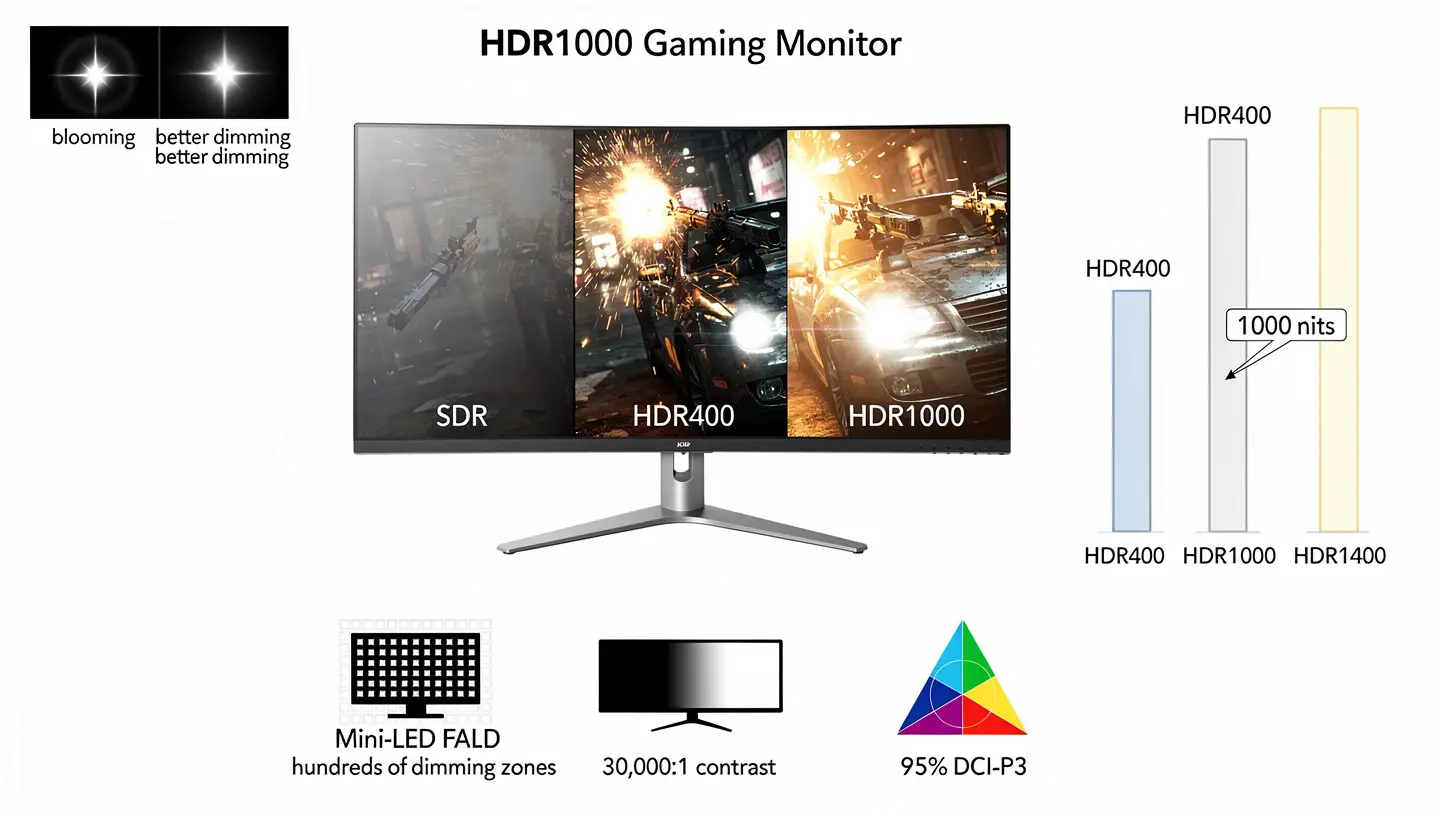
HDR1000 is where highlights become hard to ignore. Sun glints, muzzle flashes, headlights and reflective metal reach a brightness that feels closer to real light than to a brighter SDR image, and this is the level most HDR content is mastered for.
What HDR1000 Requires
The current rules ask for 1,000 nits of peak brightness, a static contrast of 30,000:1 and 95% DCI-P3 coverage. To reach that contrast, an LCD monitor needs full-array local dimming, with hundreds of zones behind the panel. Popular examples have 384, 512 or over 1,000 zones, and modern designs use Mini-LED backlights with far more. Mini-LED monitors also tend to hold higher sustained brightness, so bright scenes stay bright instead of dimming after a moment.
Blooming, Heat and Comfort at 1,000 Nits
The trade-offs are real. Full-array dimming can still cause blooming, a glow around small bright objects on a dark background, and it shows up most in star fields, fireworks and white text on black. Some high-end monitors use fans, and a few of them are audible. A monitor also sits much closer than a TV, so 1,000 nits can feel aggressive in a dark room. If you use the same screen for work, you may end up switching HDR on and off between desktop tasks and games.
HDR1000 vs HDR1400
HDR1400 pushes the ceiling to 1,400 nits with a contrast requirement of 50,000:1 and deeper blacks. It helps most in bright rooms and in scenes with large bright areas such as clouds, snow and space. The step from HDR1000 to HDR1400 is not as dramatic as the step from HDR400 to HDR1000, and a weak dimming algorithm or too few zones can cancel the gain. A well-tuned HDR1000 monitor can beat a poorly built HDR1400 model in perceived contrast.
Local Dimming: The Spec That Matters More Than the Badge
A monitor with 1,000 nits and no local dimming is not a good HDR display. A monitor with 600 nits and well-controlled zones can look better. Brightness only becomes useful when the screen can keep the dark parts dark at the same time.
Global, Edge-Lit and Full-Array Dimming
With global dimming the backlight works as one zone, so a signal flare in a dark forest raises the glow of the whole picture. Edge-lit dimming places LEDs along the border and gives a small number of zones, usually 8, 16 or 32, which helps when bright and dark areas are far apart but can leave visible bands. Full-array dimming puts the LEDs directly behind the panel and controls them in many zones, which allows much finer contrast. This matters more on IPS panels, because their native contrast is low and they depend heavily on the backlight to reach deep blacks.
How Many Dimming Zones Do You Need?
There is no official minimum for the halo effect, and the badge does not list a zone count, so check the specification sheet or a review. As a rough guide, up to about 32 zones counts as coarse dimming, a few hundred zones gives good results, and over 1,000 zones gives fine control. More zones usually mean less blooming, but the algorithm that decides which zone lights up matters just as much as the number.
OLED, True Black and Mini-LED: Where They Fit
LCD monitors need a backlight, so their HDR depends on dimming zones. OLED works differently: each pixel makes its own light and can switch off completely, so contrast is nearly unlimited and there is no blooming.
DisplayHDR True Black 400, 500, 600 and 1000
VESA created the True Black tiers for OLED and other self-lit panels. They set a black level of 0.0005 nits and ask for a lower peak brightness than the standard tiers, because the contrast does the heavy lifting. True Black 400 is where HDR starts on OLED desktop monitors, and a True Black 400 label is not the same thing as a DisplayHDR 400 label. Higher steps such as 500, 600 and the newer 1000 tier raise the brightness while keeping the same black level.
Is HDR1000 Better Than OLED True Black?
Not always. HDR1000 Mini-LED monitors usually win on highlight punch and sustained brightness, and they cope better in bright rooms. OLED wins on black depth, pixel-level contrast and dark-room clarity, but it usually reaches lower peak brightness, limits full-screen brightness and carries some burn-in risk. Panel type also changes the picture: VA panels have higher native contrast than IPS, which gives Mini-LED VA monitors an extra advantage in dark scenes.
| Feature | OLED True Black | Mini-LED HDR1000 |
|---|---|---|
| Black level | Near perfect | Good, but blooming possible |
| Peak brightness | Lower, often 400 to 1,000 nits | 1,000 to 2,000 nits or more |
| Burn-in risk | Yes, needs care | No |
| Best room | Dark or dim | Bright or mixed lighting |
Is HDR Better Than OLED?
The question compares two different things. HDR describes the range of brightness and color that a display can show and how content is delivered to it. OLED describes how the panel makes light. An OLED monitor can support HDR, and the best results come when the panel technology and the HDR tier work together, not when one is chosen against the other.
Which HDR Level Should You Buy?
The right tier depends on how you play, where you play and how much you are willing to spend. If you want a wider walkthrough that covers size, panel and ports as well, start with our guide to choosing a gaming monitor and use this section to narrow down the HDR part.
By Budget
On a small budget, buy the best SDR monitor you can afford and treat HDR400 as a bonus. In the mid-range, HDR600 is the practical target and gives a visible improvement without paying for a premium backlight. If HDR is a top priority and the budget allows it, go for HDR1000 or an OLED monitor. Spending extra on a higher tier only makes sense when the dimming system is strong, so compare zone counts and reviews before paying more.
By Game Type
Story games, open-world titles, racing games and other visually rich single-player games benefit most from HDR. Competitive players usually get more from refresh rate, response time and motion clarity, and HDR is a lower priority there. Resolution also plays a role: a 4K monitor with HDR600 or better makes an impressive pair for cinematic games, but it asks more from your graphics card than 1440p does.
By Room Lighting
In a dark room, OLED True Black or a Mini-LED monitor with strong dimming gives the best contrast, and even HDR400 OLED can look good. In a bright room, a high-brightness LCD such as HDR1000 or HDR1400 holds up better against ambient light. Very high brightness at a short distance can be tiring, so look for a monitor that lets you lower the HDR peak in the settings.
For Photo and Video Editing
Content creators need more headroom. To preview HDR photos and video accurately you want a display that holds around 1,000 nits, and an HDR600 monitor tends to clip the brightest whites when you edit in software such as Lightroom. If you split your time between gaming and editing, HDR600 is enough to start with, but final grading on premium HDR work is better done on HDR1000 or above with strong color accuracy.
HDR or Higher Resolution: Which Matters More?
Given a fixed budget, a strong HDR600 or HDR1000 monitor with local dimming usually changes the picture more than moving from 1440p to 4K resolution does. Contrast and highlight brightness are easier to notice at normal viewing distance than the extra sharpness a higher pixel count adds, and a 4K panel with a weak HDR400 implementation will still look flat in dark or high-contrast scenes. Resolution becomes the priority once the HDR tier is already solid, or if your GPU cannot hold a steady frame rate at 4K in the first place, since a lower resolution at a higher refresh rate often feels better in fast paced games than native 4K with a compromised frame rate.
How to Spot Fake HDR Labels Before You Buy
Not every HDR sticker on a box comes from a real test. Use this checklist before you pay:
- “HDR ready” or “HDR compatible” is not a certification and only says the monitor can accept the signal.
- “HDR-400” or “HDR 400” without the word DisplayHDR or Certified HDR may not have been tested by VESA.
- Check the certification list on the DisplayHDR performance criteria page and confirm whether the monitor follows the older or the newer rules.
- Look for the local dimming type and zone count in the specification sheet.
- Read a review that tests HDR in real games, not just the box claims.
- Be careful with labels such as HDR2000 that are not part of the official program.
How to Turn On HDR on Windows and Set It Up Properly
Many HDR problems come from setup, not hardware. A few settings decide whether a good monitor looks good.
Enable HDR and Run the Calibration App
Open Settings, go to System and then Display, select the HDR-capable monitor and switch on Use HDR. The shortcut Win + Alt + B toggles HDR quickly. Then install the Windows HDR Calibration app and follow its test patterns so the operating system knows the real peak brightness of your monitor. If the desktop looks dim after HDR is on, adjust the SDR content brightness slider on the same page.
GPU Settings and Cables
Set the graphics card output to 10 bpc, RGB and full dynamic range in the NVIDIA or AMD control panel. HDR also needs enough bandwidth, so use HDMI 2.0 or 2.1, or DisplayPort 1.4, and make sure the graphics card has the same ports. Our page on connecting a gaming monitor to a PC explains which cable and port to pick for each case.
In-Game HDR Settings
Most modern games have their own HDR menu. Set the peak brightness slider to the real value of your monitor, usually somewhere between 400 and 1,000 nits, and start paper white at around 200 nits, then adjust for your room. Leave color saturation close to the default unless colors look wrong. Calibrating every game takes time, but it is what separates a flat picture from a good one.
Auto HDR for Older Games
Windows can expand the range of SDR games with Auto HDR. It works well on many older titles and can even look better than a poorly made native HDR mode, but it rarely matches a game built for HDR from the start. On an HDR400 screen it adds little, because the monitor cannot show much more than the SDR version. One more common question is whether HDR even needs a special graphics card. It does not. Any recent GPU can output an HDR signal once the driver and cable support it, and the certification level of the monitor has nothing to do with which graphics card you own. What changes is how much of that signal the monitor can actually display, which brings the conversation back to the tier and the dimming system rather than the hardware sending the picture.
Why HDR Looks Washed Out or Dim (and How to Fix It)
If HDR looks gray or flat, the first step is to check the basics from our gaming monitor setup guide, then look at the common causes. An HDR400 monitor with no local dimming often looks washed out because it cannot produce real contrast. The Windows calibration may be missing, the in-game brightness sliders may be wrong, the dimming may be set to off in the monitor menu, or the cable may not carry the full signal. Try one change at a time: run the calibration app, update the GPU drivers, use a certified cable and set local dimming to auto or high. If the result still looks worse than SDR, the monitor probably lacks the hardware, and turning HDR off is a valid choice.
Does HDR Affect FPS, Refresh Rate and Input Lag?
The certification level does not change how hard your graphics card works. HDR400, HDR600 and HDR1000 describe the monitor, not the game. Some games show a small frame drop with HDR on, so compare results in the game you play. The higher refresh rate options and the HDR tier are separate specs, and a monitor can be strong in one and average in the other, so check both.
Console gaming adds its own layer to this. PS5 and Xbox consoles do not follow the DisplayHDR badge at all, and their HDR calibration menus rely on a separate industry guideline called HGIG, built specifically to stop tone mapping from crushing highlights in games. A monitor with a high HDR1000 rating can still look off on console if the in-game calibration screen is skipped, since the console has no way to know the real peak brightness of the display without that step. Running the calibration menu on both the console and the monitor, rather than trusting the badge alone, fixes most of the odd-looking HDR complaints console players report.
Adaptive sync is a related but separate matter. A monitor with FreeSync Premium Pro support is tested for low latency with HDR and can keep motion smooth while HDR is enabled, but it does not replace a good HDR tier. Input lag depends on the monitor processing and is usually unaffected by the HDR badge.
Final Verdict: Which HDR Level Is Worth Paying For?
Treat HDR400 as a baseline, HDR600 as the practical starting point, HDR1000 as the premium jump and HDR1400 as extra headroom for bright rooms and demanding work. Do not buy a gaming monitor for the HDR badge alone. Check the local dimming, the contrast, the real reviews and the room where you play. A good SDR monitor with a modest HDR mode is often a better purchase than an expensive monitor with a weak HDR implementation.
Frequently Asked Questions
What is the difference between HDR400, HDR600 and HDR1000?
The number is the minimum peak brightness in nits. HDR400 needs 400 nits and no local dimming, HDR600 needs 600 nits and some form of local dimming, and HDR1000 needs 1,000 nits with full-array dimming under the current rules. Higher tiers also require higher contrast and wider color coverage.
Is HDR400 real HDR?
It is a real certification, but a weak one. HDR400 proves that the monitor reaches 400 nits and accepts an HDR signal, yet it does not require local dimming, so contrast often stays close to SDR. Many reviewers call it entry-level HDR and treat HDR600 as the point where the effect becomes clear.
Is HDR400 worth it for gaming?
Only as a bonus. If the monitor is good in SDR and has the refresh rate, panel and price you want, HDR400 does no harm. It should not be the reason to buy, and on some screens turning HDR off gives a cleaner picture.
Is HDR600 worth it over HDR400?
Usually yes, when the price gap is small. HDR600 brings higher brightness, better contrast and local dimming, which makes explosions, lights and night scenes stand out. The result still depends on the dimming quality, so check reviews rather than the badge alone.
Is HDR1000 better than OLED True Black?
Not in every case. HDR1000 monitors reach brighter highlights and cope better with bright rooms, while OLED with True Black gives deeper blacks and cleaner contrast in dark rooms. The better choice depends on where you play and how much you care about burn-in.
What is the minimum HDR level for a good gaming monitor?
Most sources point to DisplayHDR 600 for LCD monitors, or True Black 400 for OLED. Below that level, HDR tends to add little over SDR.
Do I need HDR for gaming?
No. Competitive players usually benefit more from refresh rate and response time. HDR helps most in story-driven and visually detailed single-player games that have proper HDR support.
Why does HDR look washed out on my monitor?
Usual causes are low contrast on an HDR400 screen, missing calibration in Windows, wrong in-game brightness sliders, weak local dimming or a cable that cannot carry the signal. Run the Windows HDR Calibration app first, then adjust the game settings.
Does HDR reduce FPS?
The certification level does not change how hard the GPU works. Some games show a small drop with HDR on, so compare frame times in the game you actually play.
Is HDR400 the same as HDR10?
No. HDR10 is a content format and HDR400 is a monitor certification. A monitor can read HDR10 and still only meet the HDR400 level.
What cables do I need for HDR?
HDMI 2.0 or 2.1, or DisplayPort 1.4, at minimum. Older cables lack the bandwidth for HDR at higher resolutions and refresh rates, and the graphics card must have the same ports.
Is Auto HDR worth it?
For older games without native HDR, often yes. Auto HDR expands the range of SDR games on an HDR monitor, but it rarely matches a game built for HDR, and it looks weak on HDR400 screens.
Can I use an HDR monitor with a non-HDR graphics card?
Yes. Any recent graphics card can send an HDR signal once the driver and cable support it, since HDR support depends on the GPU output settings rather than a special HDR chip. The monitor’s certification level decides how much of that signal actually gets displayed.
Is Samsung TrueBright the same as DisplayHDR?
No. TrueBright is a separate certification that Samsung uses on some of its own monitors, built around similar brightness and contrast testing but run outside the VESA DisplayHDR program. It is worth checking which certification a Samsung monitor actually carries before comparing it against a DisplayHDR or Certified HDR badge.