If you have shopped for a gaming monitor recently, you have probably seen VRR listed next to the refresh rate on the box. VRR stands for variable refresh rate, and it is one of those features that sounds technical but solves a problem almost every gamer has run into without knowing the name for it: that annoying horizontal split in the image, or the stutter that hits right when the action gets fast. This guide covers what a VRR gaming monitor actually does, the different versions of the technology, and how to get it running properly on your own setup.
By the end you should understand why VRR matters more than most spec sheet numbers, and why a VRR gaming monitor paired with the wrong settings can still tear or stutter even with the feature switched on.
Quick Answer
VRR lets your monitor change its refresh rate on the fly to match the frame rate your graphics card is putting out at that exact moment, instead of sticking to one fixed number like 60Hz or 144Hz. When the frame rate and refresh rate are always in step, screen tearing disappears and motion looks noticeably smoother, especially in fast paced games where the frame rate jumps around a lot.
What Is VRR?
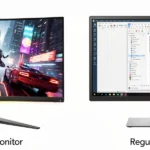
A regular monitor without VRR refreshes the screen at a fixed rate no matter what your graphics card is doing. If your card renders 90 frames in a second but the monitor only refreshes 60 times, the screen ends up showing parts of two different frames at once, which shows up as a jagged horizontal line cutting across the image during motion. That is screen tearing. Stuttering is a related but separate problem, where the frame pacing becomes uneven and the game feels like it is briefly skipping or hitching even though the average frame rate looks fine on paper.
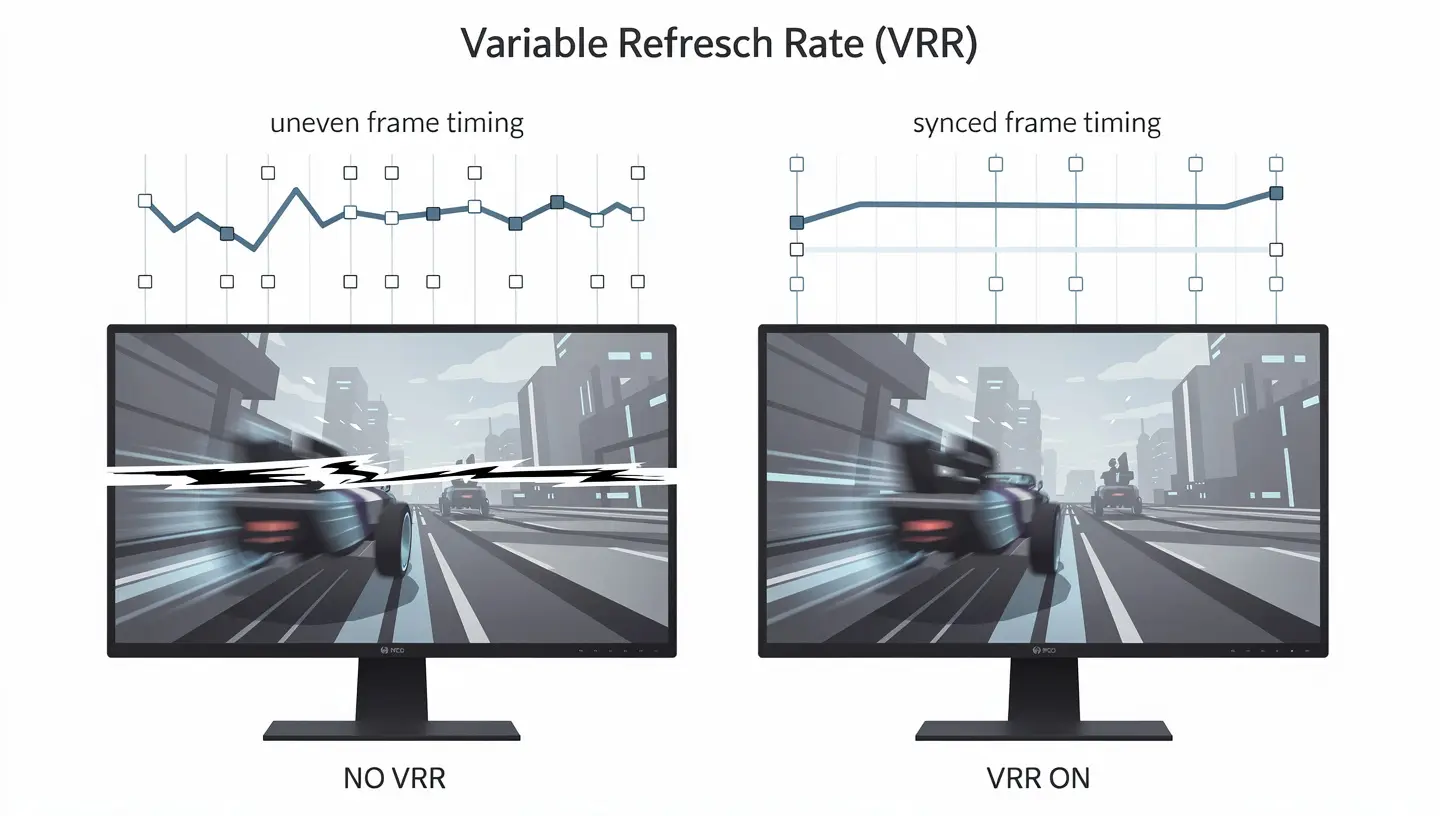
VRR fixes both by letting the monitor’s refresh rate follow the frame rate instead of the other way around. If the graphics card is rendering 87 frames per second, the monitor refreshes at 87Hz for that moment, then adjusts again the instant the frame rate changes. There is no fixed number for the monitor to fall behind or race ahead of, so the two stay matched almost constantly.
How VRR Works
Getting this to work requires the graphics card and the monitor to talk to each other continuously. The graphics card sends a signal each time a new frame is ready, and the monitor waits for that signal before refreshing rather than refreshing on its own fixed schedule.

This is why VRR needs support on both ends, the graphics card and the monitor, and why a display advertised with the feature will not do anything useful if the graphics card driver is not told to use it. The whole exchange happens within a range the monitor is built to support, usually printed on the box as something like 48 to 144Hz, and everything about how well VRR performs in practice comes down to how wide and how well managed that range is.
Types of VRR Technology
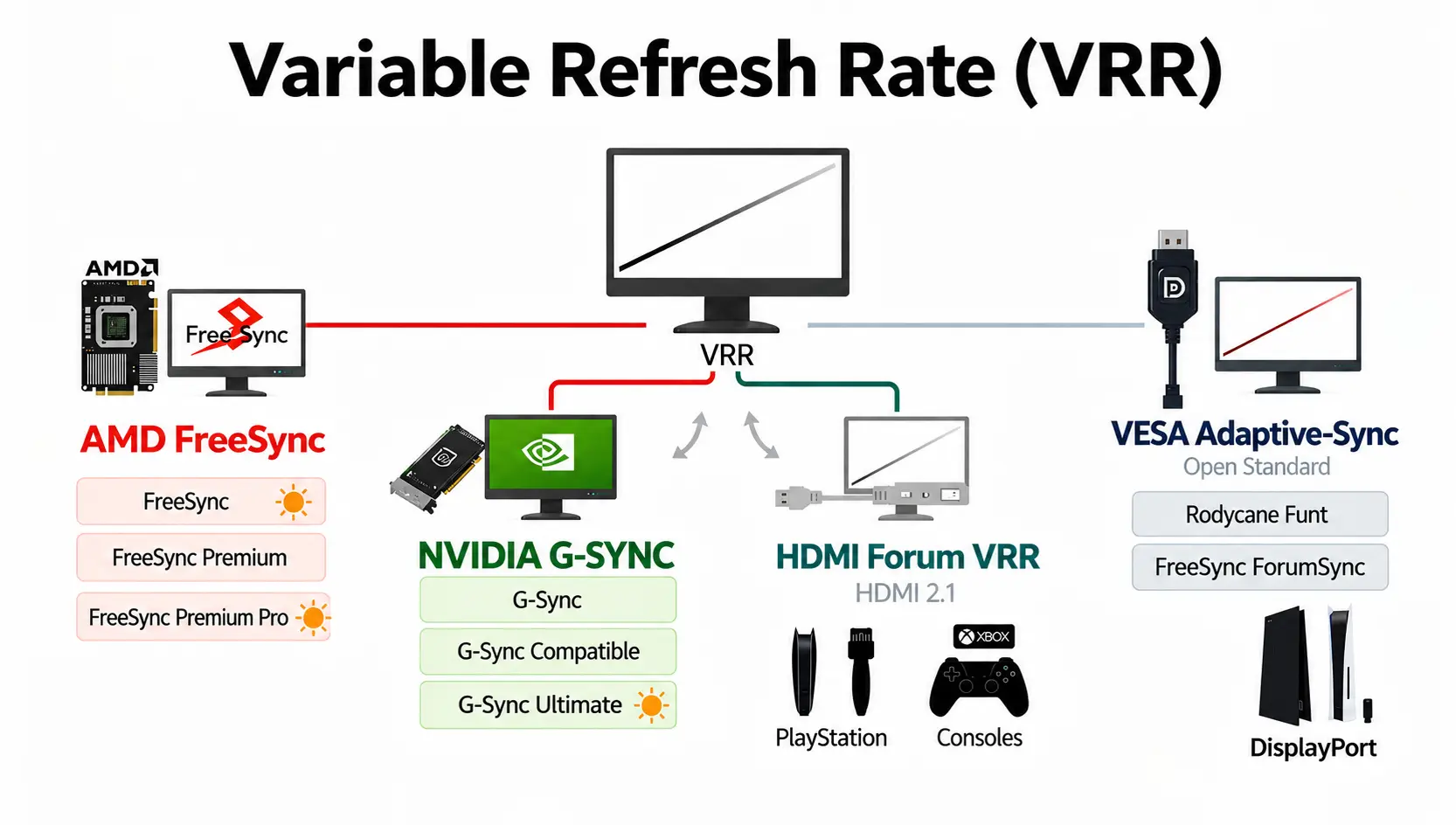
VRR is not one single standard. A handful of different implementations exist, some tied to a specific graphics card brand and some open to anyone, and it helps to know which one your monitor and graphics card actually support before assuming they will work together.
AMD FreeSync
FreeSync is AMD’s version of variable refresh rate, and it comes in three tiers. Plain FreeSync is the entry level version and guarantees basic tear free performance within the monitor’s range. FreeSync Premium adds a requirement for low framerate compensation and a minimum of 120Hz at 1080p, so motion stays smooth even when the frame rate dips lower than usual. FreeSync Premium Pro goes a step further and adds HDR support on top of everything Premium already covers. Since FreeSync is built on an open standard, it also tends to show up on a wider range of monitors at every price point compared with Nvidia’s option. Our full FreeSync guide breaks down which tier makes sense depending on your graphics card and budget.
NVIDIA G-Sync
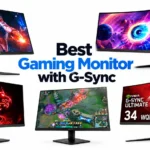
G-Sync is Nvidia’s take on the same idea, and it also comes in a few flavors. The original G-Sync relies on a physical module built into the monitor, which used to mean higher prices but also a wider VRR range and tighter quality control. G-Sync Compatible is Nvidia’s certification for monitors that use the open Adaptive-Sync standard instead of the proprietary module, so it works more like FreeSync but with Nvidia’s testing behind it. G-Sync Ultimate sits at the top and adds HDR requirements similar to FreeSync Premium Pro. If you are shopping specifically for this feature, our full breakdown of G-Sync covers which tier is worth paying extra for.
HDMI Forum VRR
HDMI 2.1 introduced its own version of variable refresh rate as part of the standard itself, sometimes just called HDMI VRR or HDMI Forum VRR. This is what makes VRR possible on consoles like PS5 and Xbox, since neither one uses FreeSync or G-Sync directly, they rely on the HDMI specification instead. Not every HDMI 2.1 port on a monitor actually enables this though, so it is worth double checking whether the specific input you are using supports it rather than assuming any HDMI 2.1 cable will do the job.
VESA Adaptive-Sync
Underneath most of these brand names sits VESA Adaptive-Sync, an open industry standard that FreeSync and G-Sync Compatible both build on top of. A monitor that lists Adaptive-Sync support over DisplayPort will usually work with FreeSync on an AMD card and G-Sync Compatible on an Nvidia card, even without an official certification sticker from either company.
VRR Range and Low Framerate Compensation
Every VRR monitor has a working window rather than unlimited flexibility. A common example is 48 to 144Hz, meaning the monitor can only vary its refresh rate somewhere inside that span. Once your frame rate climbs above the top of the range or falls below the bottom, VRR effectively stops doing its job on its own.
This is where low framerate compensation, usually shortened to LFC, comes in. When your frame rate drops below the monitor’s minimum, say to 35 frames per second on that same 48 to 144Hz screen, LFC steps in and displays each frame more than once so the monitor’s actual refresh rate stays inside its supported range, in this case landing around 70Hz. It is not creating new frames out of thin air, it is repeating existing ones to keep the timing consistent, but the end result still looks and feels far smoother than letting the monitor drop out of VRR entirely. For LFC to work at all, the monitor’s maximum refresh rate generally needs to be at least twice its minimum, which is why a narrow range like 48 to 75Hz usually cannot support it while a wider one like 48 to 165Hz can.
| VRR Range Example | LFC Supported | Why |
|---|---|---|
| 48Hz to 75Hz | No | Maximum is not double the minimum |
| 48Hz to 144Hz | Yes | Maximum is roughly 3x the minimum |
| 40Hz to 160Hz | Yes | Wide enough range to double low frame rates back into range |
Benefits of a VRR Gaming Monitor
The most obvious benefit of a VRR gaming monitor is that screen tearing simply goes away in the vast majority of games, without needing V-Sync and the extra input lag that usually comes with it. Motion stays smooth even when the frame rate is bouncing around, which matters a lot in games with demanding scenes that cause sudden frame rate drops, like a big explosion or a crowded battle. Competitive players often notice the difference most during fast camera turns, where tearing tends to be at its worst, since that is exactly when the frame rate and refresh rate are most likely to fall out of step with each other.
VRR vs V-Sync: What Is the Difference
V-Sync solves screen tearing in a completely different way. Instead of letting the monitor’s refresh rate follow the frame rate, V-Sync forces the graphics card to hold frames back until the monitor is ready for the next one, locking the frame rate to match the fixed refresh rate. This gets rid of tearing too, but it adds input lag because frames sit in a queue waiting to be displayed, and if your frame rate cannot keep up with the refresh rate, V-Sync can cause its own stutter as it waits around for frames that are not ready yet. VRR gets a similar result without that trade off, since the monitor is the one adjusting rather than the graphics card being held back, which is why most players choose VRR over V-Sync whenever both options are available.
How to Enable VRR
Turning VRR on usually takes a few steps split between your graphics card software and Windows itself, and missing one of them is a common reason people think the feature is not working when it actually just was not switched on somewhere along the chain.

Enable G-Sync in Nvidia Control Panel
Right click your desktop and open Nvidia Control Panel, then go to Set Up G-Sync under the Display section. Tick the box to enable G-Sync for your monitor, and make sure the correct display is selected if you have more than one screen connected. Enable for full screen mode first, since that is the setting with the fewest compatibility quirks, and only switch to full screen and windowed mode if you specifically play games in borderless windowed mode.
Enable FreeSync in AMD Radeon Software
Right click the desktop, open AMD Radeon Software, and head into the Display tab. Switch the FreeSync toggle on there. If your monitor was not officially certified by AMD, the software may label it as Adaptive Sync Compatible instead of FreeSync, but it will still function the same way as long as the monitor supports the underlying standard.
Enable VRR in Windows 11
Windows 11 has its own system level VRR toggle separate from your graphics card software. Right click the desktop, open Display Settings, and look under Graphics or Advanced Display Settings depending on your build for a Variable Refresh Rate switch. Turning this on lets more of the desktop and windowed applications take advantage of refresh rate matching outside of full screen games, though it mainly benefits titles that are not designed to run at a completely fixed frame rate.
Best G-Sync and FreeSync Settings
For the smoothest result, most experienced players recommend capping your frame rate a few frames below your monitor’s maximum refresh rate rather than leaving it uncapped, since running right up against the ceiling can cause VRR to disengage briefly and behave like standard V-Sync at that exact point. A common rule of thumb is to set the cap about three frames under the top of your refresh rate range, so a 144Hz screen gets capped around 141 and a 240Hz screen around 237. Pairing this frame cap with V-Sync turned on inside the driver, but off inside the game itself, tends to give the most consistent result across different titles, since the two settings end up covering different parts of the frame delivery process instead of fighting each other. Blur Busters keeps a detailed G-Sync settings guide that goes through these combinations in far more depth if you want to fine tune things further for a specific monitor.
VRR on Consoles: PS5, Xbox and Switch 2
Consoles use the HDMI Forum version of VRR rather than FreeSync or G-Sync directly, since neither AMD nor Nvidia hardware is involved on the display side of that connection. On PS5, VRR needs to be enabled under Settings, then Screen and Video, then Video Output, where you can also confirm whether the console has detected VRR support on the specific HDMI port you are using. There is also an option called Apply to Unsupported Games, which forces VRR on for titles the console has not officially whitelisted, though results can be inconsistent depending on the game.
Xbox handles it through Settings, General, then TV and Display Options under Video Modes, where a toggle called Allow Variable Refresh Rate needs to be switched on. Both consoles support HDMI 2.1 VRR on their newer models, and both will fall back to working over HDMI 2.0 if the monitor supports FreeSync through that older connection instead. Nintendo’s Switch 2 supports VRR as well, but currently only in handheld mode rather than when it is docked and connected to an external screen, which catches a lot of new owners off guard if they were expecting the same feature to carry over once it is plugged into a monitor or TV. If you are shopping for a console focused screen, it also helps to check whether 120Hz is worth it for gaming on a console, since that ceiling matters just as much as VRR support itself for how smooth the picture ends up looking.
VRR Flicker on OLED Monitors
One issue that catches a lot of new OLED owners off guard is what has become known as VRR flicker, a brightness or gamma shift that shows up during large or sudden swings in refresh rate, most noticeably in loading screens, menus, and cutscenes where the frame rate is unstable. This happens because OLED panels are calibrated for a specific refresh rate, and their brightness output can shift slightly when the refresh rate jumps around quickly, an effect that is far less visible on VA panel and LCD based screens, though it is not entirely limited to OLED either.
A few things help reduce it. Keeping your frame rate as stable as possible through an in-game frame cap is the most reliable fix, since flicker mostly shows up when the frame rate is swinging rather than sitting still. Narrowing the monitor’s VRR range through custom resolution tools, or dropping the refresh rate down to something closer to 60 or 90Hz in games that hover around there anyway, also cuts down on how often the flicker appears. Some newer OLED monitors include a built in anti flicker feature in their menu specifically for this, and turning VRR off entirely remains the guaranteed fix if nothing else solves it for a particular game. RTINGS ran a wide VRR flicker research study across popular OLED monitors if you want to see how badly specific models are affected before buying one.
VRR on Multiple Monitors and Laptops
VRR gets noticeably less reliable once a second screen enters the picture. On a desktop PC, connecting a second monitor without VRR support, or one running at a different refresh rate, can cause the graphics card to stop applying G-Sync or FreeSync properly on the primary display, sometimes limiting it to exclusive full screen mode only rather than working in borderless windowed as well. Keeping both monitors on a matching refresh rate, and avoiding anything actively playing or animating on the second screen while gaming on the first, tends to reduce these issues considerably. This matters most in games where the FPS swings constantly, since that is exactly when VRR has the most work to do keeping both displays in sync.
Laptops add another layer to this. If a laptop’s screen and its ports are wired through different graphics chips, meaning the built in display runs off the integrated graphics while external ports connect through the discrete card, VRR support can end up limited or missing depending on which output you are using. Laptops with a MUX switch, or a feature like Nvidia’s Advanced Optimus, avoid this by routing the discrete graphics card directly to the display, which is generally the better setup if VRR support matters to you.
Troubleshooting Common VRR Problems
If the VRR toggle will not show up at all in Nvidia Control Panel, AMD Radeon Software, or Windows Display Settings, the most common cause is an outdated graphics driver, followed closely by using the wrong cable or port. HDMI VRR needs an HDMI 2.1 port on both ends, and G-Sync in particular tends to be far more consistent over DisplayPort than HDMI, so switching cables is worth trying before assuming the monitor is faulty.
Seeing tearing even with VRR switched on almost always means the frame rate has climbed above the monitor’s maximum refresh rate, pushing it outside the supported range entirely. Adding a frame cap a few frames below that ceiling, as covered earlier, usually clears this up right away. It is also worth knowing that the Variable Refresh Rate toggle inside Windows 11’s own display settings mainly affects windowed and DirectX 11 content, since most DirectX 12 and Vulkan games already manage their own presentation timing and are not affected much by that particular switch either way, which is why toggling it does nothing for some titles and everything for others.
To confirm VRR is actually doing something rather than just switched on in software, most G-Sync and FreeSync monitors show a small on screen indicator in one corner during gameplay if that option is turned on in the driver. Watching that indicator’s number change while quickly panning the camera in a game is a fast way to check that the monitor is genuinely following the frame rate rather than sitting on a fixed refresh the whole time.
Does VRR Shorten Your Monitor’s Lifespan?
This comes up a lot, but there is no solid evidence that running a monitor with VRR enabled wears it out any faster than running it at a fixed refresh rate. The panel is still displaying frames at broadly the same pace either way, VRR just changes the timing between refreshes rather than pushing the hardware harder. The one real exception is OLED specific burn in, which is a separate concern tied to static images and overall brightness rather than to VRR itself.
How to Choose a VRR Monitor
Not every VRR monitor delivers the same result, so a few things are worth checking before buying one. Confirm which standard the monitor actually supports and whether it matches your graphics card, since a FreeSync only monitor paired with an older Nvidia card that lacks G-Sync Compatible certification can still work but is worth verifying first. Look at the stated VRR range rather than just the badge on the box, since a wide range with LFC support will feel noticeably smoother than a narrow one even if both technically qualify as FreeSync or G-Sync Compatible. Resolution and panel type matter too, since a higher resolution needs more graphics power to keep frame rates inside the VRR range consistently, and checking our guide on how to choose a gaming monitor covers the rest of what to weigh alongside VRR support, like response time and connection type.
Should You Turn VRR On or Off?
For nearly everyone, the honest answer is to leave VRR on. It removes screen tearing without the input lag penalty of V-Sync, and there is no real downside for casual or competitive play once it is set up correctly with a reasonable frame cap. The only common reason to turn it off is troubleshooting a specific issue, like OLED flicker in one particular game, or ruling out VRR as the cause of a stutter that turns out to be something else entirely, like a background process or a driver conflict. Even then, most players turn it back on once the actual problem gets solved rather than leaving it disabled long term.
Final Thoughts
VRR is one of the few monitor features that delivers a genuinely noticeable improvement the moment it is set up correctly, unlike some settings that only make a small difference on paper. A properly configured VRR gaming monitor, with the right frame cap and a graphics card that actually has the feature switched on, removes tearing almost entirely and keeps motion feeling consistent even when a game’s frame rate is far from perfectly stable. It is worth spending the ten minutes it takes to check every step above, since a VRR monitor sitting on default settings is not actually using the feature it was bought for. It also pays to check your panel’s response time setting while you are in the menu, since a slow setting there can make motion look worse in ways that get blamed on VRR when the real cause sits somewhere else entirely.
Frequently Asked Questions
What does VRR mean on a monitor?
VRR stands for variable refresh rate, a feature that lets the monitor change its refresh rate to match the frame rate coming from the graphics card instead of staying fixed at one number, which removes screen tearing and reduces stuttering.
Does VRR reduce FPS?
No, VRR does not lower your frame rate. It changes how the monitor displays the frames your graphics card is already producing, it does not add any extra rendering work that would slow performance down.
Does VRR increase input lag?
VRR itself adds only a tiny amount of processing delay, usually well under a millisecond, which is far less than the input lag caused by V-Sync. Most players cannot notice any difference at all with VRR enabled.
What is a good VRR range?
A wider range is generally better, especially one where the maximum refresh rate is at least double the minimum, since that allows low framerate compensation to keep VRR working even when your frame rate drops lower than usual.
Is VRR the same as G-Sync or FreeSync?
VRR is the general term for the technology. G-Sync and FreeSync are Nvidia’s and AMD’s own branded implementations of it, and HDMI Forum VRR is a separate version used mainly by consoles, so all three fall under the same broader category.
Why does my monitor flicker with VRR on?
This is usually VRR flicker, a brightness shift caused by sudden refresh rate changes, and it shows up most often on OLED panels during unstable frame rates in menus or loading screens. Capping your frame rate or narrowing the monitor’s VRR range both help reduce it.
Do I need HDMI 2.1 for VRR?
Not always. HDMI 2.1 includes VRR as part of the standard, but some monitors also support variable refresh rate over an older HDMI 2.0 connection or through DisplayPort, so it depends on the specific model rather than the cable version alone.
Does VRR work on multiple monitors?
It can, but reliability drops once a second display is involved, particularly if the two monitors run at different refresh rates or only one of them supports VRR. Keeping both screens matched as closely as possible reduces the chance of VRR failing to apply on the primary display.
Is VRR worth it for competitive gaming?
Yes, for most competitive players the reduced tearing and smoother motion outweigh anything else, as long as it is paired with a proper frame cap so the monitor stays inside its VRR range during intense moments where the frame rate would otherwise spike or dip.