Picking a gaming monitor can feel more confusing than picking a graphics card, because the specs sheets all look similar while the actual experience behind them can be worlds apart. Before you spend your money, it helps to know which numbers on the box actually matter and which ones are mostly marketing. This guide walks through everything that goes into choosing a gaming monitor, from panel type and resolution to refresh rate, response time, and price, so you end up with a display that actually fits how and what you play.
Quick answer: most gamers do best with a 27-inch, 1440p IPS panel running at 144Hz or higher, since that combination balances sharpness, color, and speed without needing top-tier hardware. Competitive players should lean toward 1080p at 240Hz or more, while anyone chasing the best possible image should look at OLED at 1440p or 4K. The rest of this guide breaks down exactly why.
What Will You Use It For – PC, Console, or Both
Before you even look at specs for your next gaming monitor, figure out what you’re actually going to plug in. If you’re building around a PC, you have more freedom since a graphics card can push almost any resolution and refresh rate combination you want. Consoles are more limited. The PS5 and Xbox Series X top out at 120Hz, and only at certain resolutions, so if you want the full benefit of either console you need a monitor with an HDMI 2.1 port.
Without it, you’re stuck on older HDMI standards that cap out well below what the console can actually output. If the monitor will do double duty for work and play, look for something that balances color accuracy with speed instead of chasing extreme numbers meant for one narrow use case. Desk space and viewing distance matter here too, since a monitor that’s technically great can still be a bad fit if it’s too big for how close you sit to it.
Screen Size and Resolution
Resolution determines how sharp and detailed the image looks, but it’s tied directly to how much horsepower your graphics card has. There’s no point buying a higher resolution panel if your GPU can’t keep frame rates comfortable at that resolution, since you’d be paying for detail you can’t actually use smoothly.
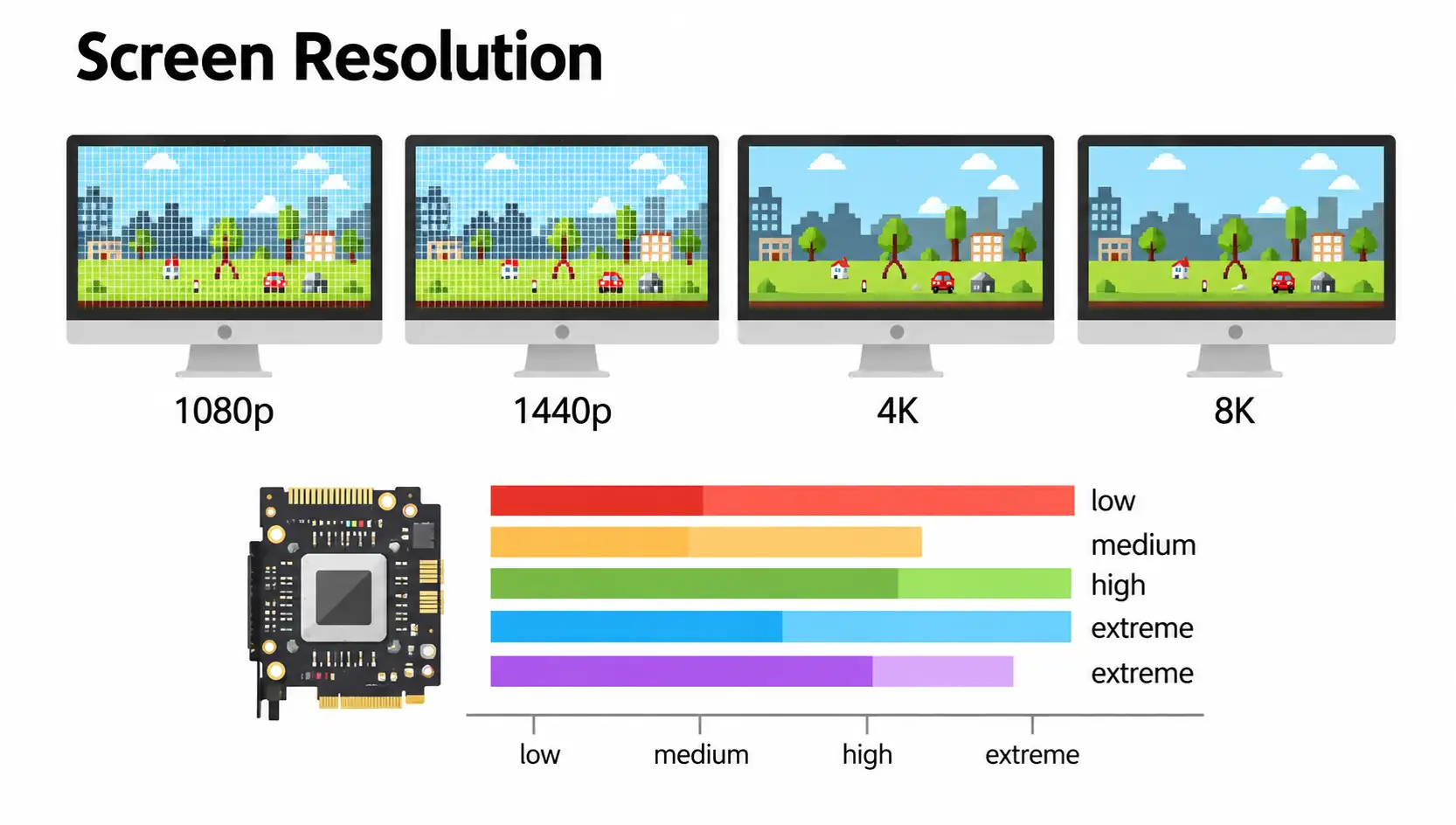
Full HD, or 1920×1080, is still the go-to resolution for competitive players because it’s the easiest on the GPU, which makes it simple to hit very high refresh rates like 240Hz or 360Hz. At 24 to 27 inches it still looks crisp, but stretch it across a bigger screen and individual pixels start to show.
Quad HD, better known as 1440p, sits right in the middle. Most current mid-range and higher graphics cards can hold well over 100 frames per second at this resolution in the majority of games, which is exactly why 1440p gets called the sweet spot so often. You get noticeably sharper detail than 1080p without needing top-tier hardware to keep things smooth.
4K packs in four times the pixels of Full HD and delivers exceptional sharpness, but it demands a serious graphics card to hold a high frame rate. On a 27-inch screen, 4K pixel density crosses 160 pixels per inch, which is a real jump in clarity over 1440p, especially for text and fine in-game detail. Some monitors now go even further with 8K panels, but that’s still more of a novelty than a practical gaming choice since no consumer GPU can drive demanding titles at that resolution with a smooth frame rate.
Pixel Density Explained
Pixel density, measured in pixels per inch or PPI, tells you how sharp the image actually looks once size and resolution are combined. A 27-inch monitor at 1080p sits around 81 PPI, which means less crisp detail and more visible pixel structure up close. The same 27-inch screen at 1440p climbs to about 109 PPI, giving you a noticeably sharper picture without needing any display scaling. Push that same size to 4K and you’re looking at roughly 163 PPI, sharp enough that text and small UI elements often need scaling just to stay readable. As a rule, bigger screens need higher resolution to avoid a soft, pixelated look, while smaller screens can get away with lower resolution and still look sharp.
Matching Your Graphics Card to a Resolution
Resolution and graphics card power have to be picked together, or one of them ends up wasted. For 1080p at a high refresh rate, a mid-range card is usually enough to keep frame rates comfortably above 144 in most titles. Stepping up to 1440p calls for something closer to an RTX 4060 Ti or RX 7700 XT class card if you want to stay above 100 frames per second in demanding games without turning settings way down.
4K is the most demanding tier by far, and holding a high frame rate there really needs a high-end card like an RTX 4080 or 4090, or the closest AMD equivalent, especially in newer, more graphically heavy titles. Buying a 4K or high refresh rate gaming monitor without the graphics card to back it up just means the extra resolution or Hz sits unused most of the time.
Panel Type – TN, VA, IPS, or OLED
The panel inside a gaming monitor decides color accuracy, viewing angles, contrast, and how fast pixels can change. Each type comes with tradeoffs, so the right pick depends heavily on what kind of games you play most.

TN Panels
TN panels are the oldest and cheapest panel technology, known for extremely fast pixel response and low prices, but also for washed out colors and narrow viewing angles. Tilt your head even slightly off center and the image shifts noticeably in contrast and color. That barely matters for competitive gaming where your eyes stay locked on the center of the screen, which is exactly why TN monitors are still around at the budget end of high refresh rate displays, even as IPS panels close the speed gap.
VA Panels
VA panels land between TN and IPS in terms of speed, but they win on contrast, producing deep blacks that other panel types struggle to match. That makes VA a strong pick for horror games, atmospheric RPGs, and anything where shadow detail matters. The downside is a smearing effect in fast dark scenes, often called black smearing or ghosting, that’s improved on newer models but hasn’t fully disappeared. If contrast matters more to you than absolute speed, a VA panel is a solid middle ground.
IPS Panels
IPS panels deliver the most accurate and consistent colors along with the widest viewing angles of any LCD panel type, typically rated at 178 degrees both horizontally and vertically. Modern IPS panels have also closed much of the speed gap with TN, with response times now down to 1 to 4 milliseconds on higher end models. That combination of speed and image quality is why IPS has become the default recommendation for most gamers, whether they’re playing shooters, RPGs, or working on the same screen. The main weakness is IPS glow, a faint glowing effect near the corners of the screen that shows up mostly in dark rooms with dark content on screen. TN panels, by comparison, often fall well short of that 178 degree figure, which is why colors shift noticeably the moment you’re not sitting dead center.
OLED Panels
OLED panels use self-emissive pixels, meaning each one can turn completely off for true black and essentially infinite contrast. Response time drops below one millisecond, so motion looks clean whether the screen is busy or still. That combination makes OLED the pick for anyone chasing the best possible image with no real compromise on speed. The tradeoff is a risk of burn-in from static elements like a HUD staying on screen too long, though modern OLED monitors include pixel shifting, panel refresh cycles, and other safeguards that cut that risk down significantly for normal use.
OLED vs Mini LED
Some LED-backlit monitors now use Mini LED backlighting with full-array local dimming to close the contrast gap with OLED, and it’s worth knowing how the two actually compare before paying a premium for either. A strong Mini LED panel can push past 1000 nits of sustained brightness, well beyond what most OLED monitors can hold in a large white window, which makes Mini LED the better pick for a bright room or content with a lot of full-screen white.
The catch is that a Mini LED backlight is split into a limited number of dimming zones, often somewhere around a thousand on a 32-inch panel, and small bright objects against a dark background, like stars in a night sky or subtitles on a movie, can cause a faint halo called blooming around them. OLED avoids that entirely since every pixel is its own light source, so dark scenes look cleaner and more precise, just without the same peak brightness. In practice, Mini LED suits brighter environments and mixed-use setups, while OLED remains the stronger choice for a darker room and games or movies with a lot of shadow detail.
Refresh Rate – How Many Hz Do You Actually Need
Refresh rate, measured in Hz, tells you how many times per second a gaming monitor redraws the image. A higher number means smoother motion and less blur, though the jump between different levels isn’t always felt equally.
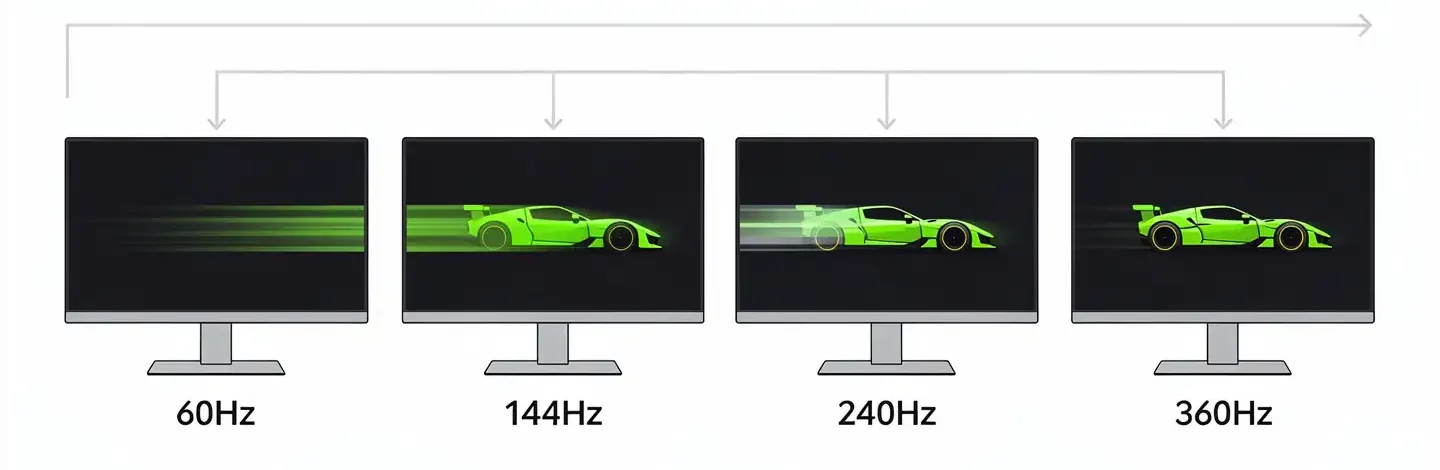
Going from 60Hz to 144Hz is a massive, instantly obvious difference that anyone can spot the moment they see both screens side by side. Motion becomes far smoother and the whole experience feels more responsive, especially in fast-paced genres like shooters and racing games.
The jump from 144Hz to 240Hz is more subtle, but it’s still there, particularly in competitive shooters where every fraction of a second counts. To actually feel that difference, your GPU needs to consistently push frame rates close to that number, since a 240Hz monitor displaying only 100 frames per second offers no real advantage over a 144Hz screen in the same scenario.
Past 240Hz, the gains get harder to notice for most players, and stepping up to 360Hz or higher mostly makes sense for players competing at a high level in fast titles where every edge counts. For most people, a monitor in the 144 to 165Hz range hits the best balance of price and experience, and if you’re wondering 120whether Hz is good enough for more relaxed gaming, it usually delivers a perfectly smooth result too. According to research from Blur Busters, motion blur on a display decreases as refresh rate goes up, which explains why the difference feels bigger at lower numbers than it does higher up the scale.
Response Time vs Input Lag
Response time measures how fast a pixel can shift from one color to another, expressed in milliseconds. This is one spec where manufacturers almost always list the best possible result under ideal lab conditions rather than an average of real-world performance. A VA panel advertised at 1ms in the spec sheet can still show visible smearing in dark scenes, since the number reflects the fastest possible pixel transition, not typical behavior.
On IPS panels, aggressive overdrive settings meant to speed things up can backfire and cause inverse ghosting, a faint halo trailing behind moving objects. For practical gaming purposes, anything under 5ms is hard to notice with the naked eye, so the real goal is avoiding a panel with obvious smearing rather than obsessing over the lowest number on paper.

Input lag is a completely different measurement, and it’s worth not confusing the two. It’s the delay between pressing a key or moving your mouse and seeing that action register on screen, and it comes down to the monitor’s internal processing rather than the panel itself. A monitor with a fast 1ms response time but poor internal processing can still feel sluggish, since the signal has to pass through extra steps before it reaches the screen. Features like motion interpolation, noise reduction, and aggressive local dimming often add extra lag, so turning on game mode and disabling unnecessary processing is usually the right move before you start playing.
Adaptive Sync – G-Sync vs FreeSync
Screen tearing happens when a gaming monitor displays parts of two or more frames at once, creating a visible split across the image. Adaptive sync technology fixes this by matching the monitor’s refresh rate to whatever frame rate the GPU is actually producing in real time.

G-Sync is Nvidia’s version, built for Nvidia graphics cards. The full hardware version requires a dedicated module inside the monitor, which usually adds a hundred dollars or more to the price. There’s also a G-Sync Compatible label, given to FreeSync monitors that Nvidia has tested and certified to work properly with its cards, without needing that extra hardware inside the display.
FreeSync is AMD’s answer to the same problem, and it comes in several tiers ranging from basic FreeSync up to FreeSync Premium Pro, which adds HDR support and low latency requirements. In practice, G-Sync Compatible and FreeSync Premium monitors feel nearly identical for most players, so the pricier hardware-based G-Sync module only really makes sense if you need guaranteed performance at the extreme edges of the sync range. Before buying, check that your graphics card supports whichever technology the monitor uses, and whether HDMI or DisplayPort is the connection that carries it.
To use these technologies you’ll need a compatible card on your end. G-Sync needs at least a GeForce GTX 650 Ti Boost, G-Sync Compatible works from the GTX 10-series onward, and FreeSync needs a Radeon R9 or R7 200-series card or newer, with a handful of older models excluded.
Ports and Connectivity
The connection between your gaming monitor and your PC or console matters more than most buyers expect, since the wrong port can quietly cap your resolution or refresh rate no matter how good the panel is. HDMI 2.1 is the one to look for if you’re gaming on a PS5 or Xbox Series X, since it’s the only HDMI version that supports 4K at 120Hz. Older HDMI 2.0 ports max out at 4K 60Hz, which noticeably holds back a current-gen console. On the PC side, DisplayPort 1.4 is the standard for high refresh rate gaming, and it’s usually the port you want for anything above 144Hz at 1440p or 4K, since some HDMI versions can’t carry that much bandwidth.
A growing number of monitors also include a USB-C port with DisplayPort Alt Mode, letting a single cable carry video, data, and power at once, which is especially handy with laptops. Beyond video, check for a built-in USB hub if you want to plug in a mouse, keyboard, or webcam directly into the monitor instead of running extra cables back to your PC, and count how many total video inputs you actually need if you’re running more than one device into the same screen.
HDR on Gaming Monitors – Is It Worth It
HDR boosts brightness, contrast, and color depth, but not every gaming monitor labeled HDR delivers on that promise. According to certification criteria from VESA, which issues the DisplayHDR standard, there are several tiers that differ a lot in actual visual impact.
DisplayHDR 400 is the entry-level certification, capped at 400 nits of peak brightness with no local dimming requirement, so the difference from standard SDR content is minor at best. DisplayHDR 600 already brings a noticeable step up, while DisplayHDR 1000, paired with full-array local dimming or an OLED panel, delivers a real HDR experience with deep contrast and strong detail in both bright and dark areas. OLED monitors have their own tier, DisplayHDR True Black, which trades some peak brightness for perfect black levels and exceptional contrast thanks to the panel technology itself.
Before buying a monitor because of an HDR label, check the exact certification tier, since the word HDR on a box doesn’t guarantee a meaningful upgrade if it’s sitting at the lowest level.
Motion Blur Reduction – ULMB, ELMB, and Backlight Strobing
Some gaming monitors offer backlight strobing technology, usually branded as something like Ultra Low Motion Blur, Extreme Low Motion Blur, or simply a low MPRT mode. When turned on, this removes the motion blur that’s naturally present on every sample and hold display, giving motion a crisp, almost CRT-like clarity. The tradeoff is a noticeable drop in maximum brightness while the feature is active, so it’s usually best reserved for gaming sessions rather than everyday use. It’s also worth knowing you generally can’t run backlight strobing and adaptive sync at the same time unless the monitor has a special hybrid feature built specifically for that, since most implementations force you to pick one or the other.
Curved vs Flat Monitors
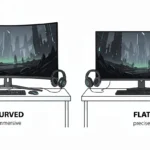
Curved screens follow the natural shape of the human eye, cutting down on edge distortion and adding a sense that you’re more wrapped up in whatever you’re looking at. That benefit becomes more obvious on larger and ultrawide displays, while on a smaller 24 or 27-inch screen the difference from flat barely registers.

The question of whether curved monitors are actually good for gaming usually comes down to screen size and genre, since driving games, simulations, and open-world titles benefit from the added immersion, while some players in precision-focused team shooters still prefer a flat panel. Flat monitors remain the more practical choice for smaller desks, multi-monitor setups placed side by side, and anyone who values simplicity over the extra sense of depth a curve provides.
Ultrawide vs Standard Widescreen
Ultrawide monitors, running at 21:9 or 32:9, give you noticeably more horizontal screen space than a standard 16:9 panel, roughly 33 percent more in the case of 21:9. That extra width means a wider field of view in games that support it, which can help spot enemies approaching from the sides sooner.
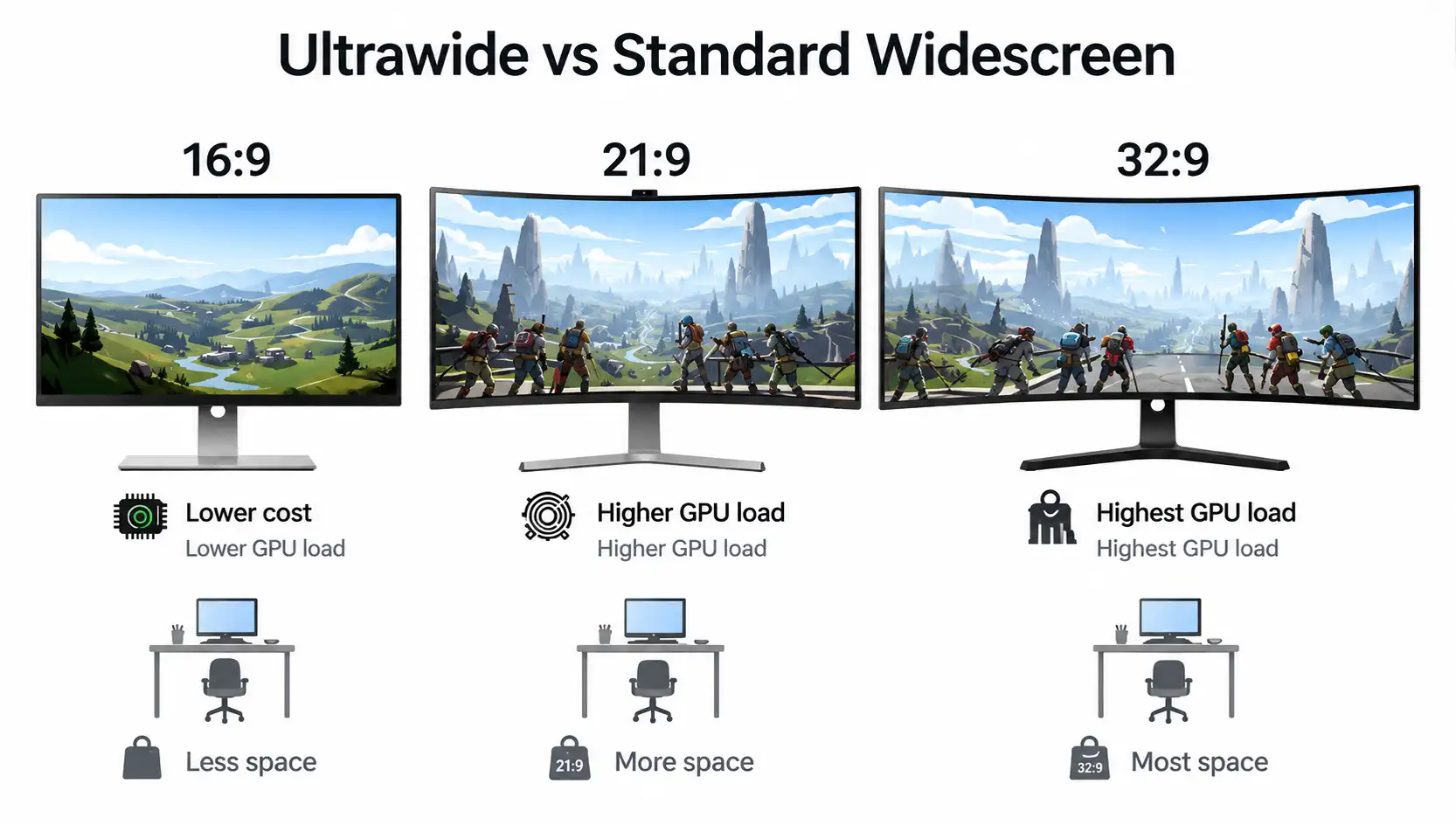
Some competitive titles intentionally cap the field of view at 16:9 for fairness reasons, so it’s worth checking whether the games you actually play support ultrawide resolutions before committing. Beyond gaming, an ultrawide screen is also great for multitasking, letting you sit two windows side by side without needing a second monitor at all. The downsides are a higher price, the need for a stronger graphics card to hold a high frame rate at that resolution, and a lot more desk space required.
Monitor or TV for Gaming
For fast, competitive gaming, a monitor is almost always the better pick thanks to higher refresh rates, lower input lag, and a smaller screen size that’s easier to take in at a glance. TVs have caught up somewhat, with some models now hitting 120Hz and even 144Hz, but monitors still generally offer a faster, more responsive image built specifically around gaming needs.

On the other hand, a 55-inch or bigger TV delivers a cinematic scale that no monitor can match, which matters more for story-driven, slower paced games where reaction speed isn’t the priority. The choice really comes down to whether you value speed and precision for competitive play or a big screen and immersive scale for relaxed couch gaming.
Best Gaming Monitor by Play Style
Different play styles call for different priorities, so it helps to define what you actually play before locking in on a specific model.
For Competitive Gaming
If shooters, fighting games, or MOBAs make up most of your playtime, prioritize a refresh rate of at least 144Hz along with a fast response time. A 1080p resolution remains a solid choice here since it’s easier on the GPU, letting it hold a high, stable frame rate. The panel doesn’t need to be the most expensive option as long as it’s fast and syncs well with your graphics card.
For Casual Gaming
For more relaxed play without serious esports ambitions, an IPS panel paired with 1080p or 1440p resolution and a 100 to 144Hz refresh rate gives you a genuinely satisfying experience, with the added bonus of good color accuracy for everyday use and content outside of games.
For Immersive Single-Player Gaming
Players spending most of their time in open worlds, RPGs, or horror games should prioritize contrast and resolution over raw speed. A VA or OLED panel with 1440p or 4K resolution, ideally on a larger curved screen, adds a level of depth to these genres that extra speed simply doesn’t provide.
For a Mixed Setup
If you can’t settle on one priority, dual mode monitors offer a practical answer by letting you switch between a high resolution mode with a lower refresh rate and a lower resolution mode with a much higher refresh rate, depending on what you’re playing at the time.
Gaming Monitor Prices – What You Get at Each Budget
Prices for a gaming monitor range from under a hundred and fifty dollars for entry level options to well over a thousand for top tier OLED and dual mode displays. Here’s roughly what to expect at each price point:
- Under $150: 1080p resolution, IPS or VA panel, 100 to 144Hz refresh rate, basic FreeSync support
- $150 to $300: high refresh rate 1080p or 1440p at 144Hz, better panel quality and more accurate colors
- $300 to $600: 1440p with 165 to 240Hz, higher grade IPS or VA panel, often basic HDR support
- $600 and up: OLED panels, 4K resolution paired with high refresh rates, dual mode options, and proper HDR performance
Before buying, set a realistic budget and decide which spec actually matters most for how you play, since paying extra for performance you’ll never use, like a 240Hz panel driven by a card that barely holds 100 frames per second, simply isn’t a good use of money.
Common Mistakes When Buying a Gaming Monitor
One of the most common mistakes is buying a high refresh rate gaming monitor without checking whether the graphics card can actually deliver enough frames to take advantage of it. Another is picking too large a screen for a small desk, which turns what should be immersive into something uncomfortable to sit in front of. Plenty of buyers also overlook ports, ending up with a gaming monitor that lacks HDMI 2.1 for a current-gen console or doesn’t have enough DisplayPort inputs for multiple devices. Trusting marketing labels like HDR or a low advertised response time without checking the real specifications behind them often leads to disappointment, since the number on the box doesn’t always match real-world performance. Finally, ignoring ergonomics, like height and tilt adjustment, tends to cause physical discomfort over time no matter how good the rest of the monitor’s specs are.
Final Thoughts
Choosing a gaming monitor gets a lot easier once you decide what you actually play and how much you’re willing to spend before comparing specs. Panel type shapes color and speed, resolution and screen size shape sharpness and immersion, and refresh rate along with response time decide how smooth and responsive everything feels in motion. There’s no single best gaming monitor, only the best choice for your play style, your hardware, and your budget, so the real goal is matching all of these factors together instead of chasing the highest number on a spec sheet.
Frequently Asked Questions
What refresh rate is good enough for gaming?
For most players, 144Hz strikes a great balance between price and experience, while competitive and professional gaming benefits more from 240Hz or higher, as long as the graphics card can actually sustain that frame rate.
Is OLED good for gaming?
Yes, OLED panels offer the fastest response time, perfect black levels, and the best contrast available, with the main tradeoff being a small risk of burn-in from long-term static images, something modern monitors largely manage through built-in safeguards.
Is 144Hz or 240Hz better?
It depends on how many frames per second your graphics card actually delivers. If you’re consistently hitting over 200 frames per second in your games, 240Hz offers a real advantage, but without that, 144Hz remains the smarter and more cost-effective choice.
IPS vs VA for gaming, which is better?
IPS panels offer better colors and faster response times on modern models, while VA panels win on contrast and black depth. IPS is generally the better fit for fast-paced genres, while VA delivers a more convincing image in dark, atmospheric games.
Do I need a curved monitor?
A curved monitor makes the most sense on ultrawide and larger screens over 30 inches, where the curve genuinely adds to the sense of immersion. On smaller screens, the difference compared to a flat panel is barely noticeable.
Monitor or TV for gaming, which should I pick?
A monitor is the better pick for fast, competitive gaming thanks to lower input lag and higher refresh rates, while a TV wins for relaxed gaming where a big screen and cinematic feel matter more than reaction speed.
What resolution is best for gaming?
For competitive play, 1080p remains practical since it makes high refresh rates easier to hit, while 1440p offers the best balance of sharpness and hardware demand for most gamers. 4K only makes sense with a powerful graphics card and a focus on visual quality over raw speed.